Updated
Go to Settings > Integrations and select Stage mappings on the connected Connective card.
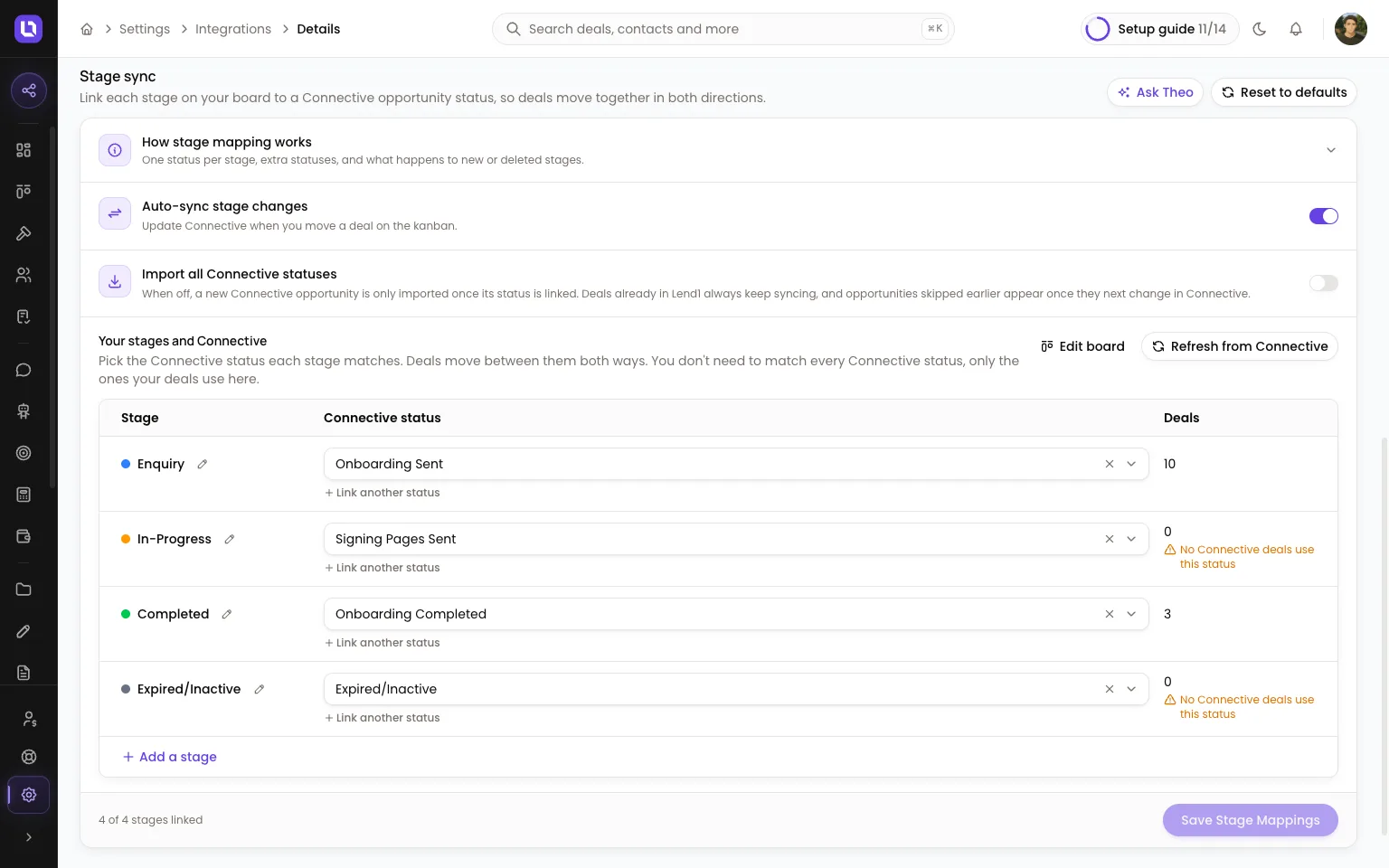
To link your Lend1 stages to Connective statuses, open Stage sync, pick a Connective status for each stage in the Your stages and Connective table, then select Save Stage Mappings. Each link works both ways: moving a deal to the stage updates Connective to that status, and Connective opportunities in that status come into the stage.
Stage sync belongs to your own connection and board, so your changes don't affect anyone else on the team. Connective has no fixed list of statuses: you pick from your own Connective opportunities, and Lend1's default stage names (Enquiry, In-Progress, Completed and Expired/Inactive) only appear in Connective if Lend1 has sent them. Link only the statuses your deals use; most brokers leave settled-year archives and follow-up buckets on other Connective boards unlinked.
Before you start
- Connect your own Connective account first. See Connecting Connective Mercury Nexus.
Link a Connective status to each stage
Step 1: Open Stage sync
- Stage mappings opens your connection on its Settings tab, with Stage sync below Inbound webhooks.
- The section has Reset to defaults, an expandable How stage mapping works panel, and Ask Theo, which opens Theo with a question about stage mapping.
- Auto-sync stage changes: "Update Connective when you move a deal on the kanban."
- Import all Connective statuses: "When off, a new Connective opportunity is only imported once its status is linked. Deals already in Lend1 always keep syncing, and opportunities skipped earlier appear once they next change in Connective."
Step 2: Pick a status for each stage
- The Your stages and Connective table has a row for each stage on your board, with columns Stage, Connective status and Deals.
- Select a stage's Connective status field. A list opens with a search box ("Search or type a status"), Recently used statuses (with deal counts and when each was last used) and Older statuses.
- Not in the list? Select Add a status that isn't listed and type it exactly as Connective shows it, up to 84 characters. Connective treats any new text as a new status.
- Select the × on a field to unlink the stage ("Not linked"). An unlinked Settled or Inactive stage can still send Completed or Expired/Inactive to Connective; when it does, the Deals column says so.
- The Deals column shows how many of your Connective deals use the linked status. "No Connective deals use this status" warns you when none do.
- When a stage's name matches one of your Connective statuses, Lend1 fills in the link and marks it Suggested.
- If a saved status is spelled differently from Connective's, the row says "Connective spells this "X"". Select Use Connective's spelling to correct it.
Step 3: Save
- Select Save Stage Mappings at the bottom of the table. Lend1 confirms with "Stage mappings saved", and the footer counts your linked stages. Suggested links are only kept once you save.
- Reset to defaults restores the built-in links. Nothing applies until you save.
Bring several Connective statuses into one stage
- Select + Link another status under a stage's field to add statuses that also bring deals into it, for example Settled 2025 and Settled 2026 into one Settled stage.
- Each extra status shows as a tag; select its × to remove it. Save as usual.
- A status can bring deals into only one stage. Picking one that another stage already uses moves it to this stage.
Add or rename a stage from the table
- Select + Add a stage in the table's last row. Enter a Stage name, choose an Outcome (Active, Settled or Inactive) and optionally a Connective status, then select Add stage.
- With a status, the stage is created and linked in one step; without one, link it later in its row. New stages are placed by outcome: Active before Settled and Inactive.
- To rename a stage, select the pencil next to its name (Rename Stage) and type the new name. Only the name changes; its deals stay in the stage.
- Adding and renaming save straight away, and need permission to edit your board: Manage Own Pipeline, or Manage Pipeline Stages. While the table has unsaved changes they show "Save your changes first".
- Edit board opens the deals board to reorder or delete stages or change an outcome. Deleting a stage removes its Connective link, so that status stops importing. See Pipeline stages and stage outcomes.
- Refresh from Connective reloads your Connective statuses.
Review statuses your deals use that aren't linked
When statuses your Connective deals used in the last 90 days aren't linked, a summary line appears above the table: "{n} Connective statuses your deals use aren't linked", plus "· {k} match stages you already have" when some share a name with one of your stages.
- Select Review to open the list. Each line shows a tick box, the status, its deal count for the last 90 days and the suggested action: "Link to your "{stage}" stage" (already ticked) when a stage has the same name, otherwise "Add as a new stage".
- Tick a row, or select Change on a ticked one, to see its options on the same line: Add as a new stage (with a name and an Active, Settled or Inactive outcome), Rename a stage or Link to a stage.
- The first five show; Show {n} more lists the rest.
- Apply {n} changes applies the ticked rows, up to 10 new stages at a time. Adding and renaming need the same board permission as above.
Dismiss a status you don't need
- When Connective opportunities were skipped because their status isn't linked, your connection page shows "{n} deals weren't imported from Connective in the last 30 days", listing each status with "{n} deals skipped".
- Link to a stage takes you to the table and asks which stage should bring them in. Each deal comes in the next time it changes in Connective.
- Dismiss, here or on a row of the review list, stops a status being recommended or reported as not imported. It stays unlinked.
- Dismissed statuses appear at the bottom of the table as "{n} statuses dismissed" (or "1 status dismissed"). Select Bring back to undo it.
- "Opportunities from {n} Connective agents not in Lend1 were ignored" lists the CA numbers of agents who aren't in Lend1, with counts.
Please note: if a Connective deal didn't come into Lend1, check that its status is linked to one of your stages, or turn on Import all Connective statuses.