Updated
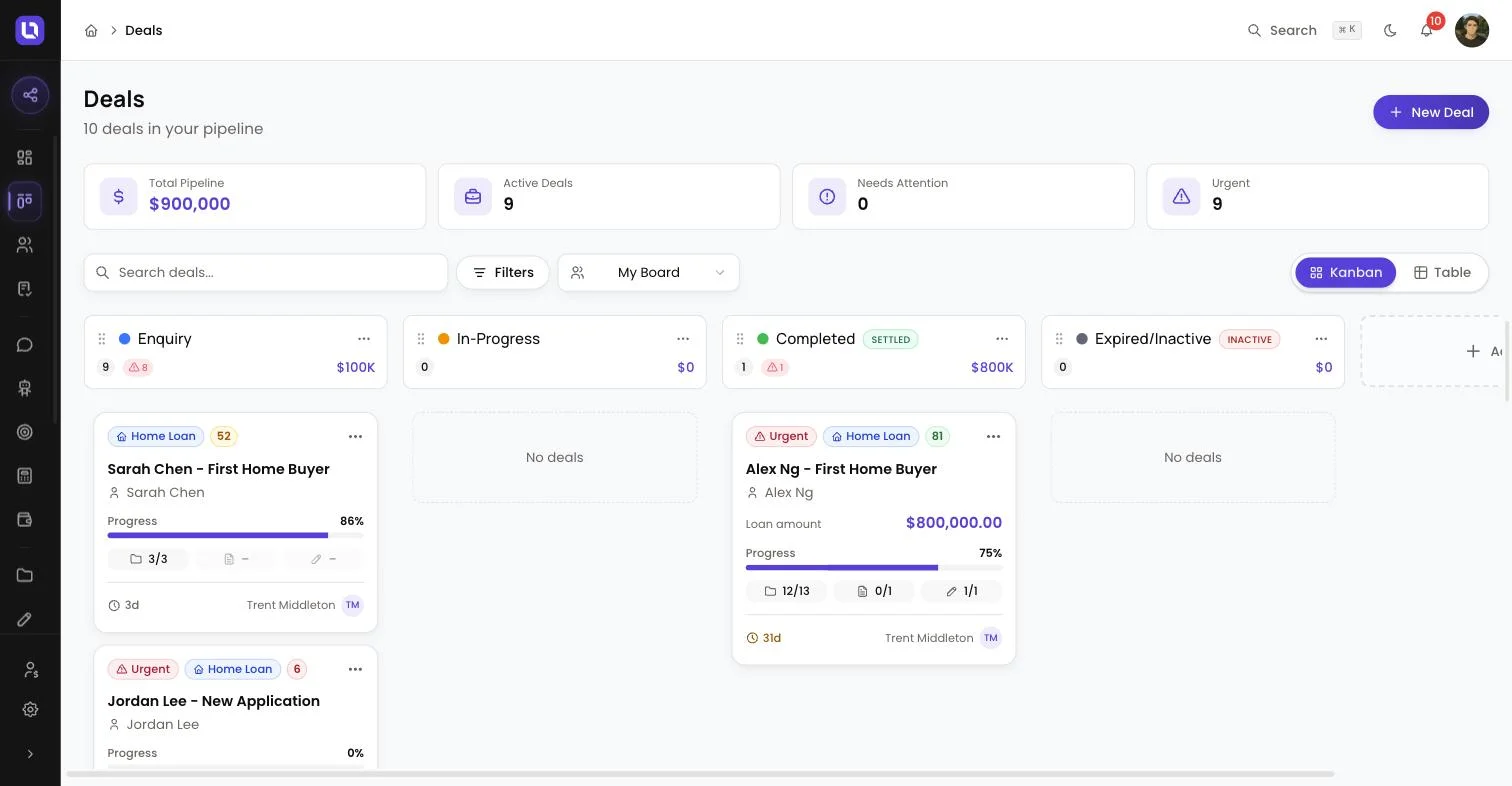
Go to Deals. Stage management lives on the board itself: select Add Stage at the end of your columns to create one, or open the menu in an existing column's header to edit or delete it.
The columns on your board are your pipeline stages, and they're entirely yours to define: add, rename, recolour, reorder or delete them to match how your brokerage actually works. Every stage also carries an outcome, and that outcome is what tells Lend1 whether a deal sitting in it is still active, already settled, or inactive.
Stage outcomes
Below is a table of outcomes and what they do.
| Outcome | What it means |
|---|---|
| Active | The deal is still open and being worked. Use this for stages like Enquiry or In-Progress. |
| Settled | The deal is closed and won. Moving a deal into a Settled stage closes it automatically. |
| Inactive | The deal is closed and lost, for example expired, withdrawn or declined. Moving a deal into an Inactive stage closes it automatically too. |
Please note: AI insights and lead scoring pause on a closed deal. On the deal, the Refresh button is replaced with "AI insights are paused for closed deals." A closed deal that was never scored shows "Lead scoring is paused for closed deals." in place of Calculate Score; one that already has a score keeps showing it. Move the deal back into an Active stage to pick both up again. See Understanding AI Insights and lead scoring.
Add or edit a stage
Step 1: Open stage settings
- To add a new stage, select Add Stage in the column at the right-hand end of the board.
- To edit an existing stage, open the menu in that column's header and select Edit Stage.
- Adding, editing, reordering or deleting stages needs the Manage Pipeline Stages permission, which the Admin role has by default. If you don't see Add Stage or a column's menu, ask an admin to make the change, or to grant you that permission under Settings > Roles & Permissions. See Creating custom roles and permissions.
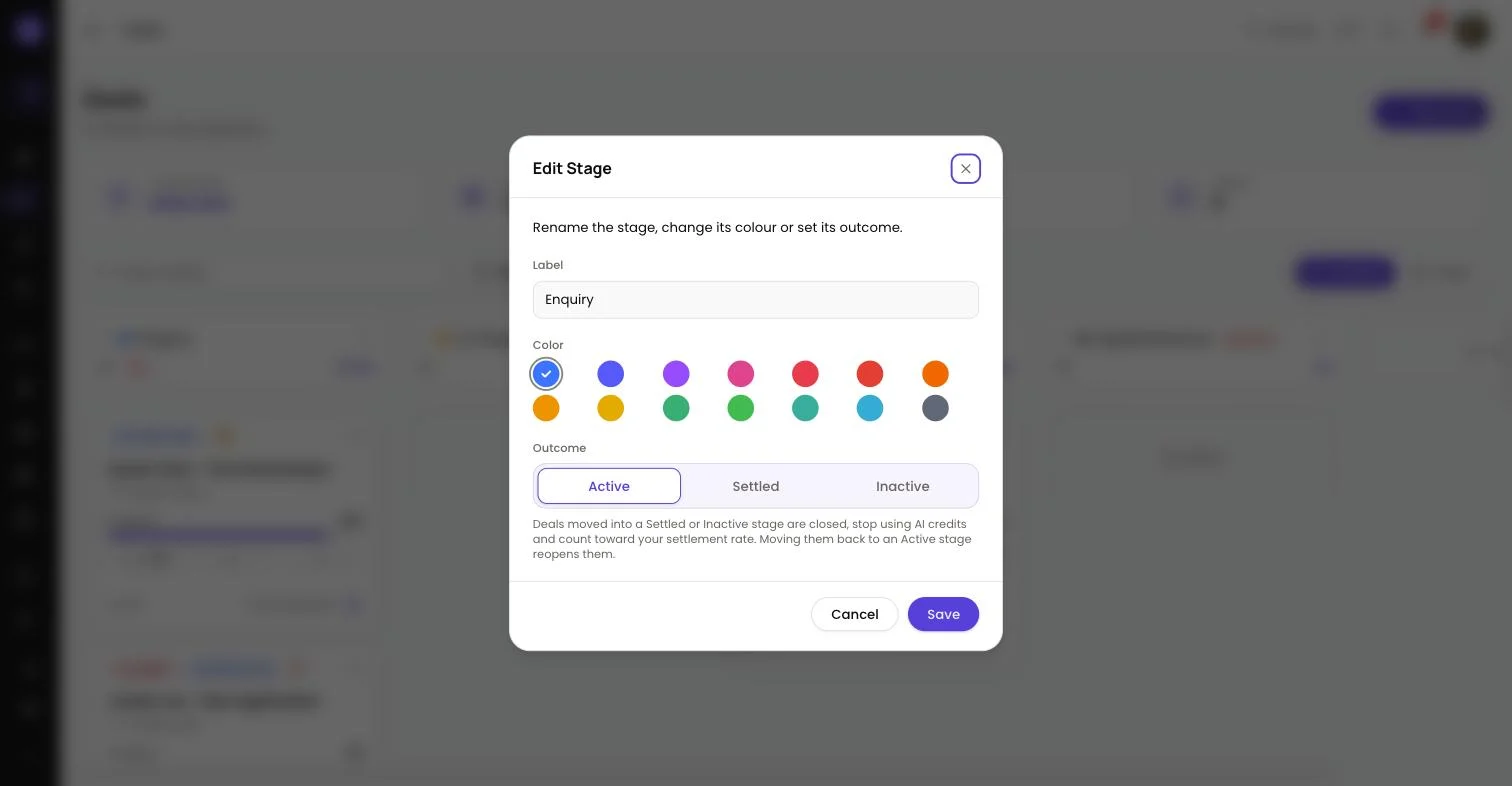
Step 2: Name the stage and choose its outcome
- Give it a Label (its name on the board) and pick a Color from the picker.
- Set its Outcome: Active, Settled or Inactive. This is required for every stage, and it's what decides whether a deal sitting there is still open. New stages default to Active.
- Select Create Stage when adding, or Save when editing.
Step 3: Order your stages
- A new stage lands at the right-hand end of the board. Drag a column by the grip handle in its header to move it, or use Move Left / Move Right from its menu.
Moving deals between stages
Drag a deal's card from one column to another on the board, or open the deal and change its stage from the dropdown at the top of the page. Either way, Lend1 applies the stage's outcome to the deal automatically:
- Moving a deal into a stage with a Settled or Inactive outcome closes it. It drops out of your Active Deals count on the board, stops earning AI insights and lead scoring, and counts toward your settlement rate.
- Moving a closed deal back into a stage with the Active outcome reopens it. It counts toward Active Deals again, and AI insights and lead scoring pick back up.
- A deal has no separate close button. Moving it into a Settled or Inactive stage is how you close it. See Working in a deal file for the rest of the deal page.
- Moving a deal between two closed stages, Settled to Inactive or the other way, just changes which closed outcome it carries. The deal itself stays closed.
Deleting a stage
- Open the stage's menu and select Delete Stage.
- Lend1 won't let you delete your last remaining stage; you always need at least one.
- If the stage still has deals in it, you're asked to choose another stage to move them to first. Those deals take on the outcome of whichever stage you send them to. Once you've picked one, select Delete.
- If the stage has no deals, you just confirm and it's gone. This can't be undone.
Congratulations! Your pipeline reflects how your brokerage works. Automations can react to stage changes too: see Building your first automation.