Updated
Go to Settings > Compliance.
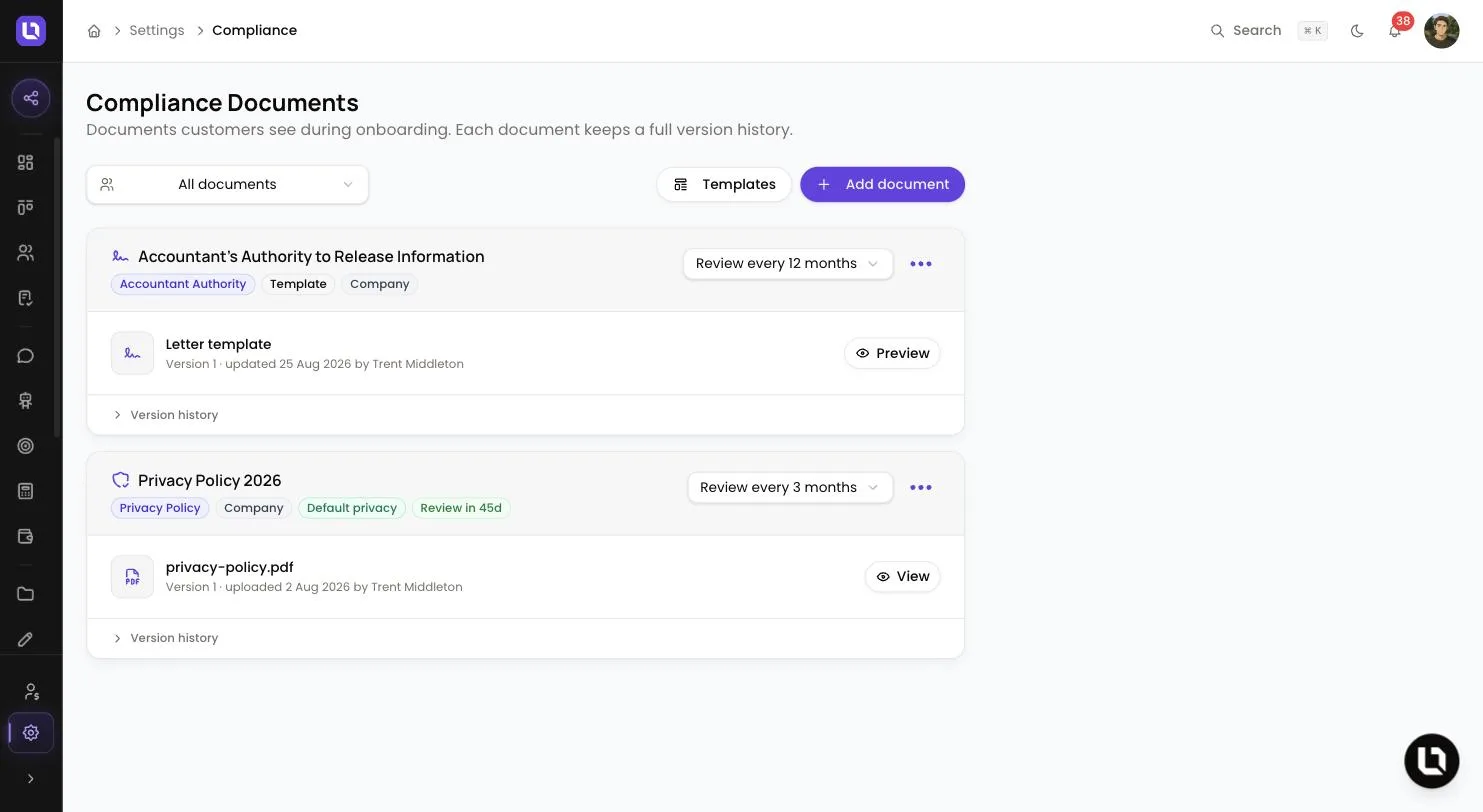
The Compliance Documents page is your compliance library: the documents your clients read, accept or sign in your Onboarding Portal and on eSign requests. A document is either a PDF you upload or a letter template you edit inside Lend1. Every document keeps a full Version history.
Please note: Lend1 provides the tooling, not legal advice. Which documents your business needs, and what they say, is for you and your own advisers to decide.
Before you start
- You need the View Compliance Documents permission to open the page and Manage Compliance Documents to add, edit or archive. If Compliance is missing from the settings menu, ask an admin to grant them under Settings > Roles & Permissions. See Creating custom roles and permissions.
- Documents belong to the company or to one broker. A Company document is shared by every broker and is read-only unless you hold the Admin role or View All Compliance Documents. Without that access, everything you add belongs to you.
- The page opens on My documents. The dropdown also offers Company documents and All documents.
Where your documents appear
Below is a table of places a compliance document is used and what each one does.
| Where | What happens |
|---|---|
| Privacy Sign step in your Onboarding Portal | Your client reads the document, signs and agrees. The step shows the document chosen under Privacy document in its settings. Left on Default privacy document, it shows the assigned broker's default, otherwise the company default. |
| Accountant Authority step in your Onboarding Portal | Your client signs the letter template. Lend1 fills in the merge tags, saves the signed letter to the deal as a PDF and records it as a signed eSign request. |
| Compliance document field on an eSign request | Your client reads the attached document on the signing page before they sign. |
Upload your own document
Step 1: Open the form and fill it in
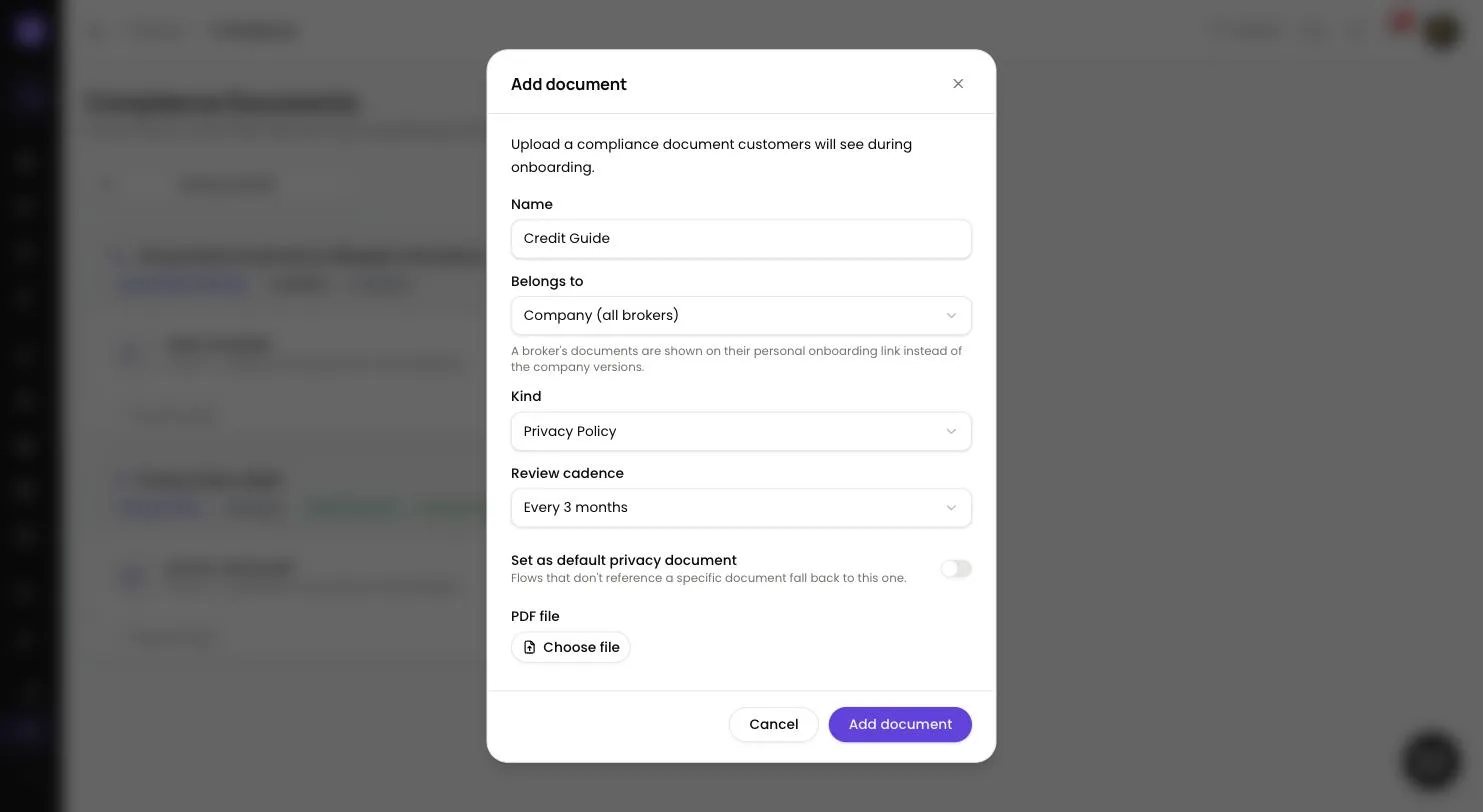
Select Add document.
- Name: up to 120 characters.
- Belongs to: shown only with view-all access. Choose Company (all brokers), Me or a broker. A broker's documents are shown on their personal onboarding link instead of the company versions.
- Kind: Privacy Policy, Credit Guide, Credit Quote, Financial Services Guide or Other.
- Review cadence: from Every 1 month to Every 12 months, pre-filled from the kind.
- Set as default privacy document: flows that don't reference a specific document fall back to this one. An owner's first Privacy Policy becomes their default automatically.
- PDF file: select Choose file. PDF only, up to 10 MB.
Step 2: Save
- Select Add document. The card shows its kind, its owner and a Review in badge counting down the days.
Congratulations! The document is ready for your portal and eSign requests.
Add a letter from Lend1 Templates
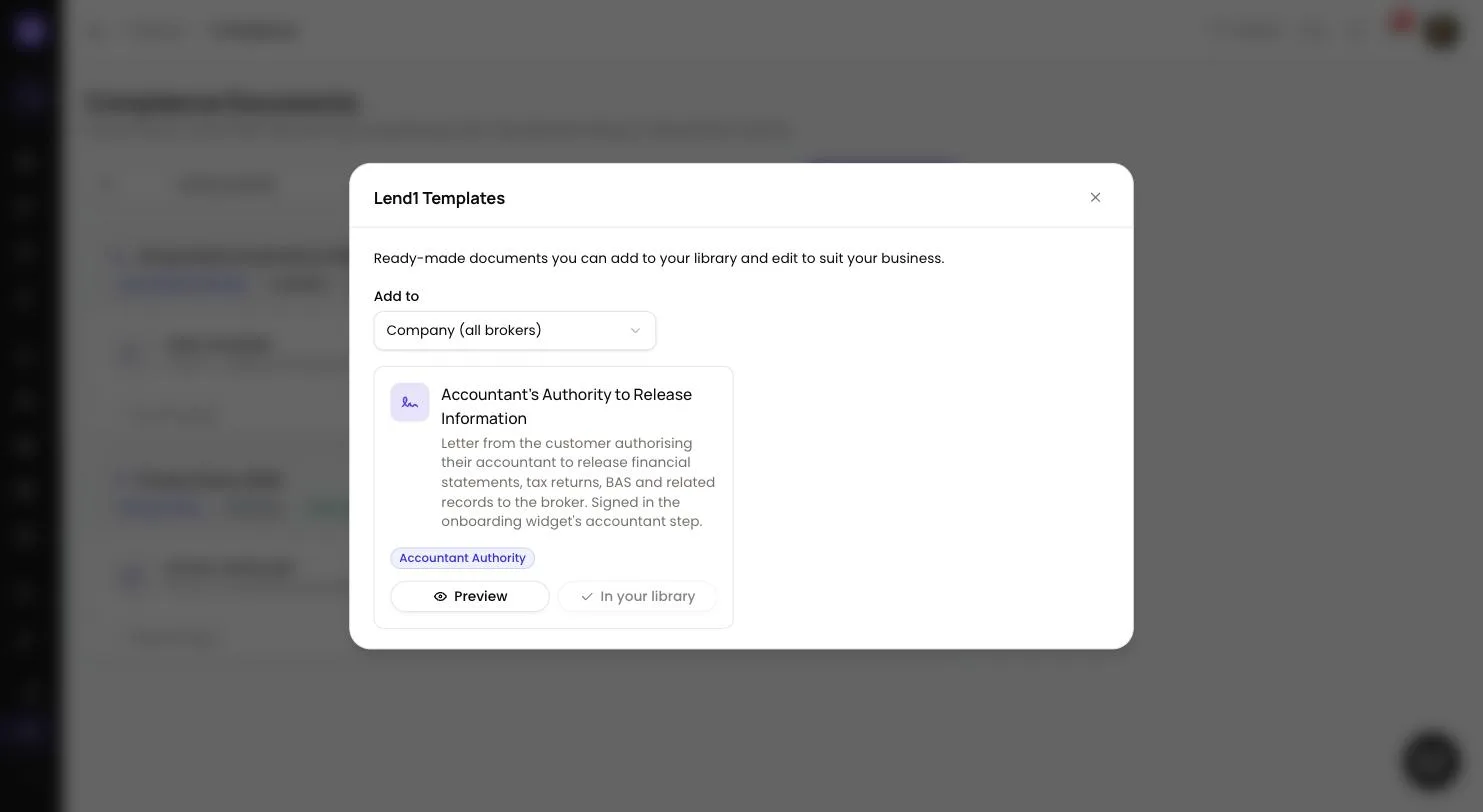
- Select Templates to open Lend1 Templates. The gallery holds one template, Accountant's Authority to Release Information. New workspaces start with a company copy already in the library.
- With view-all access, choose the owner under Add to.
- Select Preview to see it with sample details, then Add to library. Each owner holds one copy, after which the button reads In your library.
To change the wording, open the card's menu and select Edit content. Use only the tags listed under Available merge tags, such as {{customer.full_name}}. Anything not on the list renders blank. Select Save template, then Preview to check the result. Restore Lend1 version saves the current Lend1 wording as a new version, and your edited versions stay in the history.
Update a document
There is no draft or publish step. A change is live once saved.
- Upload new version on a PDF, or Save template on a letter, adds the next version number and records who saved it and when. Uploading a new PDF version also restarts the review period.
- Open Version history on a card to see every version. PDF versions open with View.
- The menu also offers Rename. The dropdown beside it changes the review period.
Below is a table of what a new version changes.
| Where | Effect |
|---|---|
| Onboarding Portal steps | Clients see the new version from their next step load, including applications already in progress. Lend1 records the exact version each client accepted, with the date and time. |
| eSign requests | A request keeps the version that was current when you created it. Create a new request to send the new version. |
Review reminders
Within 14 days of a review date the badge changes to Due in and Lend1 sends an in-app notification, plus an email if your notification preferences allow it. A broker's document notifies that broker. A company document notifies everyone with Manage Compliance Documents. Once the badge reads Overdue by, the reminder repeats weekly until you upload a new version or change the review period.
Archive a document
Documents can't be deleted. Select Archive in the card's menu. The confirmation reads: "Customers will no longer see this document. Flows still pointing at it will fall back to your default privacy document. Version history is kept."
- The card moves to Archived, where it is read-only, and it loses its default privacy status.
- It can't be attached to new eSign requests. Requests already sent keep their attached version.
- Archiving a letter template stops new applications from using it. To bring it back with its history, open Templates and select Restore from archive.