Updated
Log in at app.lend1.com.au. The sidebar on the left is the same on every page, so once you know it you can find anything.
Your workspace is where you run a deal end to end: capture a lead, move it through your pipeline, collect and sign documents, and keep your client updated, all without leaving Lend1.
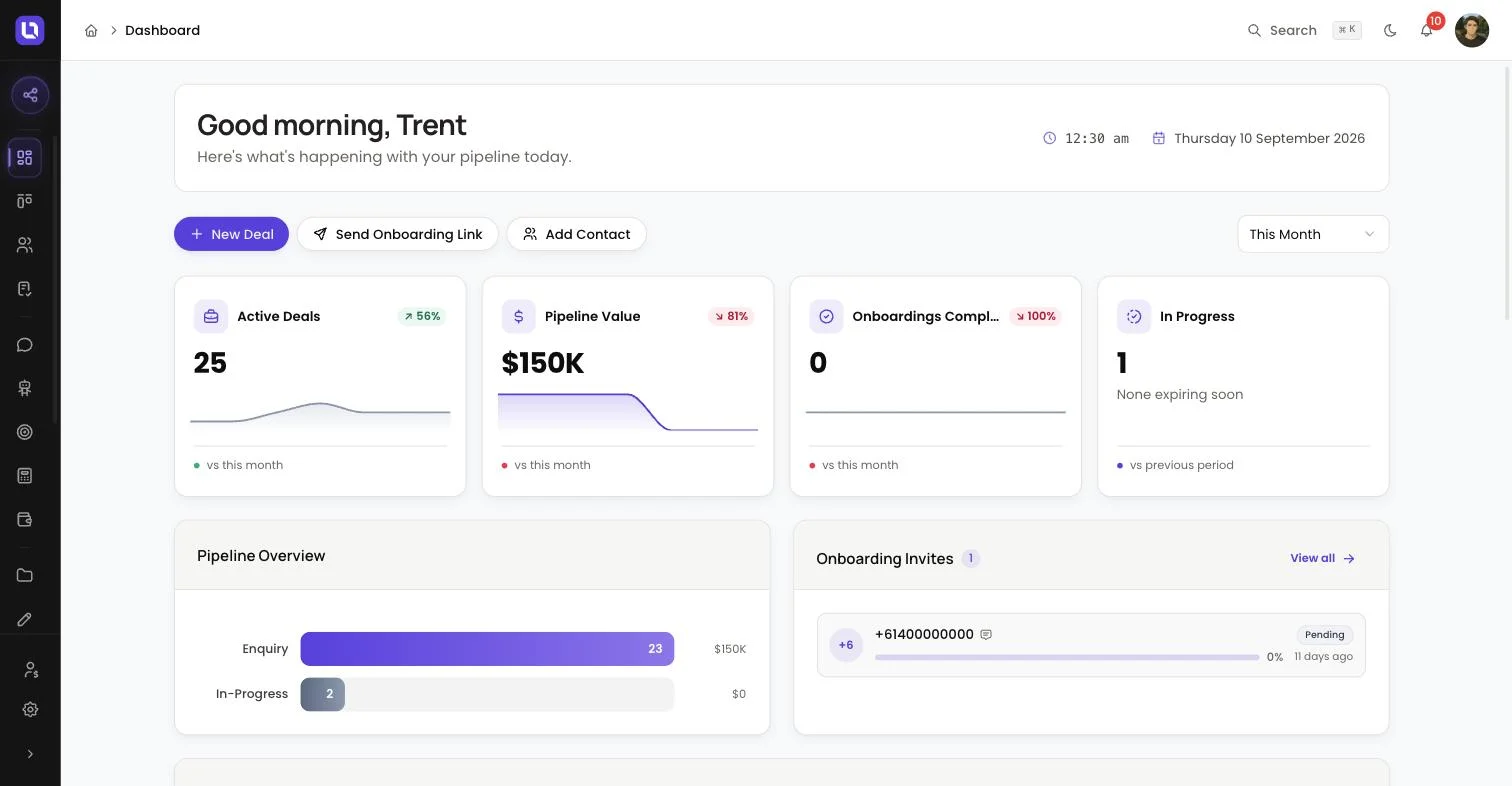
Your dashboard
Your dashboard opens with a greeting and three shortcuts, New application, Send Onboarding Link and Add Contact, so you can start the next piece of work without hunting for the right page. A period selector above the numbers, running from Today through to Last 30 Days, changes Onboardings Completed, the trend badges, Lead Sources and the leaderboard. Active Deals and Pipeline Value always show your open deals as they stand now.
Four cards give you the headline numbers: Active Deals, Pipeline Value, Onboardings Completed and In Progress, the last of which flags any onboarding invites that are expiring soon. Underneath sit a Pipeline Overview chart and a Lead Sources chart showing where your contacts come from, plus a recent activity feed and a list of pending items that need your attention. If you send onboarding invites, you'll also see a summary of invites in progress. The team leaderboard and the forecast need the View Full Dashboard permission, which the Admin role has by default. See Reading your dashboard for what each number means.
Share your application link
Above the main menu is a purple Application link button. Open it and you get three links to copy and send:
- Your application link is personal to you. Anyone who applies through it is assigned to you automatically, so it's the one to put in your email signature and outreach.
- Main Application URL is your brokerage's shared link. If your firm has more than one branch or entity set up, clients choose which one they're applying to.
- Application Login URL is for clients who already started an application. It lets them sign back in and pick up where they left off.
The sidebar
Below is a table of sidebar items and what each one is for.
| Item | What it is for |
|---|---|
| Dashboard | Your homepage: a snapshot of your pipeline, recent activity and onboarding progress. |
| Deals | Your pipeline board: stages, outcomes, deal files and everything attached to a deal. |
| Contacts | Every client, co-borrower and contact you or your team own. |
| Tasks | Follow-ups and deal milestones for you and your team. |
| Conversations | Your inbox for web chat conversations that start with your chatbot. |
| Chatbots | AI assistants that handle client conversations on your website. |
| Lead Widget | An embeddable form widget that captures leads from your website. |
| Calculators | Branded mortgage calculators you configure and embed on your website. |
| Planners | Branded financial planners you configure and embed on your website to capture leads. |
| Documents | Review, approve and organise documents from every deal and contact. |
| eSign | Manage electronic signature requests. |
| Forms | Create and manage data collection forms to send to clients. |
| Invites | Send and track client onboarding invitations. |
| Onboarding Portal | The client-facing loan application wizard: capture leads, verify properties and invite co-borrowers. |
| Automations | Event-driven workflows that move deals forward without manual work. |
| Lend1 AI | Your AI assistant for deals, contacts and tasks, including pipeline and lending questions. |
| AI Insights | AI-generated insights across all your deals. |
| Doc Renamer | Detects and renames every document uploaded to Lend1, using naming rules you set on its own Settings button. |
Please note: Conversations, Chatbots, Lead Widget, Calculators and Planners are Pro plan features. If your plan doesn't include one, it still appears in the sidebar with a small crown so you know it's there, and opening it shows an upgrade page instead of the feature. See Managing your plan and billing.
Referrals and Settings
If your brokerage runs a referral program, a Referrals item appears at the bottom of the sidebar once it's turned on and you have permission to view it. Below that sits Settings, which holds everything about how your workspace is configured, grouped into:
- Account: your profile and notification preferences.
- Workspace: team, organisation, branding, compliance, domains and referrers.
- Channels: SMS Copilot, email settings, system emails and integrations.
- Automation: AI configuration, global variables and email templates.
- Data: import and export.
- System: roles and permissions, billing and the audit log.
At the very bottom, Collapse shrinks the sidebar to icons only, useful if you want more room on screen.