Updated
Go to Settings > SMS Copilot.
SMS Copilot is Lend1 AI by text message. Your workspace gets its own Australian mobile number, each team member verifies their own mobile, and from then on a text to that number is answered from your CRM. It is the same assistant described in Using the Lend1 AI copilot, with the same lookups and actions, but replies are short plain text and you confirm actions by text.
It is a channel for your team, not for clients. A text from an unverified mobile gets one automatic reply saying the inbox is not monitored, and nothing from your CRM. For client SMS, see Replying to clients in Conversations.
Before you start
- SMS Copilot is included in the Pro and Enterprise plans. On Starter it is a paid add-on. Without it, SMS Copilot still shows in the settings menu but opens a locked page.
- Buying or removing the add-on needs the Manage Billing permission. Verifying your own mobile does not need a permission.
- You need an Australian mobile. A number can be verified by one team member only.
- Each request needs the matching permission on your role. For example, sending a text needs Send SMS.
Add SMS Copilot on Starter
Step 1: Open the add-on
- Go to Settings > Billing and find the SMS Copilot card. The locked SMS Copilot page offers the same add-on.
Step 2: Confirm
- Select the add button, which shows the monthly price, then Add SMS Copilot in the dialog. Your card on file is charged a prorated amount for the rest of the billing period, then the add-on is billed monthly with your plan.
Lend1 then sets up your number automatically.
Verify your mobile
Step 1: Check your workspace number
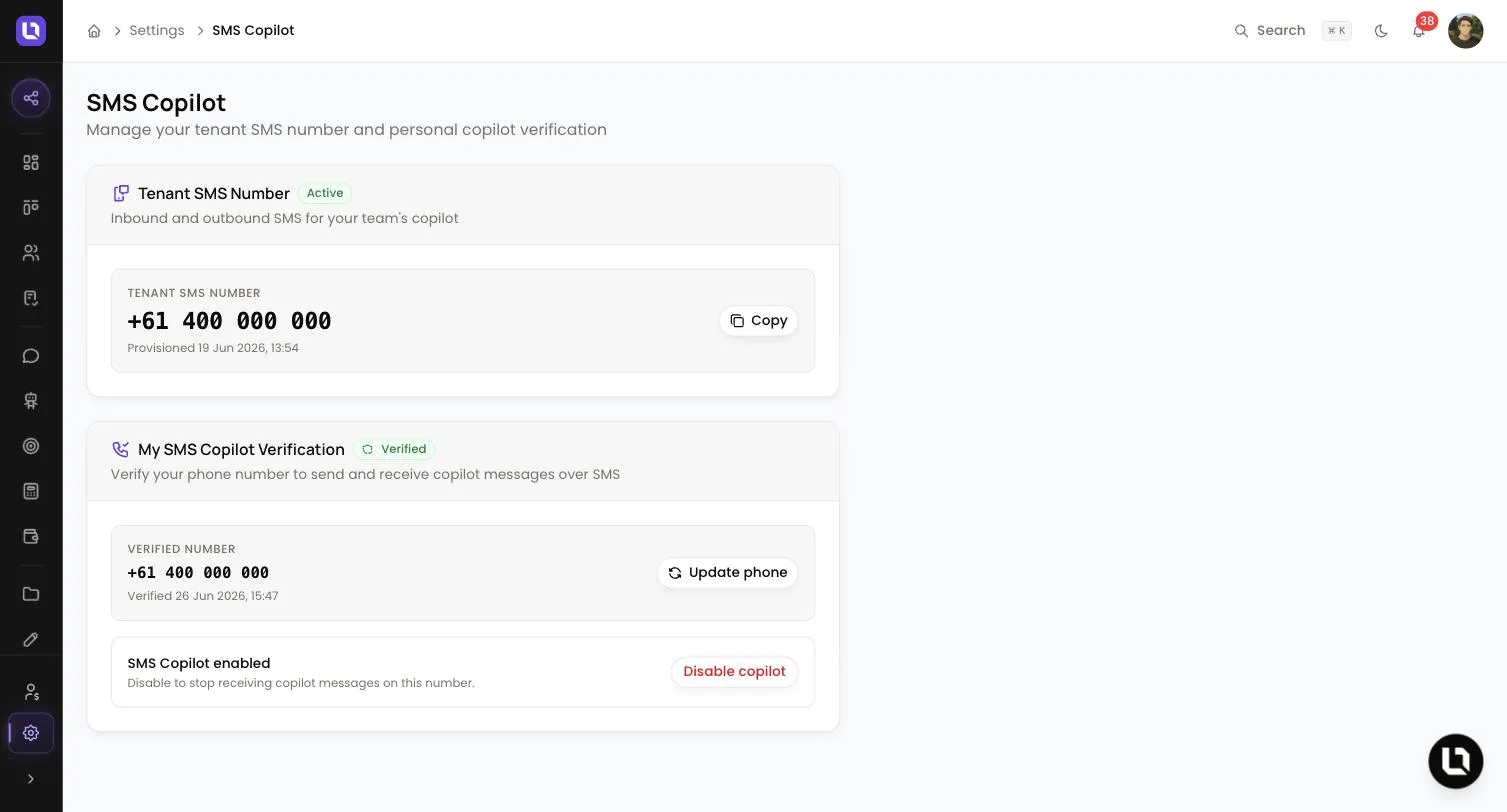
- The Tenant SMS Number card shows the number your team texts, with a Copy button. Its badge reads Provisioning while the number is being set up, then Active.
- If the badge reads Failed, the card says "Our team has been notified. We'll email you when your number is ready."
Step 2: Send the code
- In My SMS Copilot Verification, enter your number in Mobile phone number (for example 0400 000 000) and select Send code.
Step 3: Enter the code
- Type the 6-digit code into Verification code and select Verify. The code lasts 10 minutes and allows 5 attempts. After that, select Use a different number to go back and send a new code.
Congratulations! The card shows Verified and SMS Copilot enabled. Save the workspace number to your phone and text it. Your row under Settings > Team now carries an SMS Copilot badge.
What you can text it
Below is a table of example texts and what each one does.
| Text | What it does |
|---|---|
| What deals do I have in Enquiry? | Searches the deals you can see. |
| What are my tasks? | Lists the tasks assigned to you. |
| Where is Sarah Chen up to in her application? | Shows a client's onboarding progress. |
| What's the cash rate? | Quotes the current Reserve Bank of Australia figure. |
| Create a task to call Sam Lee tomorrow at 10am | Adds a task, after you confirm. |
| Move the Nguyen deal to Completed | Changes the deal's stage, after you confirm. |
| Send an onboarding invite to jo@example.com | Sends the invite, after you confirm. |
SMS Copilot runs as you, so it finds only the deals and contacts your role lets you open. Replies are capped at 480 characters, so ask for one thing at a time.
Confirmations and keywords
Anything that creates, changes or sends ends with "Reply YES to confirm or NO to cancel." Nothing happens until you reply.
- To confirm, reply
yes,y,confirm,ok,proceedorgo. - To cancel, reply
no,n,cancel,nevermind,stoporabort. - A confirmation lasts 10 minutes. Sending any other text first discards it.
- To start a fresh conversation, text
reset,restart,neworclear. SMS Copilot replies "Started a new session. What can I help with?"
Keywords are not case sensitive. A conversation also starts fresh after 24 hours without a message.
Limits and costs
- Every text you send uses AI credits from your workspace pool. When the pool is empty, SMS Copilot replies "The monthly AI usage limit has been reached."
- Every reply counts as one message on the SMS Messages meter: 50 a month on Starter, 500 on Pro and 1,000 on Enterprise. At the limit you get one text saying "Your tenant has reached its monthly SMS limit. Contact your admin." and no further replies. The verification code is not counted.
- You can send 10 texts a minute. Past that, the reply is "Too many messages. Please wait a minute before trying again."
Turn it off
- For yourself: select Disable copilot on the verification card. To use a different mobile instead, select Update phone and verify the new number. Please note: check the new number carefully before you send the code.
- For the workspace (Starter add-on): go to Settings > Billing and select Remove on the SMS Copilot card. SMS Copilot stops working straight away, your number is released after 30 days, and the unused part of the month is credited to your next invoice.