Updated
Go to Deals in the sidebar.
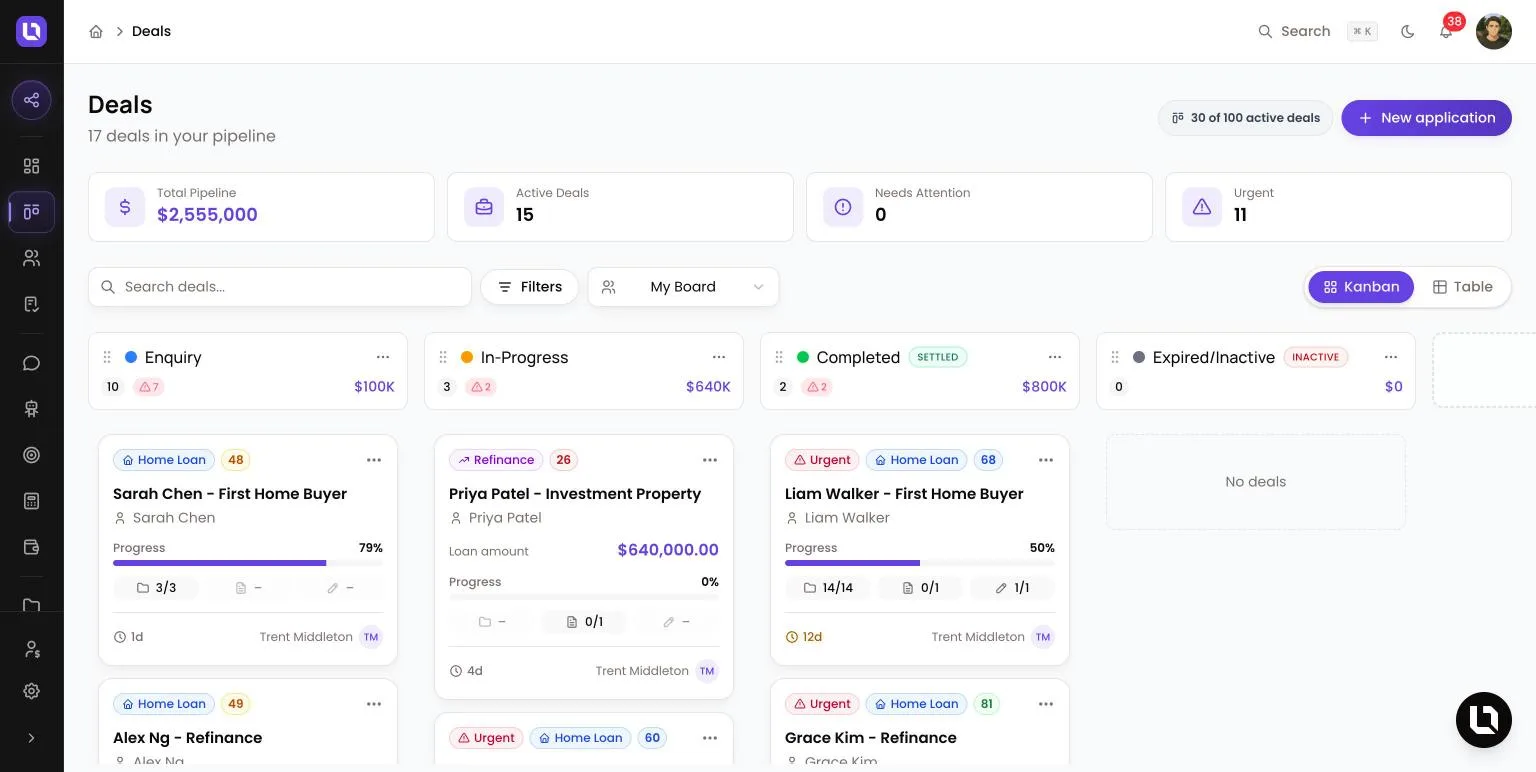
The Deals page is your pipeline. Each deal is a card in the column for its stage, and four tiles above the board total what is on screen. Lend1 also calls a deal an application, which is why the button reads New application.
Before you start
- View Deals shows the deals assigned to you. View All Deals adds everyone else's.
- Creating a deal needs Create Deals, plus Create Contacts to add a new applicant in the dialog.
- Moving a card needs Edit Deals, Update Deals or Change Deal Stage. Reassigning needs one of the first two. Deleting needs Delete Deals, which the default Broker and Support roles don't hold.
- Your plan caps active deals. The pill beside New application, for example "30 of 100 active deals", turns amber at 80% and red at the cap. Select it to open Clean up active deals, which suggests quiet deals to move to an Inactive stage. At the cap, New application opens that dialog instead of the form. See Managing your plan and billing.
Create a deal
Step 1: Open the form
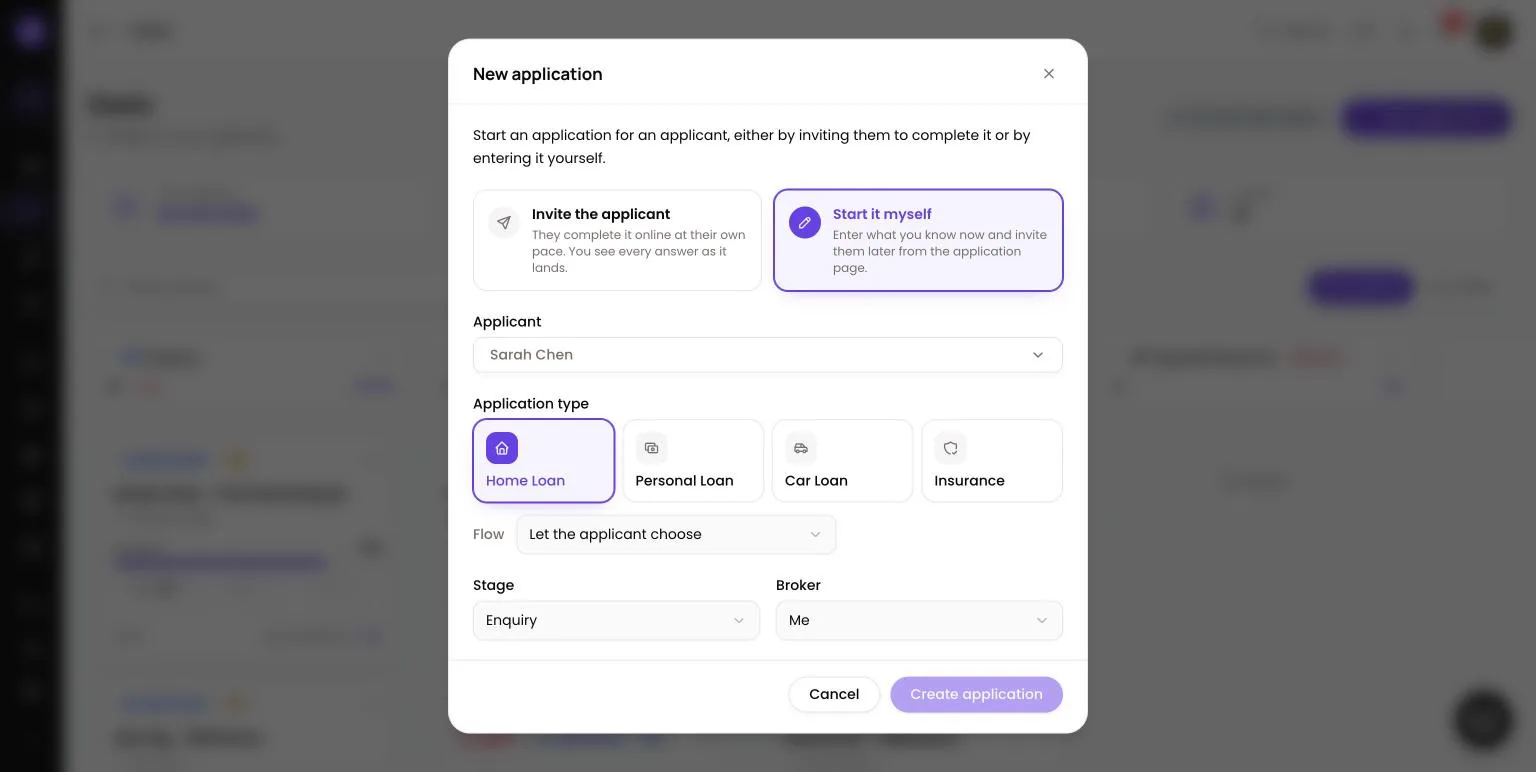
- Select New application, then Invite the applicant (they complete it online) or Start it myself (nothing is sent).
Step 2: Choose the applicant
- In Applicant, search for a contact, or select Add new applicant and enter First name and Last name (both required), Email and Mobile.
- If you invite a contact with no email address (or no mobile number for SMS), the dialog asks for it and saves it to the contact.
Step 3: Choose the application type
- Application type lists the types switched on in your Onboarding Portal. If a type has several flows, pick one in Flow or leave Let the applicant choose.
- Applicant and Application type are the only required fields.
Step 4: Set delivery, stage and owner
- With Invite the applicant, pick Send via Email or SMS.
- With Start it myself, pick the Stage. Optional extras: Co-applicants, Expected close, Note, and under Add loan details the Loan amount (AUD), Property value (AUD), Deposit (AUD) and Loan purpose.
- Broker is who the deal is assigned to. It defaults to Me.
Step 5: Save
- The line under the form says what will happen. Select Send invite or Create application.
- The assigned broker is emailed about the new deal, and any automation using the Deal Created trigger runs.
Congratulations! The deal is on the board in its stage.
Read the board
Below is a table of tiles and what each one counts. They cover the deals on screen, so they change with your board, search and filters.
| Tile | What it counts |
|---|---|
| Total Pipeline | The loan amount of every deal on screen added together, including deals in Settled and Inactive stages. |
| Active Deals | Deals on screen with the status Open or On Hold. |
| Needs Attention | Deals created more than 10 days ago, or more than 5 days ago with progress under 50%. Urgent deals are not counted here. |
| Urgent | Deals created more than 14 days ago, or more than 7 days ago with progress under 25%. |
In these two rules, progress is the average of the deal's document checklist and forms percentages.
Please note: both rules run from the date the deal was created, not the time in its current stage, and they apply to closed deals too. Pipeline Value on your dashboard adds up open deals only, so it can differ from Total Pipeline.
Each column header shows its deal count, an amber Attention count, a red Urgent count and the column's total loan amount. Closed stages carry a Settled or Inactive chip.
Below is a table of card parts and what each one means.
| Part | What it means |
|---|---|
| Attention or Urgent chip | The deal meets the rule in the table above. |
| Type chip | The application type, for example Home Loan. |
| Number badge | The deal's lead score: green from 80, blue from 60, amber from 40, red below. Hidden until the deal is scored. |
| Title and names | Select the title to open the deal. Under it are the primary applicant and any co-borrowers, marked Co-borrower. |
| Progress | The average of forms completed, checklist documents approved, eSign documents signed and onboarding completion, counting only the parts the deal uses. |
| Three counters | Files approved out of uploaded, forms completed, and eSign documents signed. A dash means none exist. |
| Age | Days since the deal was created, Today on day one. It turns amber after 5 days. |
| Assignee | The assigned broker, or Unassigned. |
| Menu | Add Note and Add Task. |
Find deals
- Board switcher: with View All Deals you land on My Board and can switch to All Boards, Unassigned or an active team member under Brokers. Support staff linked to brokers get All Deals, My Board and those brokers. Nobody else has a switcher.
- Search deals... matches the deal title and the primary applicant's first name, last name, email, phone and mobile.
- Filters has Status (Open, On Hold, Won, Lost), Source and Progress (from 0 – 25% to 100% complete). Clear Filters resets them and the search, and keeps your board.
Closed deals stay on the board in their Settled and Inactive columns. The page loads the 100 most recently created deals that match, so to reach an older deal, search for it or filter by Status.
Lend1 remembers Kanban or Table in your browser. The board, search and filters reset when you leave the page.
Switch to the Table view
Select Table. The columns are Title, Stage, Days, Progress, Score, Value, Assigned, Created and Actions. Select Title, Progress, Value or Created to sort. A bar at the start of a row marks Attention (amber) or Urgent (red). The Actions menu has View Details, Add Note, Add Task and Delete.
Move a deal
Drag a card to another column, or in the Table view select the deal's stage and pick a new one. If the move would start an automation, Automation will be triggered lists it: select Confirm to go ahead. Moving into a Settled or Inactive stage closes the deal. See Pipeline stages and stage outcomes.
Reassign or delete a deal
- Reassign: select the assignee on a card, or the Assigned cell in the table, and pick a team member or Unassign. The new assignee gets an in-app notification and, with Deal Updates emails on, an email. Without View All Deals, a deal you give away leaves your board.
- Delete: in the Table view, open the row's Actions menu and select Delete, then confirm in Delete Deal. Lend1 has no option to restore a deleted deal, so close a deal you may need again instead.