Updated
Go to Dashboard in the sidebar.
The dashboard summarises your deals, onboarding invites and outstanding work. This article defines each figure exactly, so you can reconcile it with your aggregator's reports. Figures load when you open the page and do not update while it sits open, so reload to refresh them. For the rest of the workspace, see A tour of your Lend1 workspace.
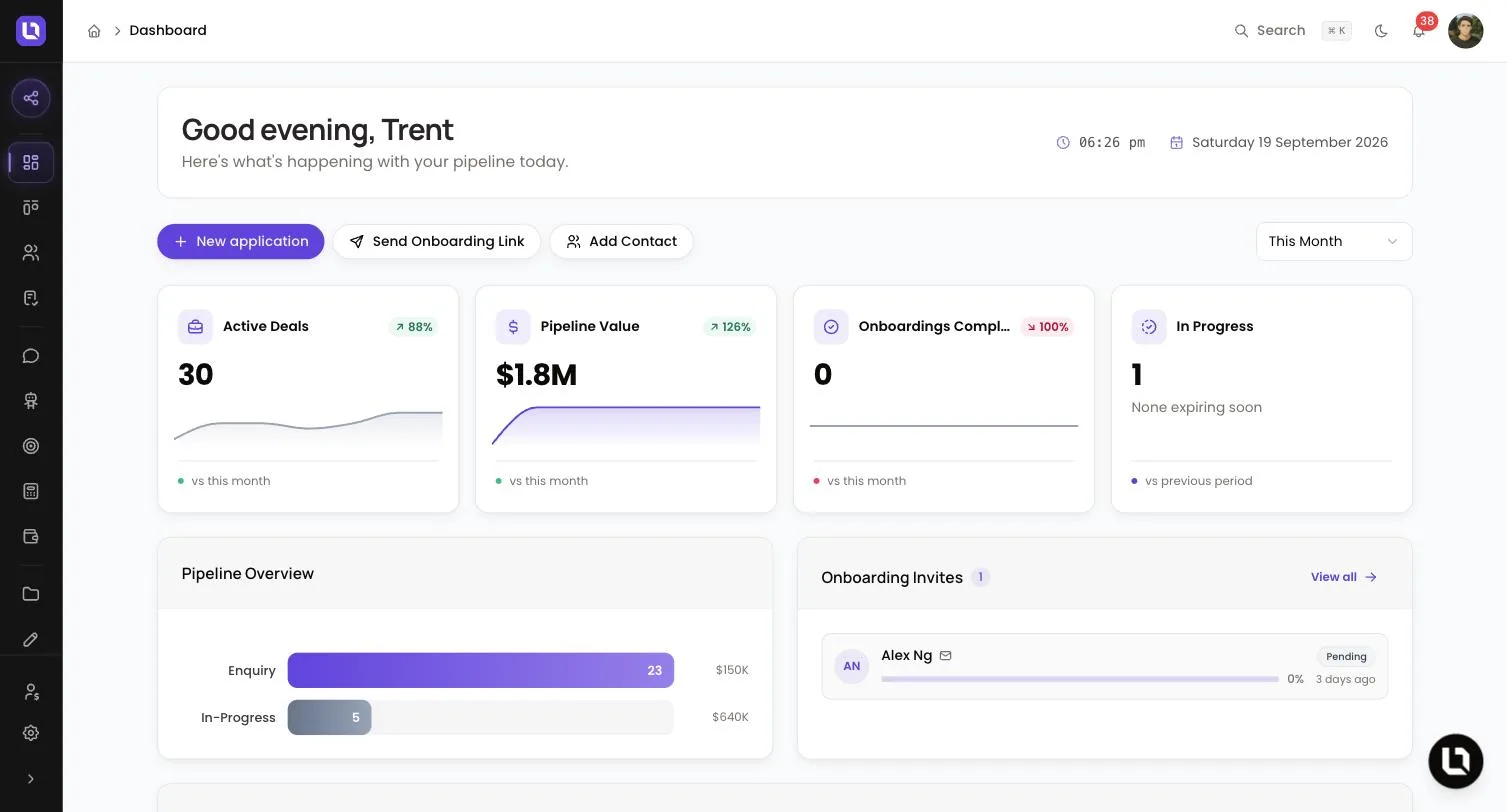
Whose deals are counted
Unless you hold the View All Deals permission, the dashboard counts only deals assigned to you, plus deals assigned to any brokers you are linked to as support. A line under the greeting confirms it, for example "Showing your deals." With View All Deals, or the Admin role, that line disappears and every figure covers the whole workspace.
The period selector
The selector on the right of the shortcut buttons offers Today, This Week, This Month, This Quarter, This Year and Last 30 Days. It opens on This Month.
It changes Onboardings Completed, the percentage badges on the cards, Lead Sources and the Broker Leaderboard. Everything else on the page shows the position right now, whatever period you pick.
The four cards
Below is a table of cards and what each one counts.
| Card | What it counts |
|---|---|
| Active Deals | Every open deal, meaning a deal sitting in a stage with the Active outcome. |
| Pipeline Value | The sum of Loan Amount (AUD) across those same open deals. A deal with no loan amount adds nothing. The Total Pipeline tile on the Deals page is a different number: it includes closed deals. |
| Onboardings Completed | Onboarding invites whose client finished the application within the selected period. |
| In Progress | Invites that are Pending or In Progress and have not expired. The line underneath counts those expiring within 3 days, or reads "None expiring soon". |
Selecting a deal card opens Deals and an onboarding card opens Invites. Neither list is filtered.
The percentage badge compares against the period before the one you selected: yesterday for Today, last month for This Month, the 30 days before for Last 30 Days.
Please note: on Active Deals and Pipeline Value the badge compares your current total of all open deals with deals created during the previous period that were still open when it ended. It is not a like-for-like comparison, so reconcile against the card's number, not the badge.
Pipeline Overview and Lead Sources
Pipeline Overview shows one bar per stage that holds open deals, with the number of deals on the bar and their total loan amount beside it. Settled and Inactive deals are left out.
Lead Sources groups the contacts created in the selected period by their lead source. It counts contacts, not deals.
Onboarding Invites
This panel lists your 5 most recent active invites with the client's name, completion percentage, a Pending or In Progress status and how long ago each was sent. Select an invite to open it, where you can use Resend invite or Cancel invite. View all opens Invites.
The panel needs the View Onboarding Invites permission. Without it, Recent Activity takes its place.
Recent Activity and Pending Items
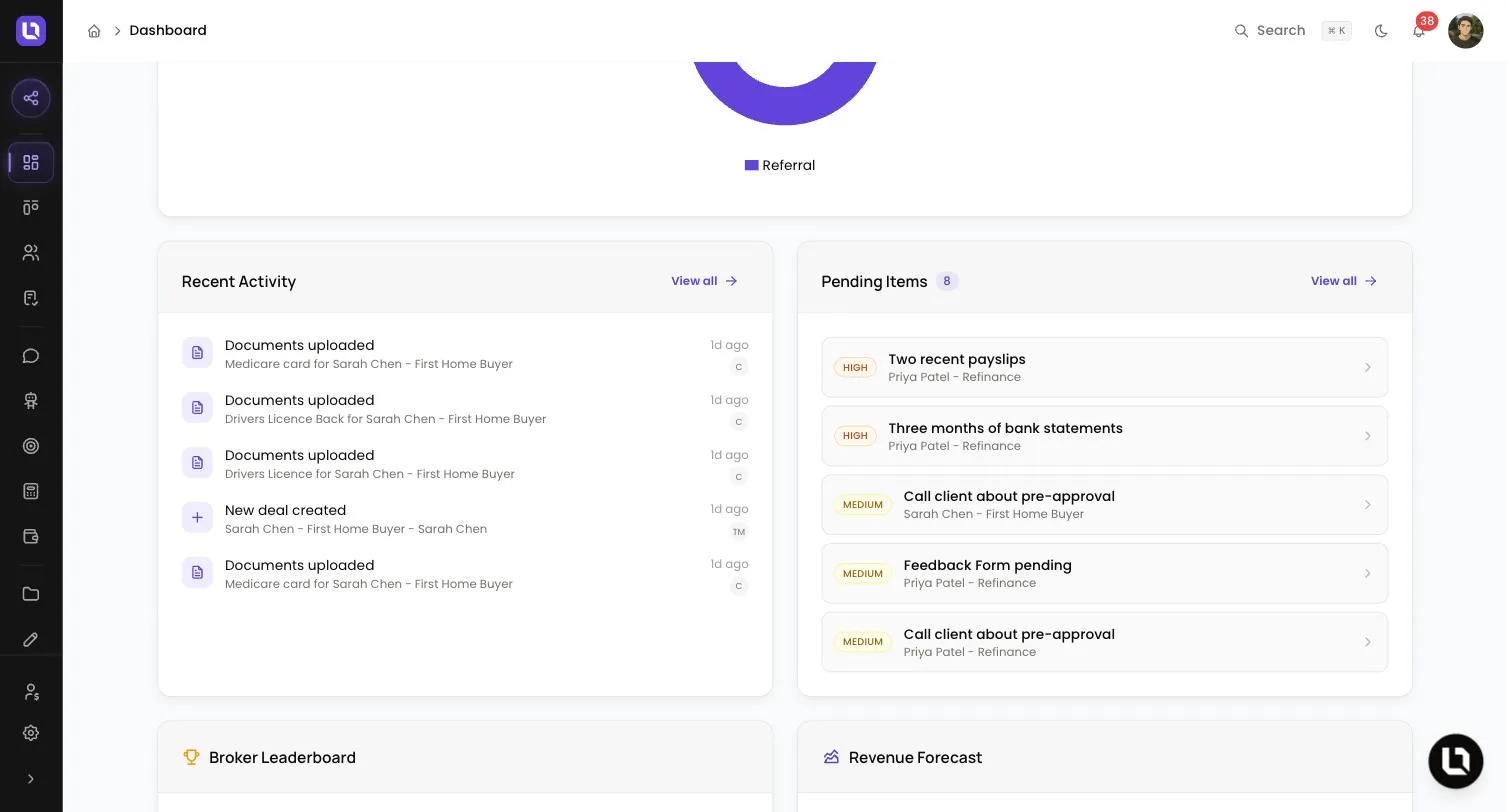
Recent Activity shows the 5 newest events from deals you can see: "New deal created", "Deal marked as settled", "Deal marked as lost", "Documents uploaded" and "Application form completed". View all opens the full list.
Pending Items shows 5 items, high priority first: open tasks, documents still pending on an open deal's checklist, and forms sent on an open deal and not yet submitted. The number beside the title is the full count. Select an item to open its deal.
Revenue Forecast
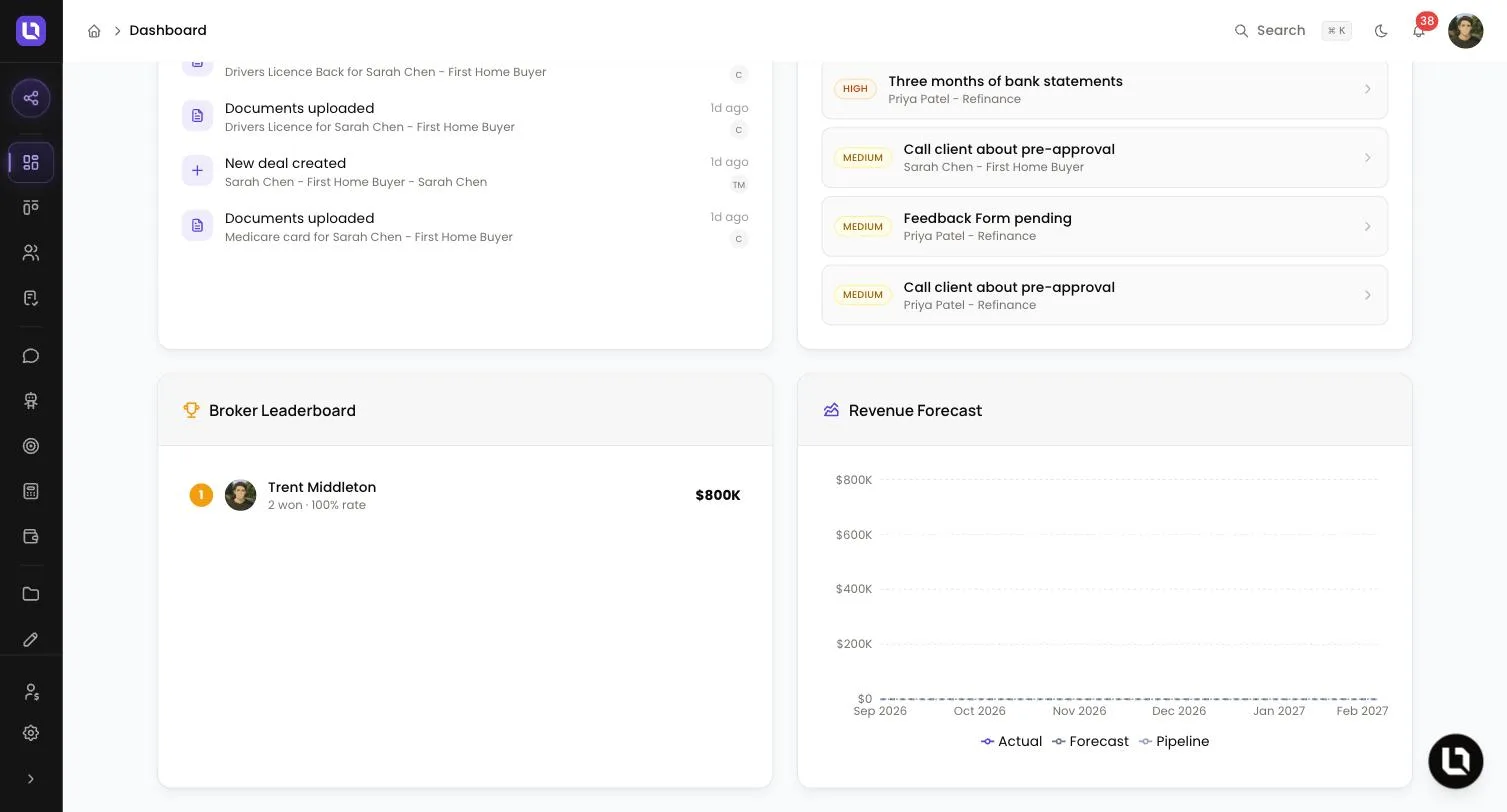
The chart covers six months, starting with the current month. For each month it takes open deals whose Expected Close Date falls in that month and plots:
- Pipeline: the sum of their loan amounts.
- Forecast: the same sum with each deal multiplied by its Probability (%). A deal with no probability is counted at 50%.
- Actual: the loan amount of deals settled in that month. Only the current month has one.
A deal with no expected close date appears nowhere on the chart.
Please note: this is arithmetic on dates and percentages entered on your deals, not a prediction. It always covers the whole workspace, not only your deals.
Broker Leaderboard
The leaderboard ranks up to five active team members by the total loan amount of deals assigned to them that settled in the selected period. Each row shows the number won and a rate: settled deals divided by settled plus inactive deals closed in that period. It covers the whole workspace. Anyone with no settled deals in the period is left off, and so are deactivated users and team members in the Support role.
What you see depends on your role
The Broker and Support roles hold View Dashboard and View Onboarding Invites, so they see everything above for their own deals except the forecast figures and the leaderboard.
- View All Deals switches every figure from your own deals to the whole workspace.
- View Full Dashboard loads the Revenue Forecast figures. Without it the card still appears but reads "No forecast data".
- The Broker Leaderboard appears for the Admin role, which holds every permission, and for a custom role named Manager that holds View Full Dashboard. Other custom roles with that permission get the forecast only. See Creating custom roles and permissions.