Updated
Go to Calculators > General.
This article explains why a calculator, planner, form, Lead Widget or chatbot is blocked or missing on your own website. Each tool's settings are on its own page in the sidebar. It does not cover setting a tool up.

My embed shows a "not allowed from this domain" message or a blank box
Why it happens
- Lend1 checks the tool's own list first. If that list is empty, it uses your Business website from Settings > Organisation, with and without
www, overhttps://. If both are empty, every website is blocked: an empty list never means "any website". - Once a tool's own list has an entry, it replaces your Business website for that tool rather than adding to it.
- The address must match exactly. The
wwwand non-wwwversions are different websites, and so is each subdomain. There are no wildcards.
Below is a table of tools, where each one's list is, and what a blocked visitor sees.
| Tool | Where its list is | What a blocked visitor sees |
|---|---|---|
| Calculators | General tab, Allowed origins | "Calculator embed not allowed from this domain" |
| Planners | General tab, Allowed origins | A blank box or a browser error, with no Lend1 message |
| Forms | Open the form, Share, then Security > Allowed domains | The same as planners |
| Lead Widget | General tab, Basic Settings > Allowed Origins | The same as planners |
| Chatbots | The chatbot's Install tab, Allowed Domains | The chat bubble never appears |
How to fix it
Step 1: Check your Business website
- Go to Settings > Organisation and check Business website is the domain your pages are on. See Setting up your organisation details. Your portal's custom domain does not count: see Setting up your branding and custom domain.
Step 2: Or list the websites on the tool
- Enter each website starting with
https://, with no page path after the domain, such ashttps://your-website.com.au. Add thewwwversion as well. - On Calculators, Planners and Lead Widget, enter one per line and select Save Changes. On a chatbot, add them one at a time: each saves as you add it. On a form, add each one, then select Save Changes.
Setup articles: Embedding a calculator on your website, Embedding a planner on your website, Building and sharing a form, Capturing leads with the Lead Widget and Setting up a chatbot.
It works when I paste the link but not when I click it from another page
Why it happens
- Lend1 identifies the website from the page the visitor came from. A Public URL pasted into the address bar has no such page, so it loads. The same link selected on a page that isn't an allowed website is blocked.
- This affects the Public URL on Calculators and Planners, including the Open button in Lend1. A calculator shows the "not allowed" message. A planner shows a 403 error page.
- A form's Hosted Page link is not checked this way.
How to fix it
- To test, copy the Public URL and paste it into a new tab.
- To link to it from another website, add that website to Allowed origins, along with your own.
Nothing appears at all
Why it happens
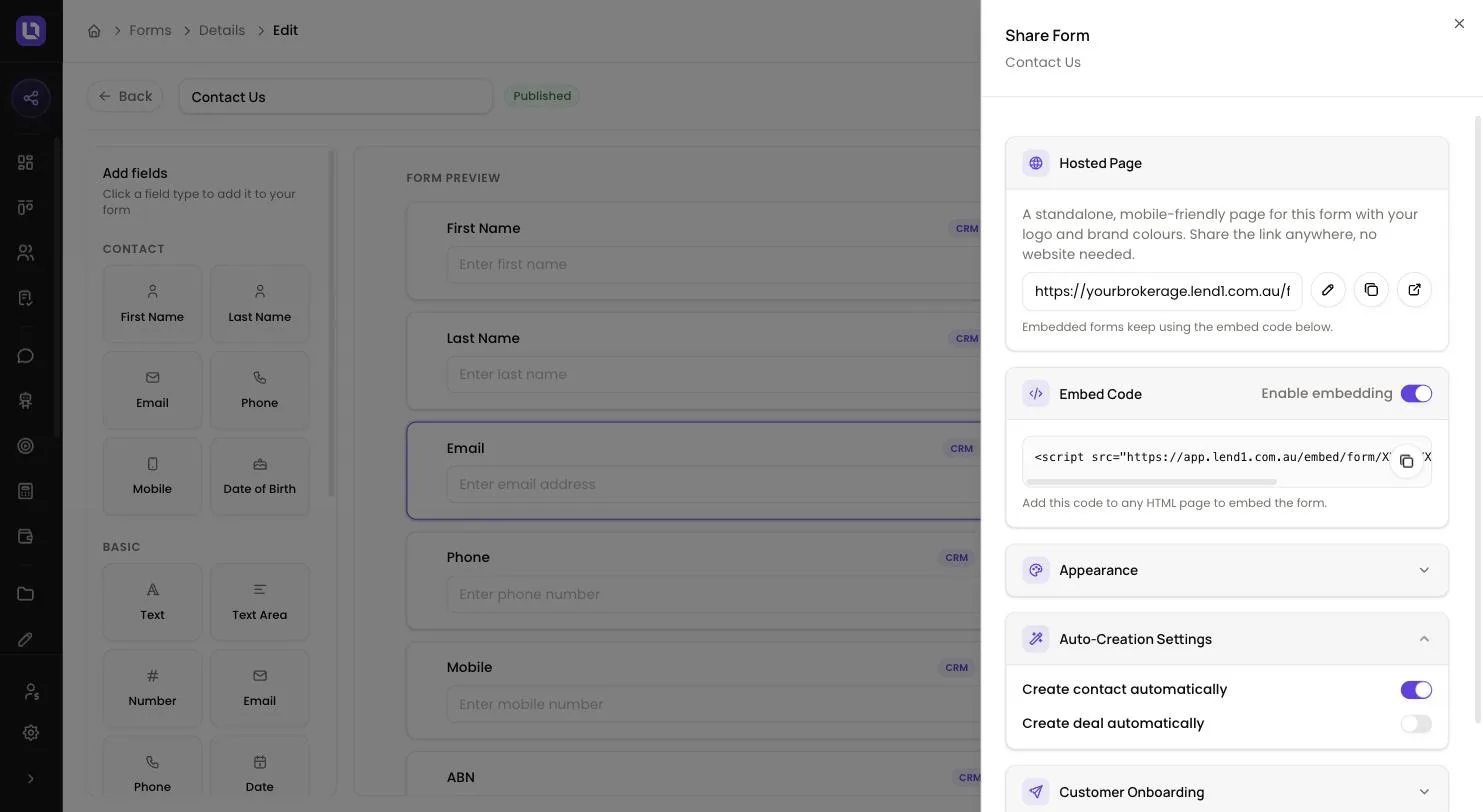
- The tool is switched off. The switch on Combined embed turns off every calculator, single embeds included. The switch on Embeddable Planners turns off the planner. Widget Status reads Disabled. The chatbot is Draft or Paused, or Enable Website Embed is off. The form isn't Published, or Enable embedding is off on its Share panel.
- The Lead Widget won't enable. It needs one finance type and the Email field switched on first.
- One calculator is missing. Its Enabled switch is off, or it is off under Calculators in this embed.
- The snippet is incomplete or misplaced. Calculators, planners and the Lead Widget need both lines: the
<div>with itsidunchanged, and the<script>. A form appears directly after its<script>line. The chatbot line goes just before the closing</body>tag: placed in the page's head, it can run before the body exists and add no bubble. - Your website blocks it. A Content-Security-Policy on your website must allow
https://app.lend1.com.auas a script source and a frame source.
How to fix it
- Switch the tool back on and reload your page. The same snippet works again. Otherwise, copy the snippet from Lend1 again and paste it in complete.
Please note: use one calculator snippet per page. With two, only the first resizes to fit its content.
It stopped working after I regenerated the token
Why it happens
- The token is part of the snippet's address. Regenerate token on Calculators or Planners, Regenerate Token on the Lead Widget or a chatbot, and Regenerate embed code on a form each replace it. Every snippet pasted before then loads nothing.
- Calculators share one token, so the combined snippet, every single-calculator snippet and the Public URL change together. A form's Hosted Page link does not change.
How to fix it
- Copy the new snippet from Lend1 and replace the old one on every page that carries it.
It stopped working after a plan change
Why it happens
- Calculators, planners, the Lead Widget and chatbots are included in Pro and Enterprise. On Starter, or while a workspace is suspended, their snippets add nothing to your page and the Public URL reads "This tool is currently unavailable." Forms are not tied to a plan.
How to fix it
- Nothing is deleted. Once the workspace is on Pro or Enterprise and no longer suspended, the same snippets work again. See Managing your plan and billing.
Still stuck?
Contact us with the address of the page the tool is on, which tool it is, and a screenshot of what shows instead.