Updated
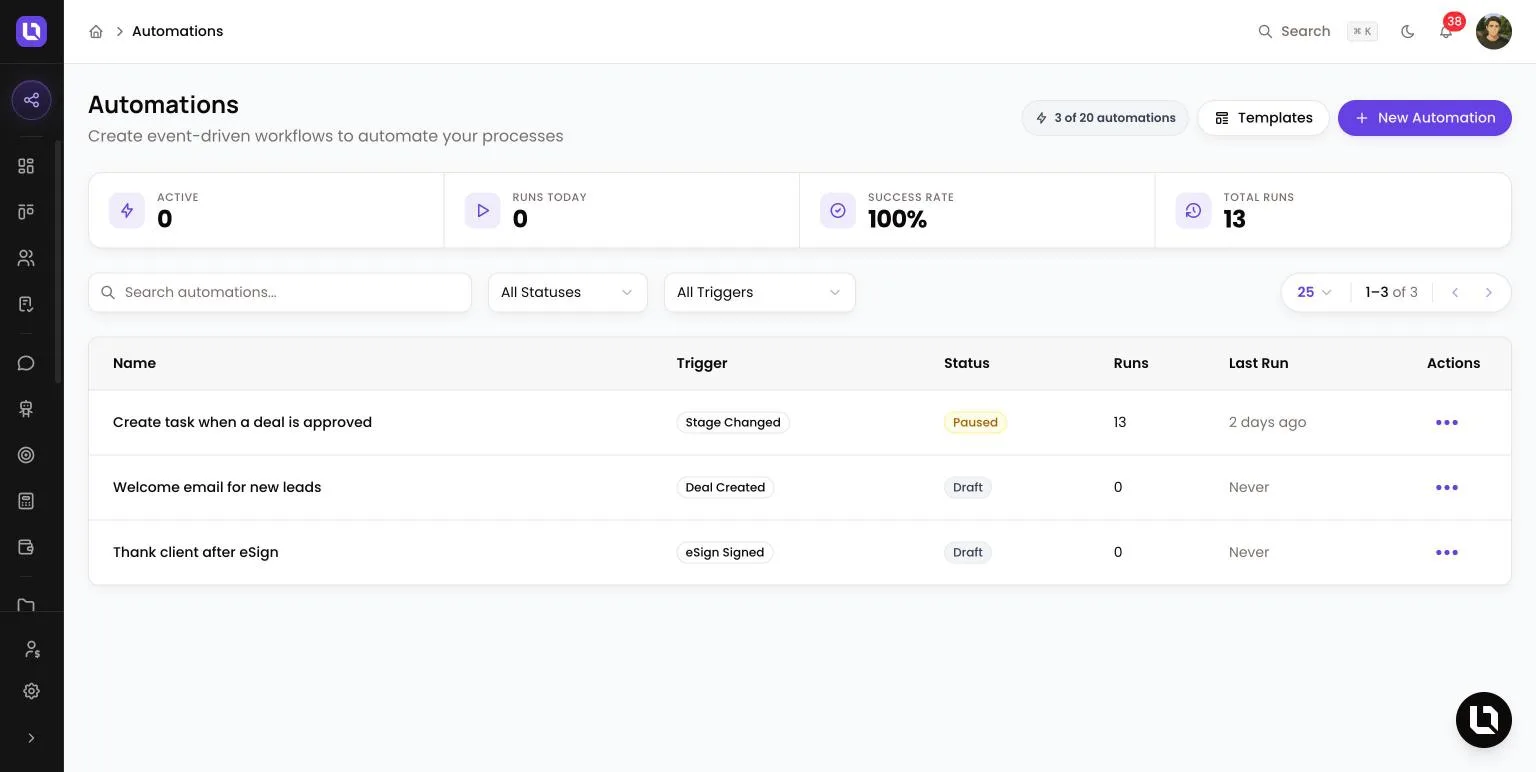
Go to Automations in the sidebar.
An automation starts with one trigger, such as a deal changing stage, then runs the steps you connect to it. You build it by dragging nodes onto a canvas and joining them.
Before you start
- Building needs the Manage Automations permission, or Manage Own Automations for automations that run on your own deals. The Admin role has full access; the default Broker and Support roles hold Manage Own Automations. An admin grants these under Settings > Roles & Permissions. See Creating custom roles and permissions.
- Your plan caps your automations: 5 on Starter, 20 on Pro, unlimited on Enterprise. Drafts and paused automations count; templates don't. At the cap, a Plan limit reached dialog appears when you try to add another. See Managing your plan and billing.
Start from a template or from scratch
- Select Templates to open Automation Templates, hover a card and select Use Template. Lend1 creates a Draft copy and opens it in the builder. If the gallery says No templates available, start from scratch.
- Select New Automation to start with only a trigger on the canvas.
Build a stage change automation
This example creates a follow-up task whenever a deal moves into a stage you choose.
Step 1: Create the automation
- Select New Automation. On Create Automation, enter a Name and set Trigger to Stage Changed. The builder can't change the trigger type later, so choose it here.
- Select Create Automation. The builder opens on the Builder tab.
Step 2: Choose the stages
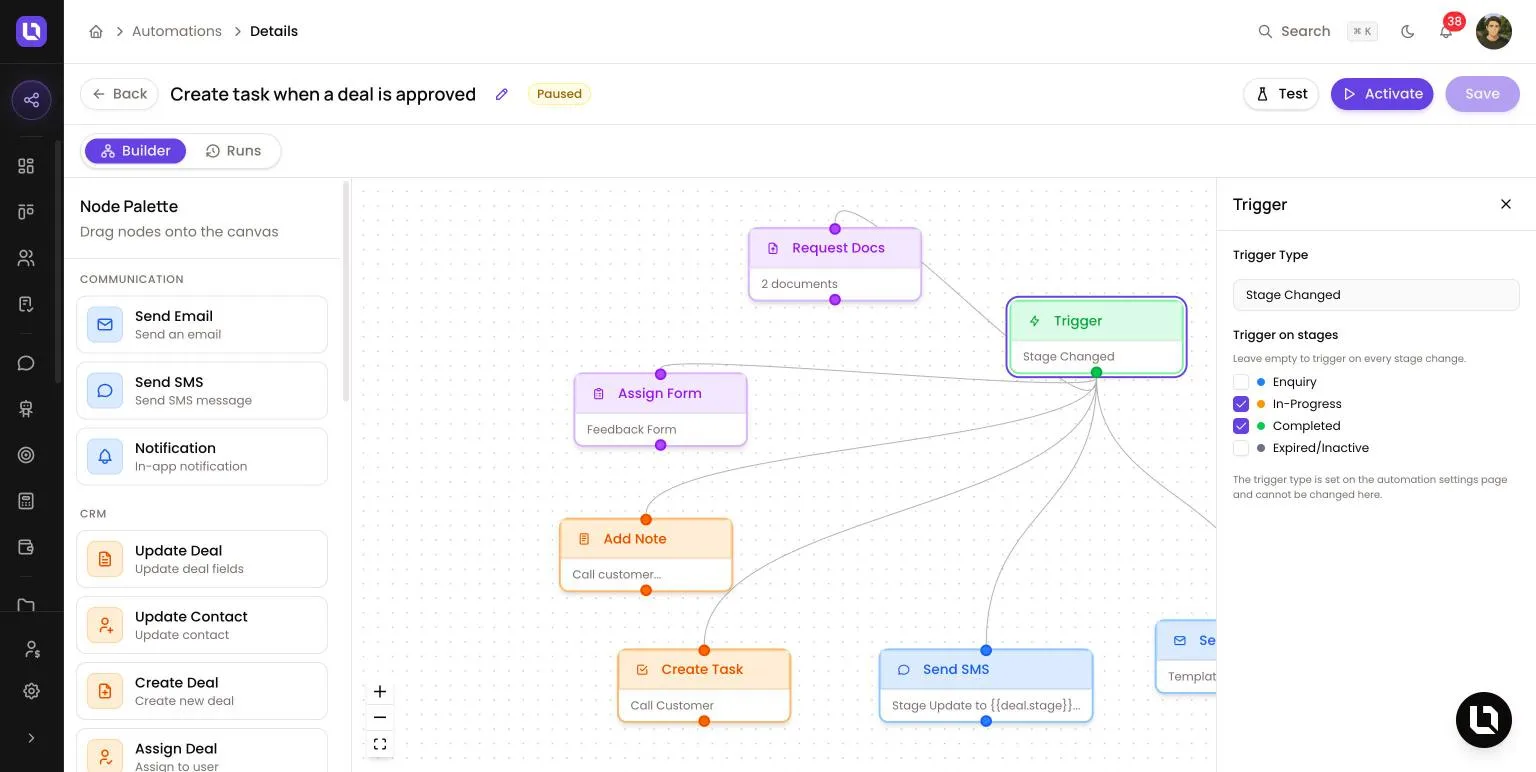
- Select the Trigger node on the canvas. In the panel on the right, under Trigger on stages, tick the stages that should start the automation. Leave them all empty to trigger on every stage change.
Step 3: Add the task
- From the Node Palette on the left, drag Create Task onto the canvas.
- Drag from the connector at the bottom of the Trigger node to the top of Create Task to join them.
- Select Create Task and fill in Title, Description, Priority, Due In and Unit.
- Select Save. The header shows Unsaved changes until you do.
Available triggers
Below is a table of triggers and when each one fires.
| Trigger | Fires when |
|---|---|
| Deal Created | A deal is created. |
| Stage Changed | A deal moves to a different stage. |
| Deal Updated | A deal field is updated. |
| Contact Created | A contact is created. |
| Contact Updated | A contact field is updated. |
| Form Submitted | A client submits a form. |
| Form Submission Processed | A form submission finishes processing. |
| Document Uploaded | A document is uploaded. |
| Document Approved | A document is approved. |
| Document Rejected | A document is rejected. |
| eSign Sent | An eSign request is sent. |
| eSign Signed | Documents are signed. |
| eSign Declined | An eSign request is declined. |
| Message Received | A message is received. |
| Customer Registered | A client registers. |
| Task Completed | A task is completed. |
| Task Overdue | A task becomes overdue. |
| Application Completed | An applicant or co-applicant finishes their application. |
| Deal Inactive | A deal has been inactive. |
| Scheduled | The daily or weekly schedule on the Trigger tab comes due. |
| Manual | You select Run Now on an active automation. |
| Webhook | An external system calls the webhook URL on the Trigger tab. |
Available actions
Below is a table of nodes in the Node Palette and what each one does.
| Node | What it does |
|---|---|
| Send Email | Sends an email, from a template or a custom subject and body. See Writing email templates and global variables. |
| Send SMS | Sends an SMS. |
| Notification | Sends an in-app notification. |
| Update Deal | Updates deal fields, including the stage. |
| Update Contact | Updates the contact. |
| Create Deal | Creates a deal. |
| Assign Deal | Assigns the deal to a user. |
| Create Task | Creates a task. |
| Add Note | Adds a note to the deal, or to the contact when the run has no deal. |
| Assign Form | Assigns a form to the deal. |
| Request Docs | Requests documents. |
| Request eSign | Sends an eSign request to the deal's contact. |
| Condition | Branches on a condition. |
| Branch | Splits into paths. |
| Delay | Waits a Fixed Duration or Until Specific Time. |
| AI Action | Runs an AI-powered action. |
| API Call | Calls an external API. |
| Sync Integration | Pushes data to an integration. |
| End | Ends the flow. |
Test it
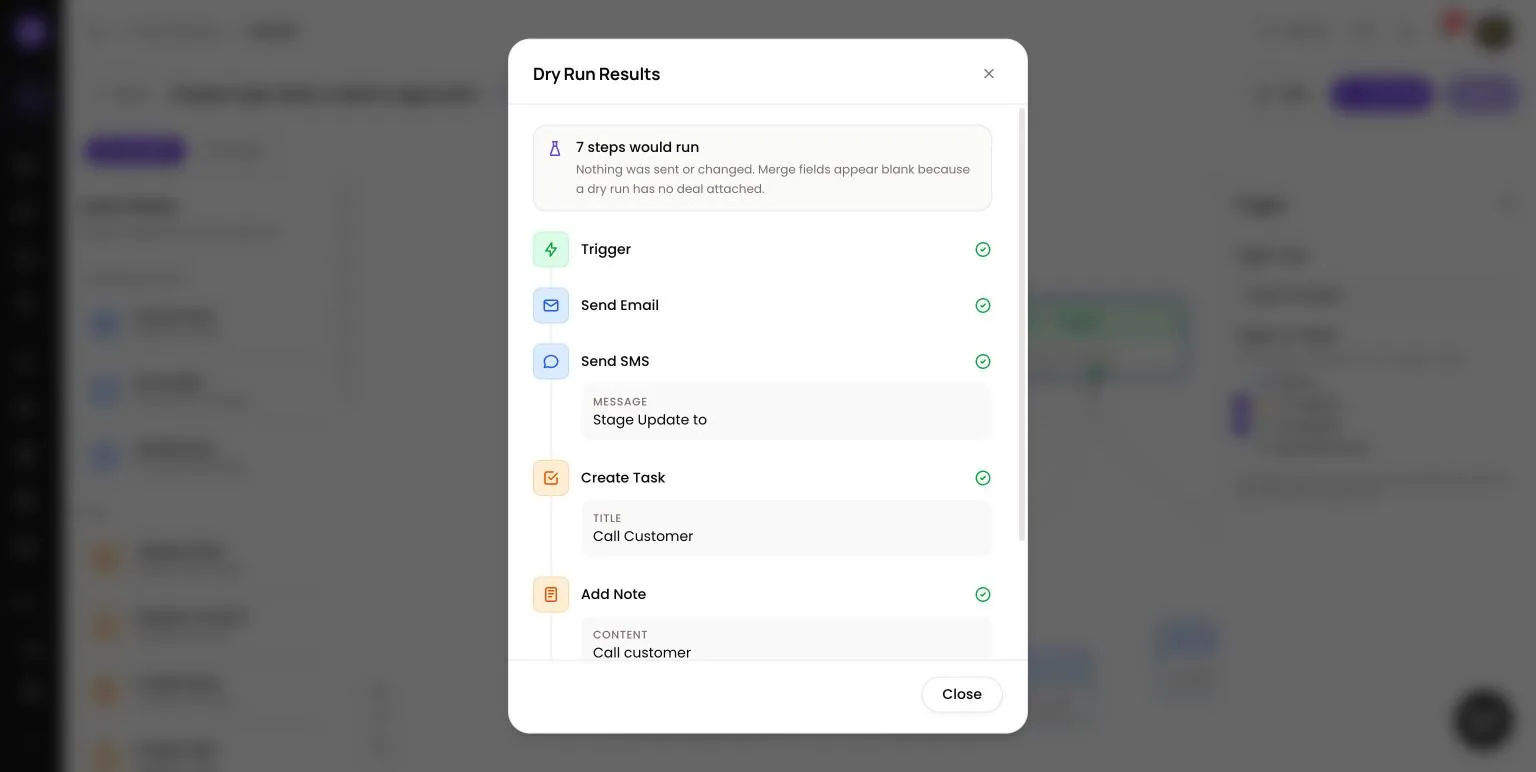
Select Test. Dry Run Results lists each step and flags any marked Skipped or Would fail. A dry run is safe: "Nothing was sent or changed. Merge fields appear blank because a dry run has no deal attached."
Turn it on
Select Activate. The badge changes from Draft to Active. Select Pause to stop it. Both are also open to the Activate/Pause Automations permission.
Congratulations! Your first automation is live. The next deal that moves into one of your chosen stages gets its task.
Read the run history
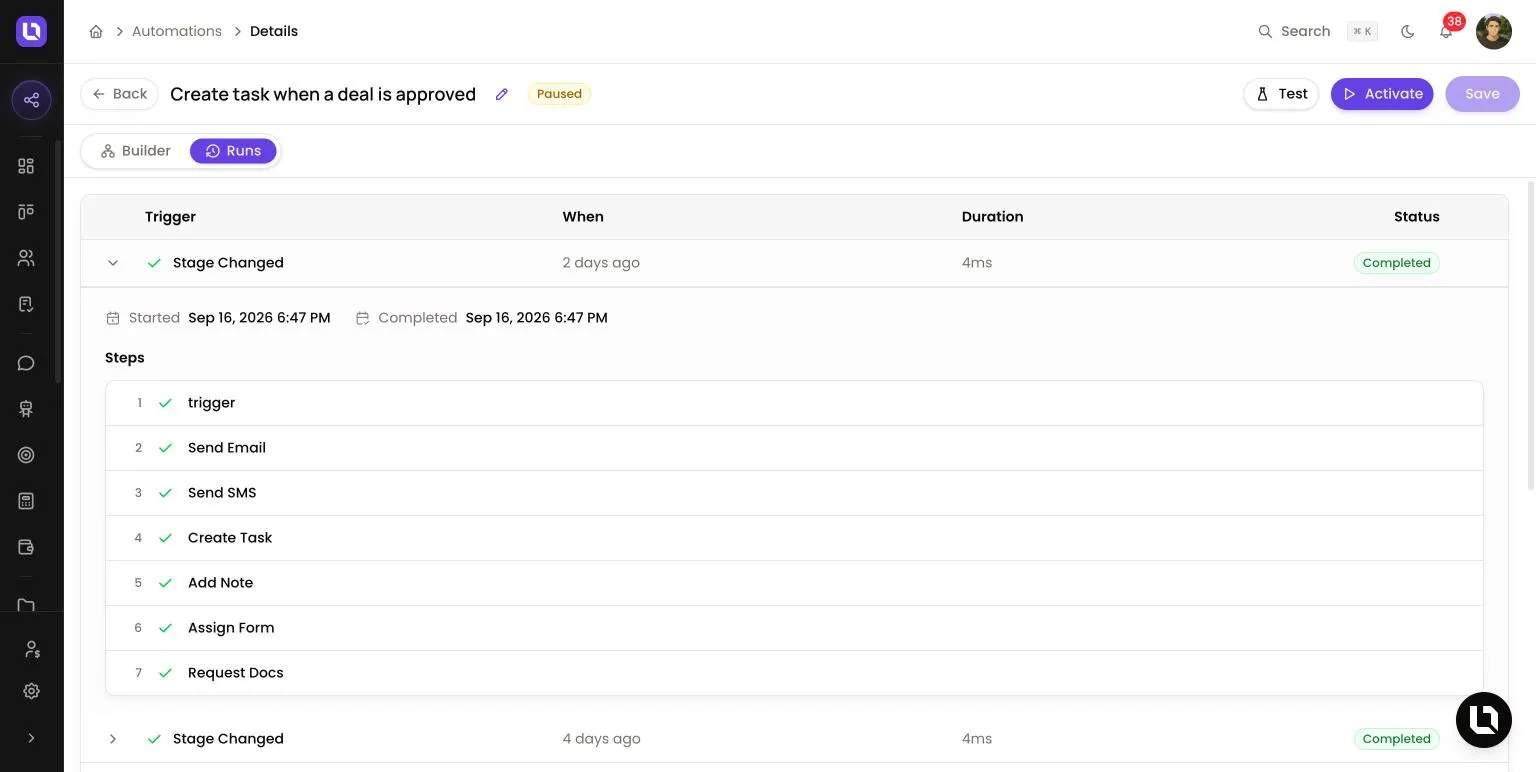
Open the Runs tab, or select View Runs from the row menu. Each run shows Trigger, When, Duration and Status. Select a row to see Started, Completed and each step under Steps, with the error beside any step that failed.
| Status | What it means |
|---|---|
| Running | Steps are executing. Cancel run stops it. |
| Waiting | Paused at a Delay; it resumes on its own. Cancel run stops it. |
| Completed | The run finished. |
| Failed | A step failed and the run stopped. Retry run tries again. |
| Cancelled | The run was cancelled. |
Please note: when a run fails, Lend1 sends an in-app notification to whoever created the automation and to the user assigned to the deal.