Updated
Go to Referrals in the sidebar.
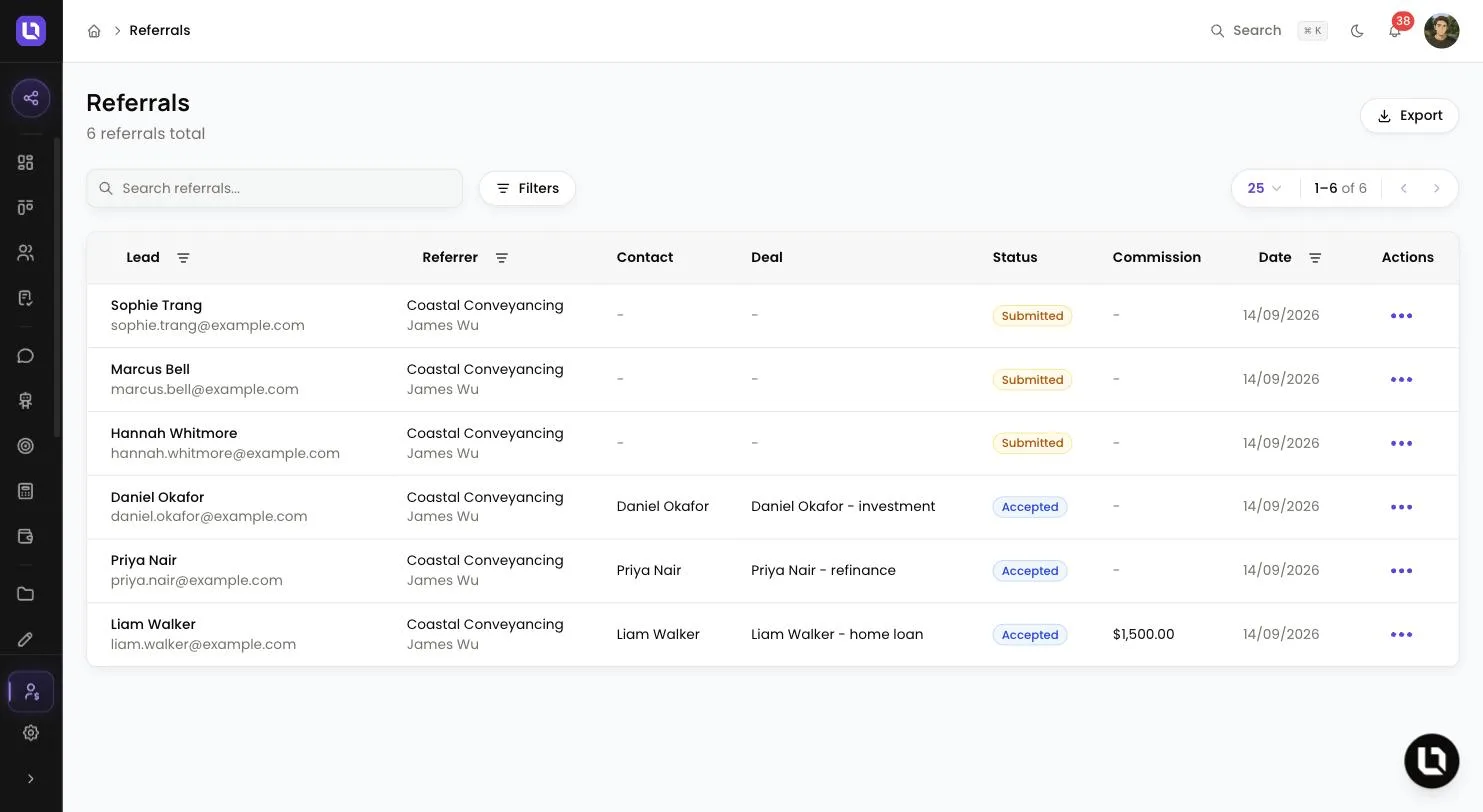
Every referral your referrers submit lands here. You turn it into a deal, watch its status follow that deal, and record the commission you owe and when you paid it.
Before you start
- Referrals shows in the sidebar only when your referral program is turned on and you hold the View Referrers permission. See Setting up your referral program.
- Accepting, rejecting and linking need Manage Referrers. Set commission and Mark commission paid need Manage Commissions. Without them, those menu items don't appear.
Find your way around the Referrals page
- Export in the top right offers Export as CSV and Export as Excel.
- Search referrals... matches the lead's first name, last name or email. Filters has one filter, Status.
- The table columns are Lead, Referrer, Contact, Deal, Status, Commission, Date and Actions. A Paid badge sits beside a paid commission.
- Select a lead's name, or View referral in the row menu, to open the referral with its Progress, Deal, Contact, Commission and Notes cards.
Review and accept a new referral
New referrals arrive as Submitted.
- Open the menu in the Actions column and choose Accept as new deal.
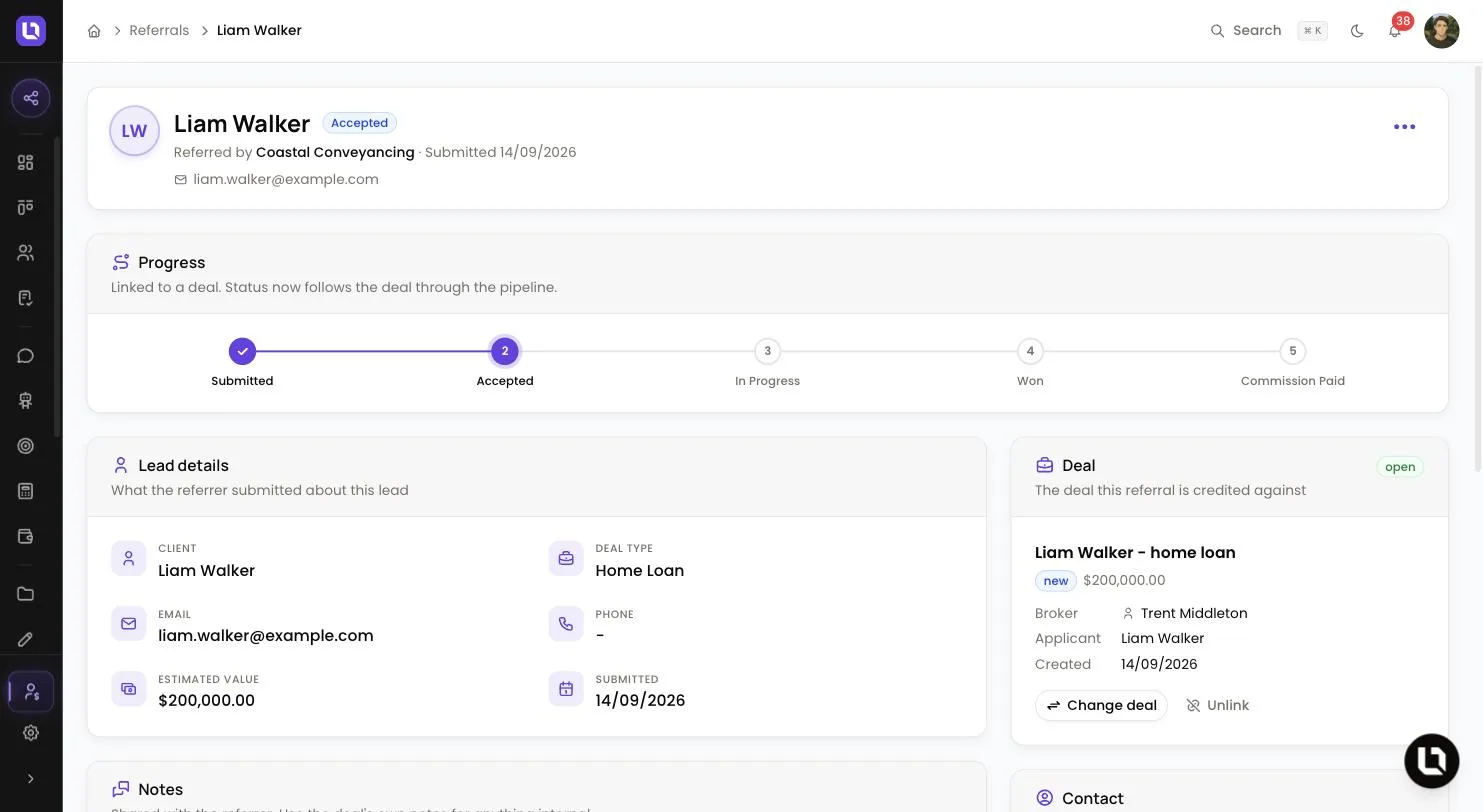
- In the Accept Referral dialog, select Accept.
- Lend1 reuses an existing contact only when the email, first name and last name all match. Otherwise it creates a new contact. To choose the contact yourself, use Assign contact before you accept.
- A new deal is created, titled with the lead's name and deal type, valued at the referrer's estimated value, and assigned to you.
The referral moves to Accepted. If the lead already has a deal, use Link to deal instead, or Approve match when Lend1 shows a Match found badge.
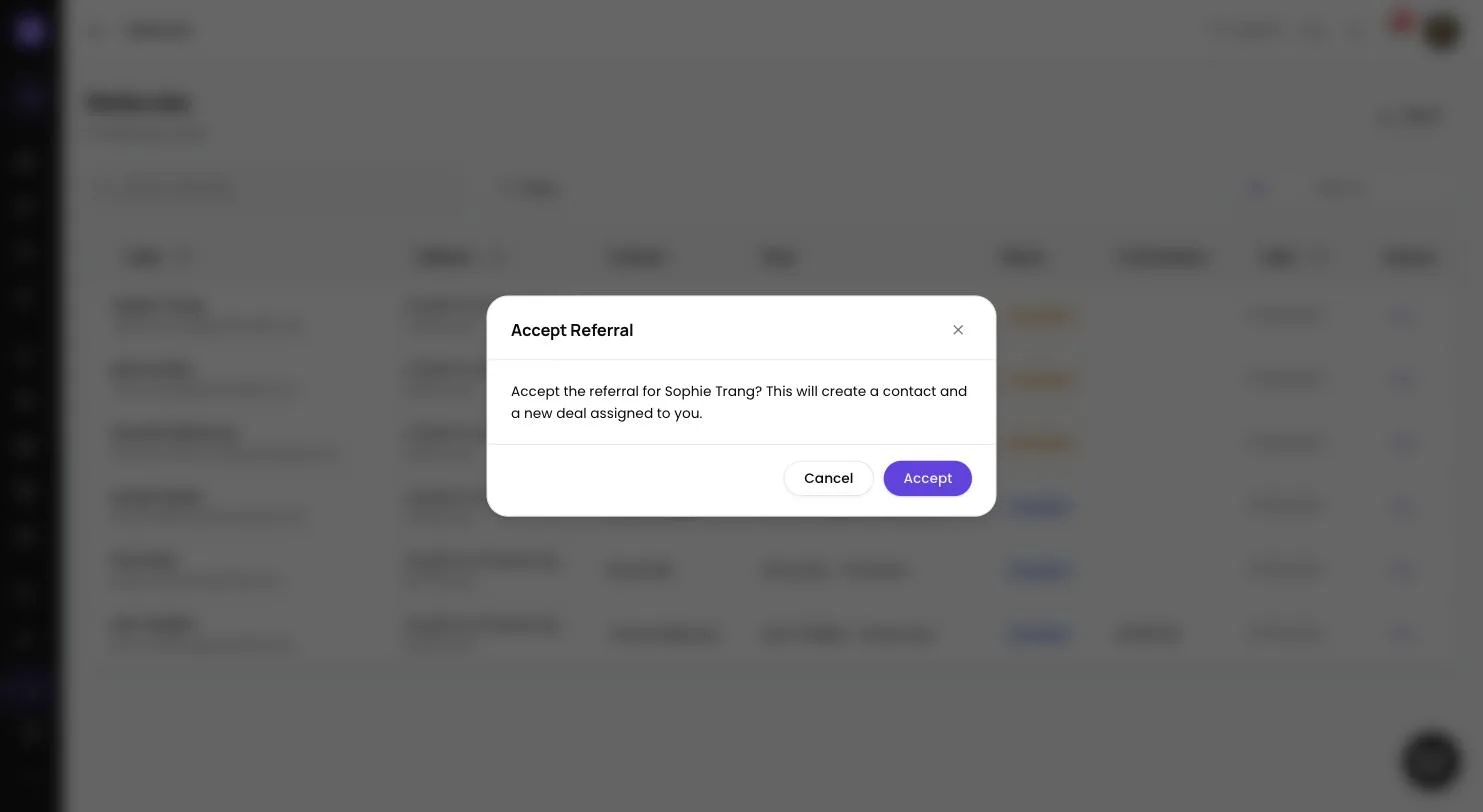
Congratulations! The referral is tied to a deal and its status now follows that deal.
Reject a referral
- On a Submitted referral, choose Reject referral.
- Enter a Reason (required) and select Reject.
The referral is marked Lost and the reason is recorded where only your team can see it. A Lost referral can't be accepted or linked afterwards.
Referral statuses
Below is a table of referral statuses, in the order Lend1 lists them, and what moves a referral into each one.
| Status | What moves a referral here | Your referrer sees |
|---|---|---|
| Submitted | The referrer submits it. Unlink deal also returns a referral here and clears any unpaid commission. | Pending Review |
| Accepted | Accept as new deal, Link to deal, Change deal or Approve match. | Accepted |
| In Progress | Nothing. It appears in the filter and the Progress tracker, but no action or deal change sets it. | In Progress |
| Won | The linked deal moves into a stage with the Settled outcome. Linking a deal that is already won does the same. | Won |
| Commission Paid | You select Mark commission paid. | Paid |
| Lost | You reject it, or the linked deal moves into a stage with the Inactive outcome while the referral is Accepted. | Lost |
Please note: a Won referral stays Won even if the deal later moves to an Active or Inactive stage, and a Lost referral does not reopen when its deal does. See Pipeline stages and stage outcomes.
How commission is calculated
When the linked deal is won, Lend1 fills in the commission from that referrer's own type and rate.
- Percentage of Deal Value: the rate applied to the deal's Loan Amount (AUD). If the deal has no amount, the referral's Estimated value is used.
- Flat Rate per Deal: the rate itself, as a dollar amount.
Override the commission
- On an Accepted or Won referral, choose Set commission in the row menu, or Set amount (Edit amount if one exists) on the Commission card.
- Enter the Commission amount and select Save.
An amount you set before the deal is won is kept when it is won. You can keep editing it while the referral is Won. Once it is paid, the amount is locked.
Mark a commission as paid
Lend1 records the payment. It does not move money, so pay your referrer outside Lend1 first.
- On a Won referral, choose Mark commission paid, or Mark paid on the Commission card, which reads "Awaiting payment".
- In the Mark Commission Paid dialog, select Confirm.
The referral moves to Commission Paid with today's date, and its amount and linked deal are locked. There is no undo, so check the amount first.
<!-- screenshot pending: referral-commission-card.webp (referral detail page for a Won referral showing the Progress tracker and the Commission card with Awaiting payment, Edit amount and Mark paid) -->What your referrer sees
- Under My Referrals, the status changes at each step, using the labels in the table above. An open referral also shows the Deal stage.
- A Commission card appears once the referral is Won or has an amount. It shows Amount and "Pending settlement", then Paid on after you mark it paid.
- On their Commission page, a won referral counts toward Pending. Marking it paid moves it into Total Earned and Payment History.
- With Show commission to referrers off, none of this commission detail is shown.
Please note: Lend1 does not email your referrer when a status changes or a commission is paid. To tell them, post in the referral's Notes card, which is shared with the referrer and emails them your message.