Updated
Go to Settings > Audit Log.
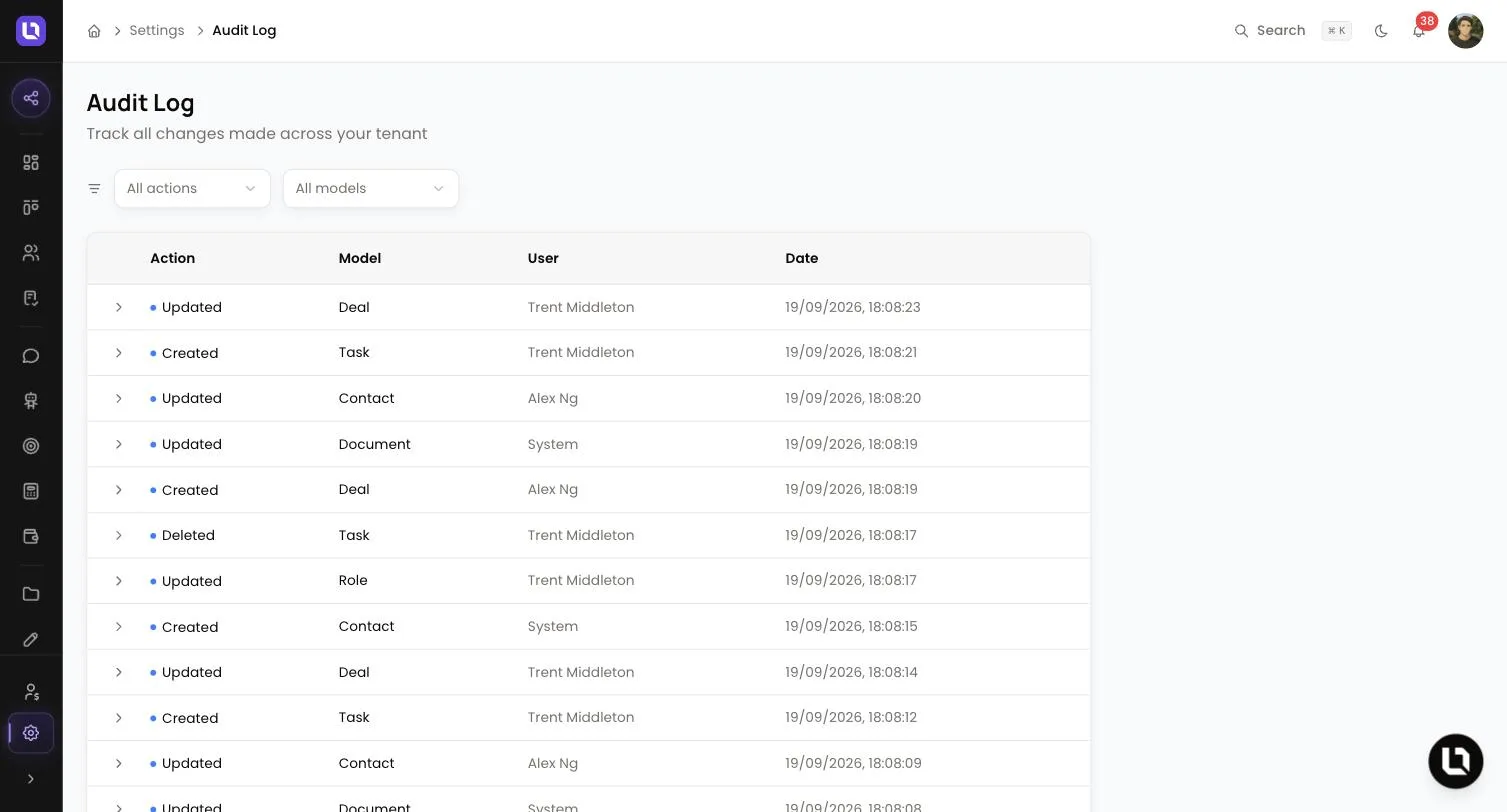
The audit log is a running list of changes made across your workspace: who created, updated or deleted a record, and when. Each entry opens to show the old and new value of every field that changed.
Before you start
- You need the View Audit Log permission. The Admin role holds it. Broker and Support do not start with it.
- To give it to someone else, an admin adds View Audit Log to a custom role under Settings > Roles & Permissions. See Creating custom roles and permissions.
- Anyone with the permission sees every entry for the whole workspace. There is no view limited to your own changes.
What the audit log records
Below is a table of what is recorded and what is not.
| Recorded | Not recorded |
|---|---|
| A deal, contact, task, note, document, form, automation, email template, landing page, referrer, role, team member or integration being created, updated or deleted | Opening or viewing a record |
| A document being renamed, downloaded or rejected, and a deal's documents being downloaded together | Which permissions a role holds. Creating, renaming and deleting a role are recorded, but a change to its permissions is not |
| Plan changes and AI credit purchases | Moving a team member into a custom role |
| A team member using Impersonate on a contact, when it starts and when it stops | Failed sign-in attempts |
| Documents removed by data retention | |
A successful sign-in, as an Updated entry on the user whose only changed field is last_login_at |
Passwords and integration credentials are never written to the log.
Please note: an update that only touches a record's timestamps or view counters does not add an entry.
Find an entry
Step 1: Filter by action
- Open the All actions list and choose one: Created, Updated, Deleted, Plan changed, AI credits purchased, Retention: document removed or Retention: purge summary.
- Other actions, such as a document download, have no filter option. Leave the list on All actions to see them.
Step 2: Filter by model
- Open the All models list and choose the kind of record: Billing, Deal, Contact, Document, Form, Task, Automation, Email Template, Landing Page, Referrer or Role.
- The two filters work together, so Deleted plus Contact lists every deleted contact.
Step 3: Page through the results
- Entries are listed newest first, 25 to a page. Use Previous and Next under the table. The line beside them shows where you are, for example "Page 2 of 14 (338 entries)".
Below is a table of columns and what each one shows.
| Column | What it shows |
|---|---|
| Action | What happened, with a coloured dot: green for created, blue for updated, red for deleted. |
| Model | The kind of record. |
| User | The person who made the change. System means it was not made by a signed-in user in your workspace, for example a scheduled retention purge or a billing update. Changes made by Lend1 support staff also show as System. |
| Date | When it happened, in your browser's local time. |
Please note: there is no search box, date range or export on this page. Narrow the list with the two filters, then page back to the date you need.
Read an entry
Step 1: Open the row
- Select any row. It expands in place. Select it again to close it.
Step 2: Read the change
- The line at the top shows IP, the address the change came from, and ID, the record's identifier in Lend1.
- The table lists each Field with its Old Value and New Value. Field names are Lend1's internal names, for example
assigned_user_id. A changed old value is struck through. - A Created entry fills only New Value. A Deleted entry fills only Old Value, so it shows the record as it stood when it was removed.
- Entries that are not a field change, such as a download, a plan change or a retention purge, show "No change details available".
How long entries are kept
Entries stay in the log. There is no setting that shortens how long they are kept, and no one in your workspace can edit or delete an entry.
There is one exception. When a document is removed by data retention, or an identity document is deleted, Lend1 strips the file name and other identifying values from that document's earlier entries. The entries themselves remain.
If you see something you don't recognise
Open the entry, note the User, IP and Date, ask that team member about it, have them change their password if it was not them, and contact us if you still can't explain it.