Updated
Go to Settings > Profile.
The Profile page holds the details that belong to your login: your avatar, your name, the email address you sign in with, your phone number, your personal onboarding link and your password. Every team member can open it, and nothing on it affects anyone else's login. You can also reach it from the menu under your avatar in the header, by selecting Profile.
Keep these details current. Your name and avatar are what clients see when they choose a broker during onboarding, and your name and email fill the merge fields in your email templates.
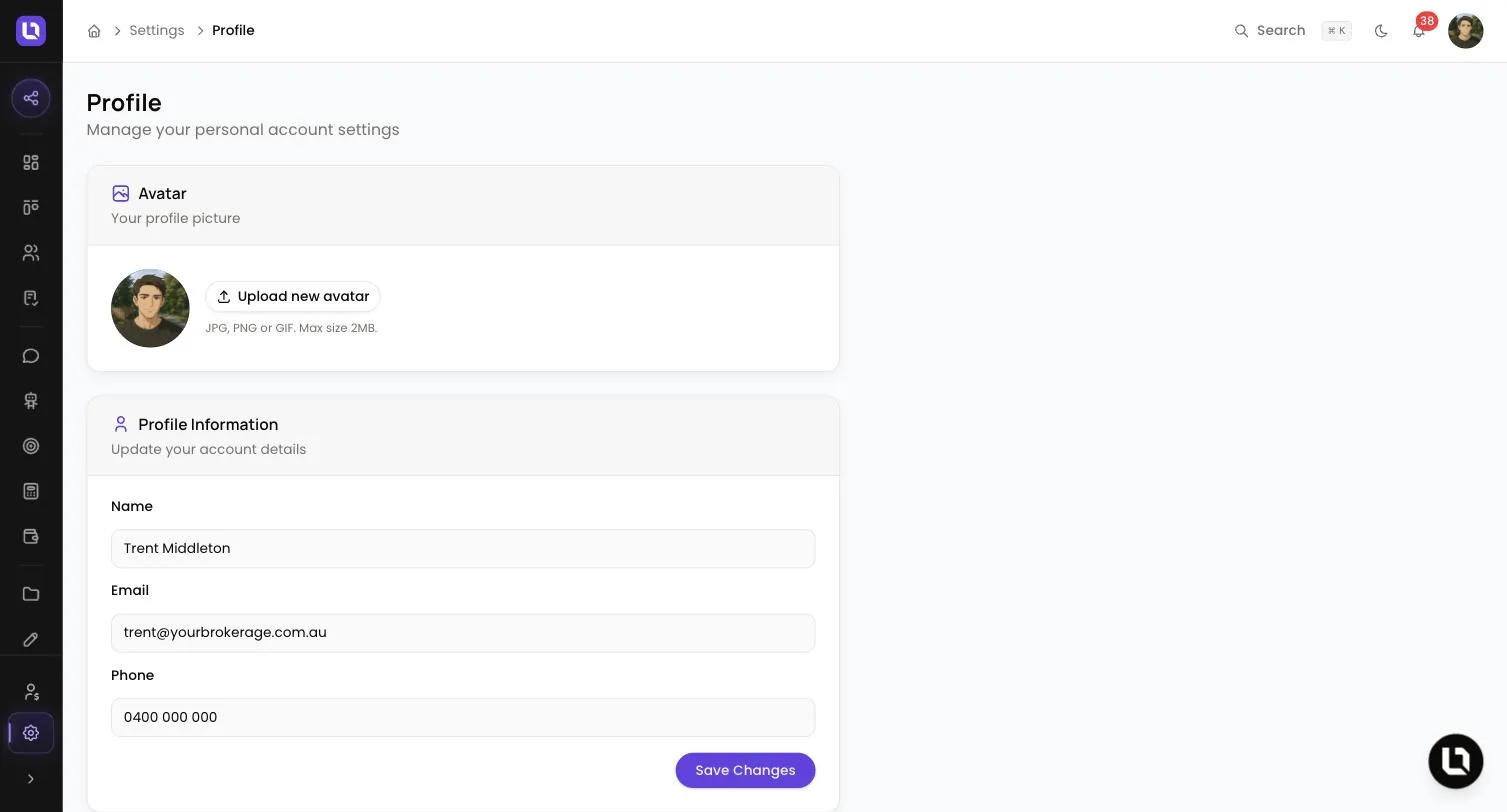
Update your details
Step 1: Upload an avatar
- In the Avatar card, select Upload new avatar and choose an image. The card accepts "JPG, PNG or GIF. Max size 2MB."
- The image uploads as soon as you choose it. There is nothing to save.
- Without an avatar, Lend1 shows your initials. Clients see your avatar and name on the Choose Your Broker step of your onboarding portal, if your workspace uses that step.
Step 2: Edit your profile information
- Name: your full name. It fills
{{user.name}}(Assigned User Name) in email templates for deals assigned to you, and it is the name clients pick on the Choose Your Broker step. - Email: the address you sign in with. It also fills
{{user.email}}(Assigned User Email). See the next section before you change it. - Phone: optional. If you use SMS Copilot, read the section on your phone number below first.
Step 3: Save
- Select Save Changes. Lend1 confirms with "Profile updated successfully".
The My Onboarding Link card underneath shows Your Link, a copy button and your Link Name. Applications started through that link are assigned to you. It is covered in Sharing your application link.
Change your email address
Your email address is your login. Edit Email in the Profile Information card and select Save Changes.
- The change takes effect straight away, so check the address for typos before you save. A mistyped address is one you can't receive a sign-in link or password reset at.
- Two people in the same workspace can't share an address. If a colleague already uses it, Lend1 shows "The email has already been taken."
- Your password does not change.
- If you have signed in with Google before, Lend1 remembers that Google account and it keeps working after the change. If you have never signed in with Google, the Google account you choose must use the same email address as your Lend1 login.
Change your password
Step 1: Enter your current password
- In the Change Password card, fill in Current Password. Lend1 rejects the change if it is wrong.
Step 2: Choose a new one
- New Password: at least 8 characters.
- Confirm New Password: the same again. If the two differ, Lend1 shows "Passwords do not match".
Step 3: Update
- Select Update Password. Lend1 confirms with "Password updated successfully" and clears the three fields.
Please note: changing your password does not sign you out anywhere else. If you are changing it because someone else may have had access, also open Lend1 on each other device and select Log out from the menu under your avatar.
If you have forgotten your current password, log out and select Forgot password? on the sign-in page. Lend1 emails you a reset link that is valid for 1 hour and works once.
Ways to sign in
Below is a table of sign-in methods and how each one works.
| Method | How it works | How long it lasts |
|---|---|---|
| Select Google on the sign-in page and choose your account. Google must report the email address as verified. | No link involved. | |
| Password | Enter your email address and Password, then select Sign in. | No link involved. |
| Email link | Select Sign in with email link instead, enter your email address and select Send sign-in link. Open the link in the email. | The link expires in 1 hour and works once. Asking for another link cancels the earlier one. |
Whichever method you use, you are signed out after 24 hours without activity, and no later than 25 hours after you signed in. Log out ends the session on that device only.
Your phone number and SMS Copilot
Please note: if you have verified your mobile for SMS Copilot and you change Phone on this page, Lend1 removes your verification and switches SMS Copilot off for you until you verify the new number. If another team member has already verified that number, the change is refused with "This mobile number is already registered for SMS Copilot by another team member." To verify again, follow Setting up SMS Copilot.
What only an admin can change
You can't change your own role or the brokers you support from this page, and you can't deactivate your own login here. Someone with access to Settings > Team does that from your row on the Team page, where they can also edit your name. See Inviting your team and assigning roles.