Updated
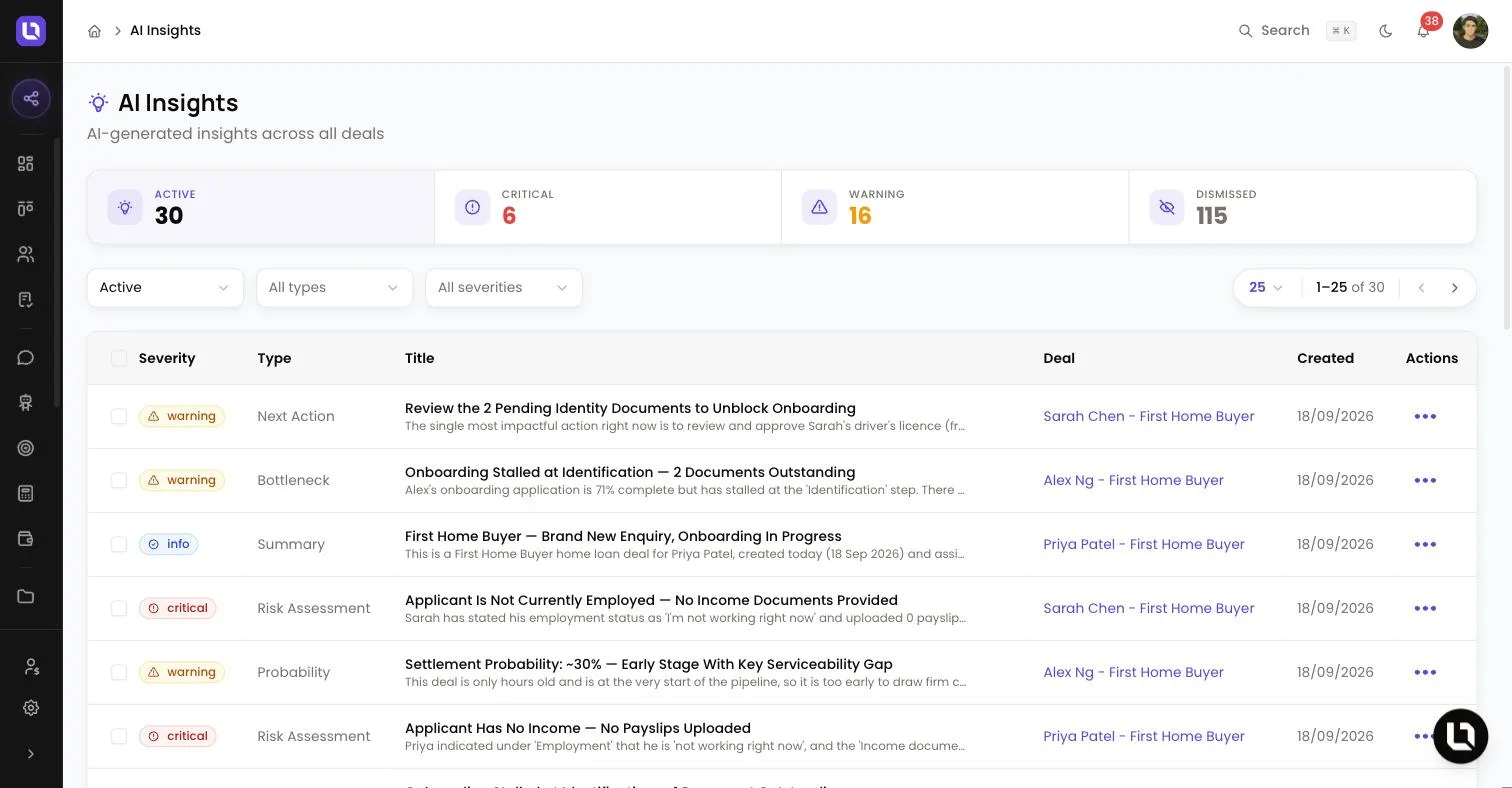
Go to AI Insights in the sidebar.
Lend1 reads each open deal (its details, application progress, documents, forms, eSign requests, notes and tasks) and writes a short set of insights about it, plus a lead score out of 100. The AI Insights page gathers the insights into one list.
Insights and scores are suggestions for you to review. They point at what is missing, stalled or due next on a file.
Before you start
- You need the View AI Insights permission to see AI Insights in the sidebar and to load insights and scores on a deal. The Admin, Broker and Support roles have it by default.
- Refresh on a deal also needs Use AI Chat. Calculate Score needs Manage Scoring Rules, which the default Broker and Support roles do not hold. See Creating custom roles and permissions.
- Insights and scores use AI credits from the same workspace pool as Lend1 AI. When the pool is empty, they stop updating until your allocation renews or you buy more. See Using the Lend1 AI copilot.
The AI Insights page
Four tiles sit across the top: Active, Critical, Warning and Dismissed. Active and Dismissed switch the table between the two views.
Under the tiles are three filters: status (Active or Dismissed), All types and All severities. The table lists each insight's Severity, Type, Title, Deal and Created date. Select the deal's name, or View Deal in the row's menu, to open it.
Severity is Critical for something blocking the deal, Warning for something to address soon, and Info for an observation.
Insight types
Below is a table of insight types and what each one tells you. A deal holds one insight of each type, which a refresh rewrites.
| Type | What it tells you |
|---|---|
| Risk | Risks drawn from missing items, incomplete data or inactivity. The Type column shows it as Risk Assessment. |
| Next Action | The single most useful next step, naming the specific item to action. |
| Bottleneck | What is slowing the deal down, for example documents still pending. |
| Probability | An estimate of how likely the deal is to settle. Listed on the AI Insights page only. |
| Summary | A brief factual summary of where the deal stands. |
Insights on a deal
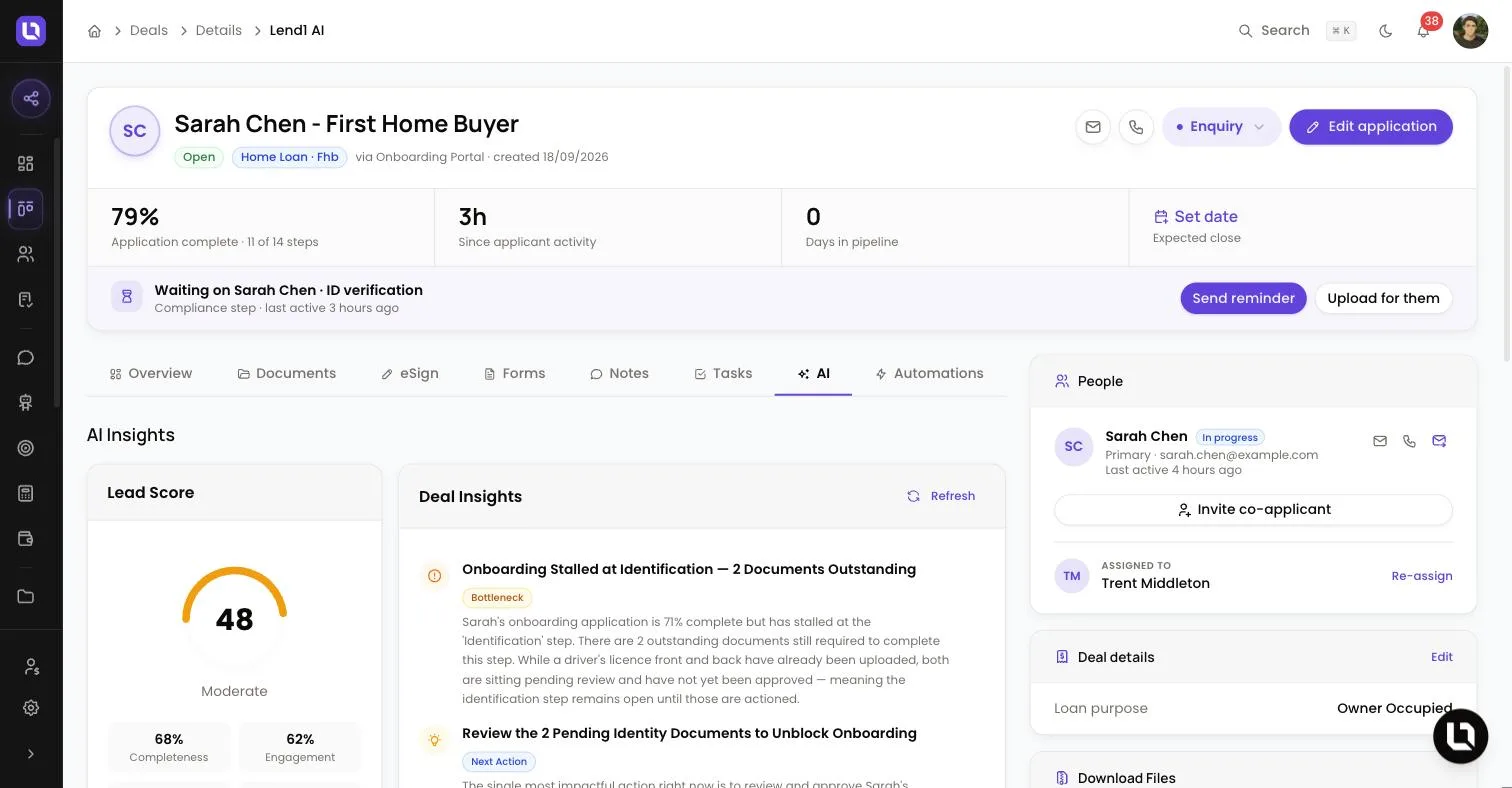
Open a deal and select the AI tab. It holds three cards: Lead Score, Deal Insights and AI Probability Estimate.
- Deal Insights lists the deal's active insights. Select Refresh to analyse the deal again. Lend1 shows "Generating insights…" and the list updates when the analysis finishes.
- AI Probability Estimate shows Win probability, which is the figure in the deal's Probability (%) field.
- The AI Insights card in the panel on the right shows the first two insights and the Lead Score. View all opens the AI tab.
Lead scoring
The lead score is a number from 0 to 100. It appears on the deal's AI tab, on each card in the Kanban view and in the Score column of the Table view.
Lend1 rates the deal from 0 to 100 in four categories, and the overall score is their weighted average. Below is a table of categories and what each one looks at.
| Category | Weight | What it looks at |
|---|---|---|
| Completeness | 25% | Application progress, contact details, documents and forms. |
| Engagement | 30% | How recent the notes, tasks, form submissions and eSign activity are. |
| Quality | 30% | Whether the deal type and value are set and the documents support the application. |
| Urgency | 15% | How close the Expected close date is. |
The score carries a label: Excellent from 80, Good from 60, Moderate from 40 and Poor below that. If a deal has no score yet, the card reads "No score available" with a Calculate Score button.
When insights and scores update
Lend1 analyses a deal again when its stage changes, a document is uploaded to it, or the client or a co-applicant completes their application. A daily check also picks up open deals that have changed since they were last analysed.
An insight stays active for 7 days after it was generated.
Dismiss or restore an insight
- On the AI Insights page, open a row's menu and select Dismiss, or tick several checkboxes and select Dismiss in the bar above the table.
- On a deal's Deal Insights card, hover over an insight and select the Dismiss cross.
- The confirmation message carries an Undo button. Later, select the Dismissed tile, then Restore. A restored insight is active for another 7 days.
Please note: "Insights you dismiss stay here for 30 days so you can restore them." After that they are deleted.
<!-- screenshot pending: ai-insights-dismissed-view.webp (AI Insights page with the Dismissed tile selected, two rows ticked and the bar above the table showing Clear and Restore) -->Closed deals
AI insights and lead scoring pause once a deal moves into a stage with the Settled or Inactive outcome. The Refresh button is replaced with "AI insights are paused for closed deals." Moving the deal back into an Active stage starts both again. See Pipeline stages and stage outcomes.
The AI Insights panel on a contact
A contact with at least one deal shows an AI Insights panel. It is worked out from the contact's deals and uses no AI credits: Active contact or Highly engaged contact, missing documents and Avg. deal value. View all opens the contact's AI tab, which holds AI Extracted Data.