Updated
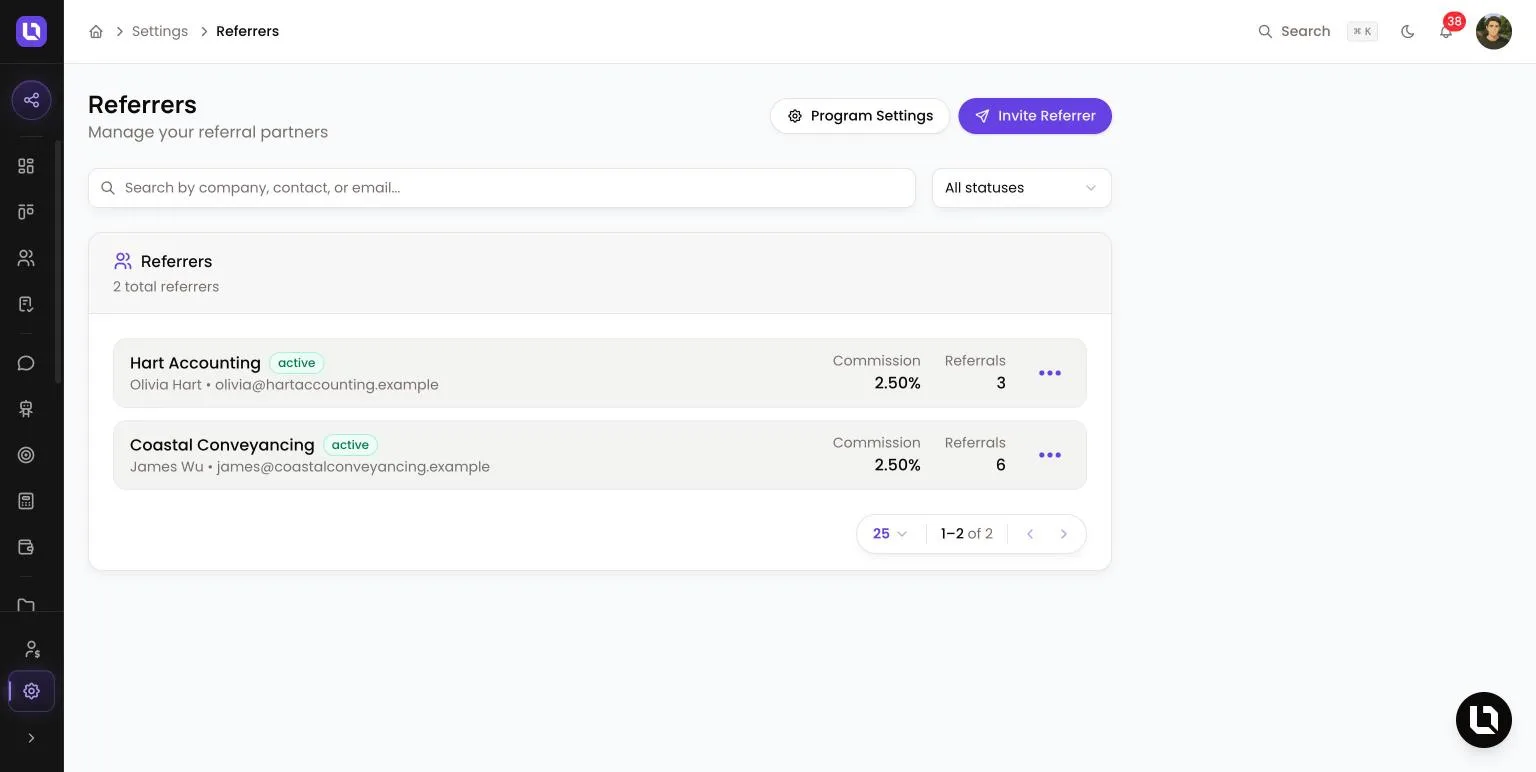
Go to Settings > Referrers.
Each referrer gets a login to a portal on your workspace's own web address, where they submit referrals and follow their progress. You review each referral, turn it into a deal, and record the commission owed.
Before you start
- Settings > Referrers needs the Manage Referrers permission. The Referrals page needs View Referrers, and commission actions need Manage Commissions. An admin grants these under Settings > Roles & Permissions. See Creating custom roles and permissions.
- Sending an invite is checked against your plan's team member limit. If your workspace is already at that limit, the invite is refused with "You have reached your plan limit. Please upgrade to continue."
- Referrals only appears in the sidebar once the program is turned on.
Configure your program
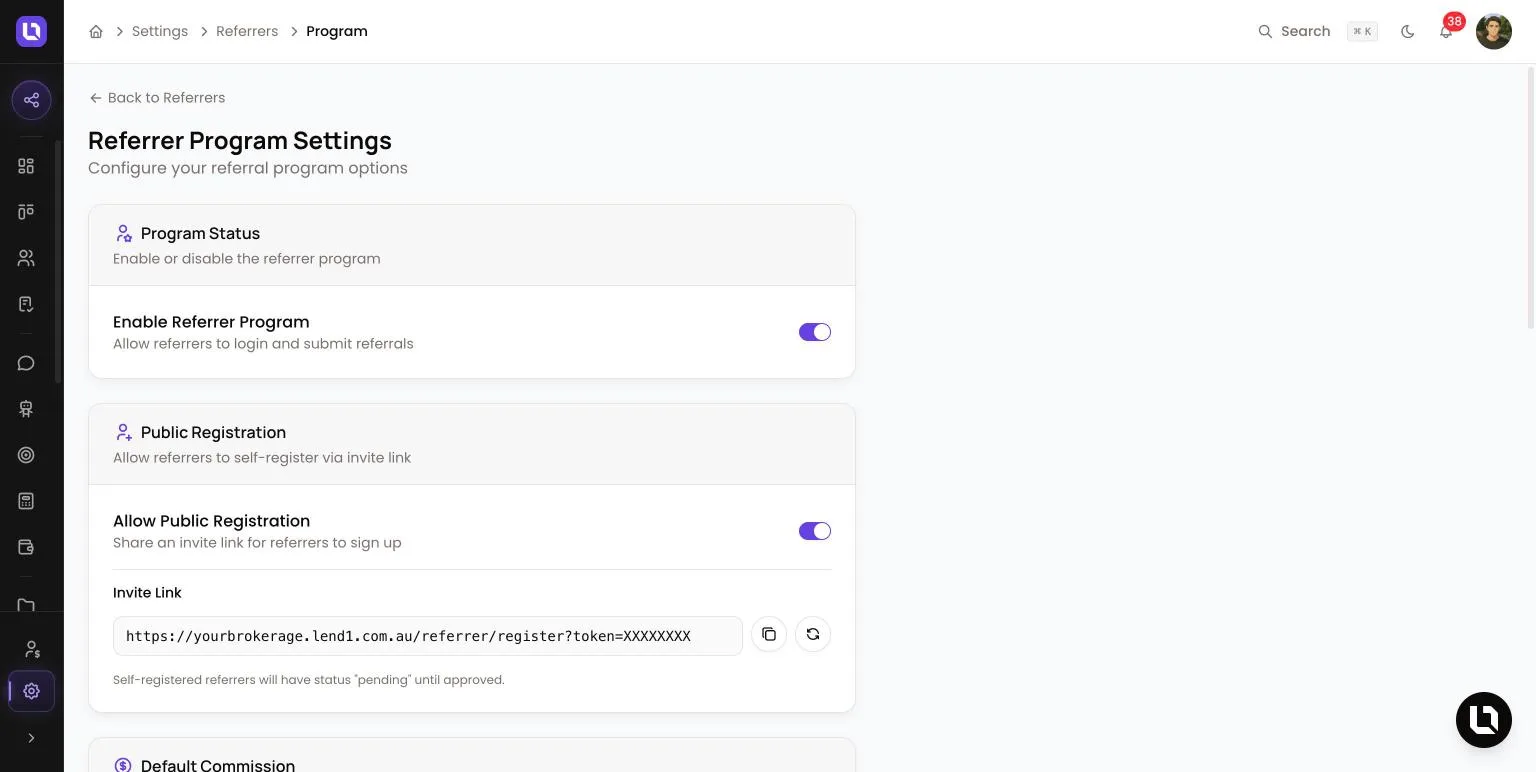
Select Program Settings in the top right of the Referrers page.
Below is a table of program settings and what each one does.
| Setting | What it does |
|---|---|
| Enable Referrer Program | Lets referrers log in and submit referrals. While it is off, they can't log in. |
| Allow Public Registration | Shows an Invite Link to copy and share so referrers can sign themselves up. The refresh button generates a new link. |
| Default Commission | The Commission Type (Percentage of Deal Value or Flat Rate per Deal) and Commission Rate given to a new referrer when you don't set their own. |
| Show commission to referrers | When off, the Commission page and every commission amount are hidden in the portal. Commission is still tracked in Lend1. |
| Service Types | The options in the portal's Deal Type dropdown. Leave it empty and referrers choose from a built-in list of loan types. |
| Compliance Checklist | Statements a referrer ticks before submitting. Items marked Required must be confirmed, and Lend1 records when. |
| Welcome Message | Shown on the public registration page. |
Switches save straight away. Other sections show a save button once edited.
Invite a referrer
Step 1: Open the form
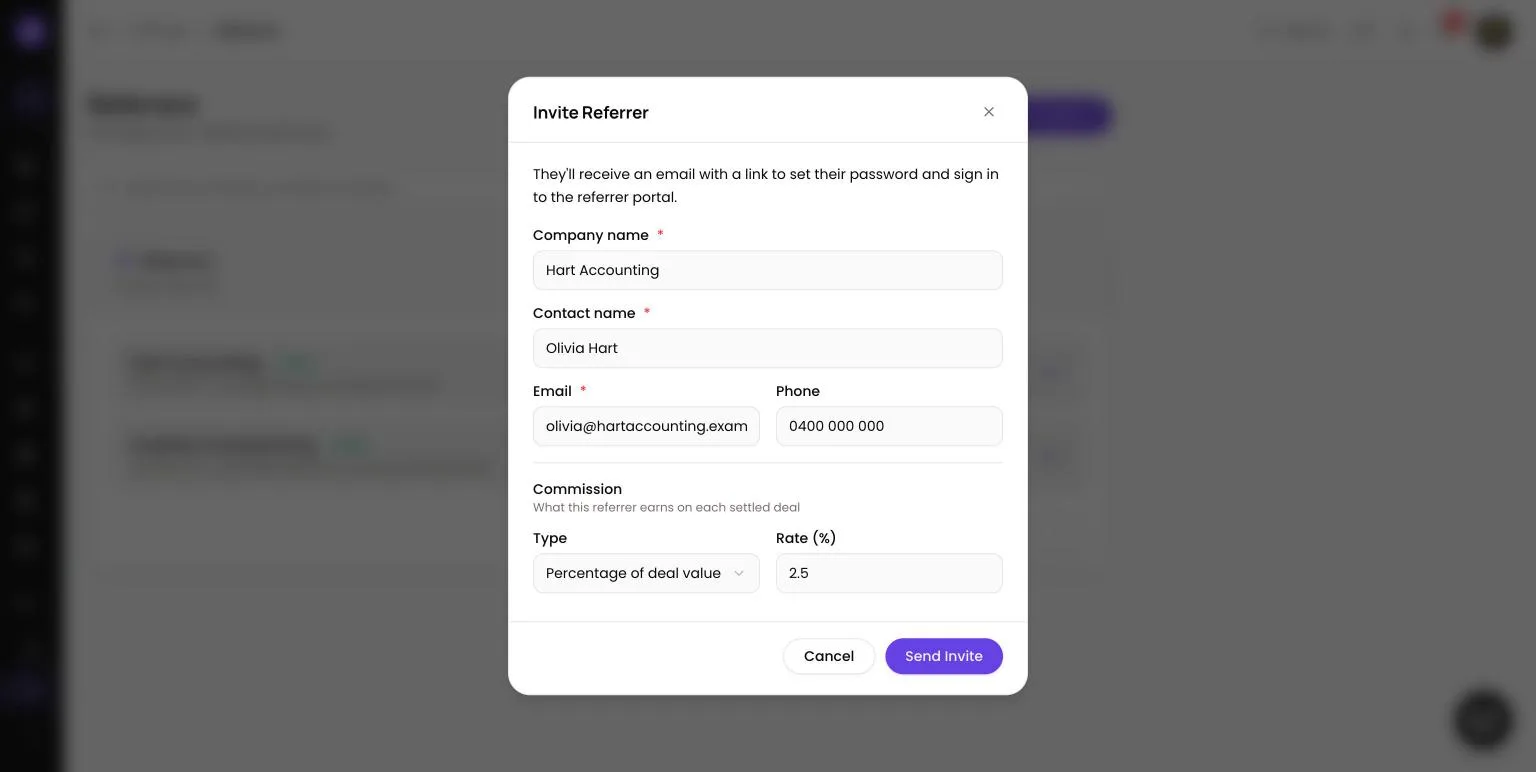
- On the Referrers page, select Invite Referrer.
Step 2: Enter their details
- Company name, Contact name and Email are required. Phone is optional. The email can't already belong to a login in your workspace.
- Under Commission, choose a Type and a Rate. Leave the rate blank to use your program default.
Step 3: Send and approve
- Select Send Invite. The referrer is emailed a link to set their password, valid for 7 days. If it lapses, they can select Reset it on the portal login page.
- New referrers are listed as Pending, including anyone who registers through your invite link. They can log in but can't submit referrals until you select Approve on their row.
Congratulations! Your referrer can log in with their email and password and send you referrals.
What your referrer sees
Below is a table of portal pages and what each one is for.
| Page | What it is for |
|---|---|
| Dashboard | Referral totals and Recent Referrals. |
| Submit Referral | First name, last name and email are required. Phone, Deal Type, Estimated Value and Notes are optional, followed by your compliance checklist. |
| My Referrals | Every referral they have sent. Opening one shows the client's details, status, the linked deal's stage and a Notes thread with you. |
| Commission | Total Earned, Pending, This Month and This Year, plus Payment History. Hidden when Show commission to referrers is off. |
Referrers only see their own referrals. They don't see the deal file, its documents, or any rejection reason.
Work incoming referrals
Everyone with View Referrers gets an in-app notification for a new referral, and an email unless they have turned referral emails off. Go to Referrals and open the menu on the row.
- Accept as new deal creates the contact (or reuses one with the same name and email) and a new deal assigned to you.
- If the referral's email matches a contact who already has a deal, Lend1 suggests it. Choose Approve match or Dismiss match.
- Link to deal lets you pick the deal by hand. Unlink deal returns the referral to Submitted.
- Reject referral asks for a Reason and marks the referral Lost.
Below is a table of referral statuses and what they mean.
| Status | What it means |
|---|---|
| Submitted | Sent by the referrer and awaiting your decision. Your referrer sees this as Pending Review. |
| Accepted | Linked to a deal. |
| In Progress | Available as a filter. Lend1 doesn't move referrals into it automatically. |
| Won | The linked deal settled. Commission is owed. |
| Commission Paid | You marked the commission as paid. The referral's deal and commission are now locked. Your referrer sees this as Paid. |
| Lost | The referral was rejected or its deal was lost. |
Please note: Lend1 emails a referrer their invite, password resets, and a message when you post in a referral's Notes thread. Status changes are not emailed.
Record commission
When a linked deal settles, Lend1 fills in the commission from the referrer's rate: a percentage of the deal's value, or the flat amount. Use Set commission to override it. An amount you set is never overwritten.
Once the referral is Won, Mark commission paid stamps the date and moves it to Commission Paid. Lend1 records the payment only. It doesn't transfer money. The full day-to-day workflow is in Tracking referrals and paying commissions.
Deactivate a referrer
Open the menu on the referrer's row and select Deactivate, then confirm. They lose portal access immediately. Their referrals and commission history are kept, and Reactivate restores their login.