Updated
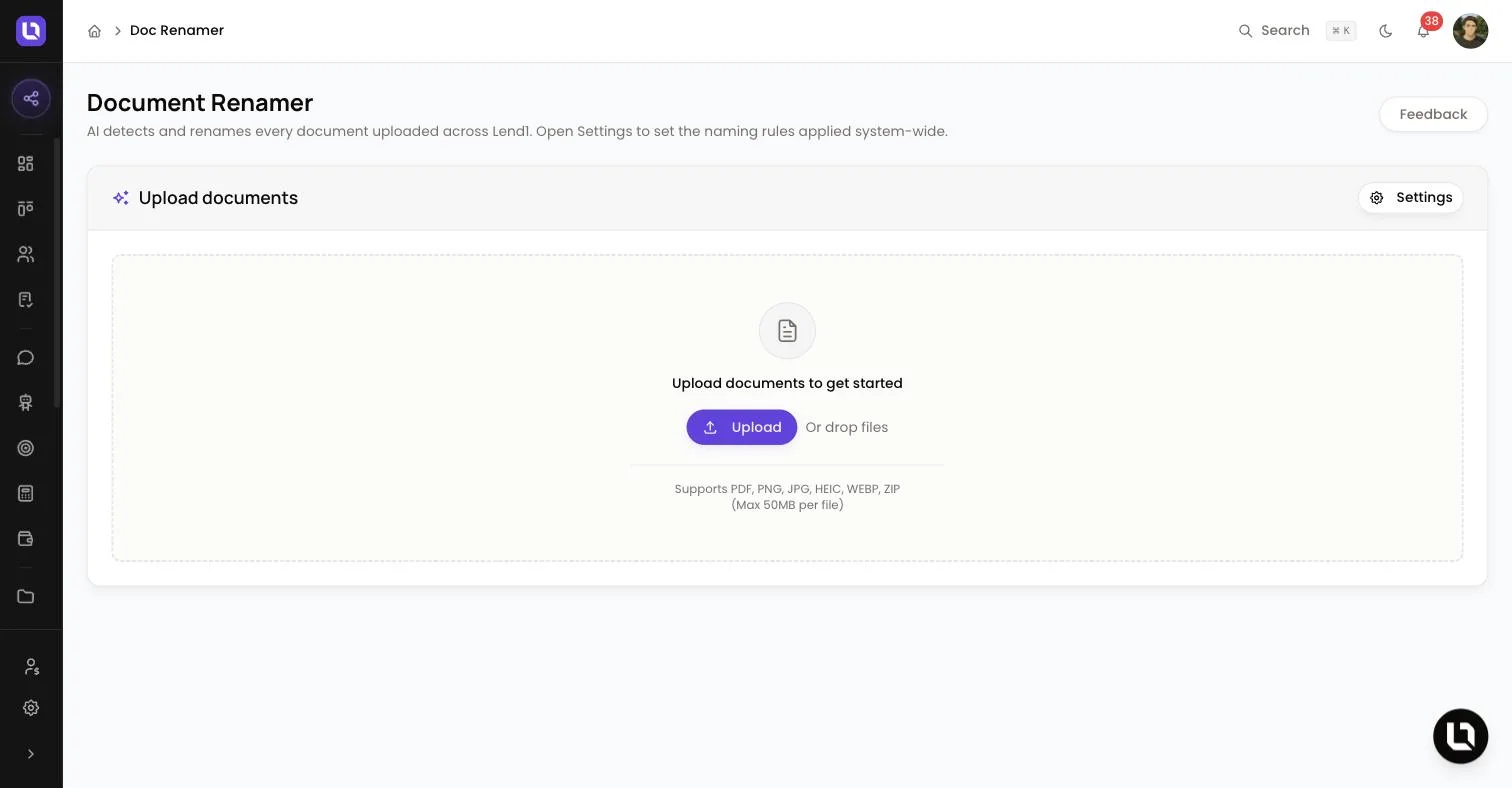
Go to Doc Renamer in the sidebar.
Doc Renamer does two jobs. It is a batch tool: upload loose files, Lend1 AI detects what each one is, reads its details and builds a consistent filename, and you download the renamed copies. It also holds your workspace's naming rules, which Lend1 applies to documents uploaded by staff and clients.
Before you start
- Doc Renamer appears in the sidebar for roles with the View Documents permission. See Creating custom roles and permissions.
- Uploading uses your workspace's monthly AI credits. At the limit, the upload is blocked and an AI Credit Limit Reached banner offers Purchase More Credits.
- The upload area supports PDF, PNG, JPG, HEIC, WEBP and ZIP, up to 50MB per file.
- The batch tool is standalone. Files you upload here are not added to the Documents page, a deal or a contact.
Rename a batch of files
Step 1: Upload
- Select Upload and choose your files, or drop them onto the upload area.
- A ZIP is unpacked. Each supported file inside becomes its own row and anything else is skipped.
Step 2: Wait for processing
- Each file shows Queued, then Processing.... The list updates by itself.
- A processed row shows the new filename, the detected document type, a confidence percentage and the original filename.
- A file that can't be processed shows Failed to process document. It has no download button and is left out of Download all.
Step 3: Download
- Select Download on a row to save that file under its new name.
- Select Download all to save every processed file in one
documents.zip.
Congratulations! Your files share one format, for example Payslip John Smith JP Mortgages 09-02-2026.pdf.
Check and correct a suggested name
Select a processed row to expand it.
- Document Preview: the file itself. HEIC images can't be previewed.
- Document Type: the type Lend1 AI detected, with its confidence.
- Extracted Information: each detail read from the document with its own confidence. Rows under 70% are shaded red.
If the type is wrong, choose the right one under Document Type. Lend1 AI reads the file again (the row shows Extracting) and rebuilds the name from that type's template.
Please note: the suggested name can't be typed over on this page. A row tagged No data extracted is named from its template with the missing details left blank, and the Other type keeps the original filename.
Set your naming format
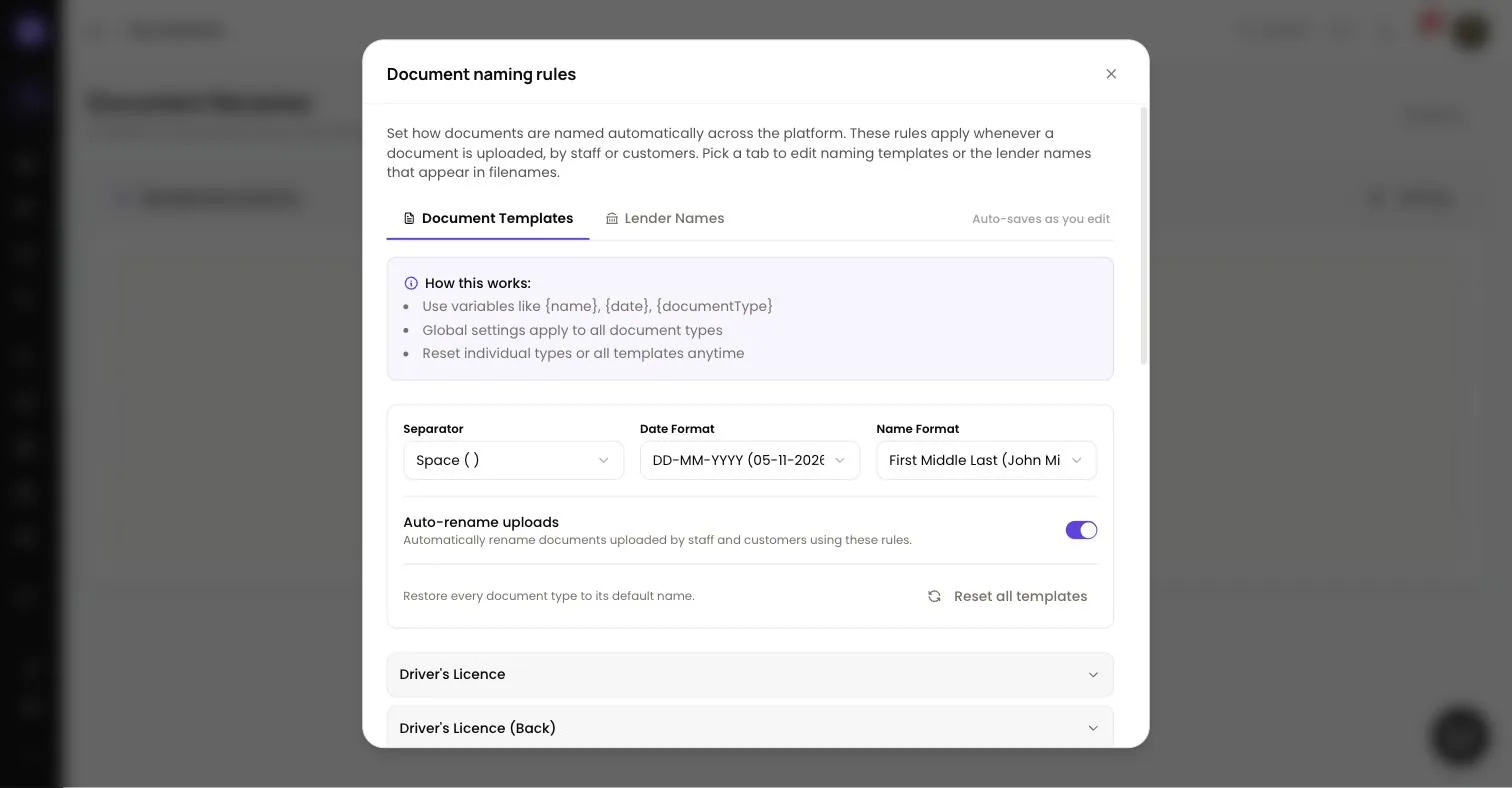
Select Settings to open Document naming rules, with two tabs: Document Templates and Lender Names. Changes save by themselves.
Please note: these rules belong to the workspace, not to you. Anyone who can open Doc Renamer can change them.
Below is a table of global settings and what each one starts on.
| Setting | Options | Starts on |
|---|---|---|
| Separator | Space ( ), Dash (-), Underscore (_) | Space ( ) |
| Date Format | DD-MM-YYYY (05-11-2026), YYYY-MM-DD (2026-11-05), MM-DD-YYYY (11-05-2026), DD/MM/YYYY (05/11/2026) | DD-MM-YYYY (05-11-2026) |
| Name Format | First Last (John Smith), First Middle Last (John Michael Smith), Last, First (Smith, John) | First Middle Last (John Michael Smith) |
| Auto-rename uploads | On or off | On |
Please note: the characters / \ : * ? " < > | are stripped from every finished name, so the DD/MM/YYYY option produces a date with no slashes.
Below the global settings, select a document type to edit it.
- Naming Template: text mixed with variables in curly brackets, up to 500 characters. Payslips start on
Payslip {name} {employer} {payDate}. - Available Variables: select one to add it to the end of the template. A variable with no value found is left blank.
- Preview: a sample filename that updates as you type.
- Revert to Default restores an edited type. Reset all templates restores every type after you confirm.
On Lender Names, each institution has a short display name used in filenames, such as CommBank for Commonwealth Bank of Australia. Find one with Search institutions..., type a new name of up to 50 characters, or select Reset All to restore the defaults.
Please note: with Auto-rename uploads on, a document uploaded by staff or a client is renamed from the same templates once Lend1 AI has read it. The name is left alone when staff have renamed the document by hand, when detection or extraction confidence is under 70%, and for attachments that arrive in a conversation.
What happens to your files afterwards
- Batch files sit in temporary storage and only your login can open them.
- Refreshing the page clears the list, and the batch can't be reopened.
- Remove deletes one file and Remove all deletes the whole batch straight away.
- Otherwise a batch expires two hours after your last upload or change, and an hourly clean-up deletes its files.
Report a wrong result
Select Feedback in the top right to open the Report Issue dialog. Choose a Type, write at least 10 characters in Description, and select Submit. The report goes to the Lend1 team with your name and workspace. No file is attached, so describe the document and the name you expected.