Updated
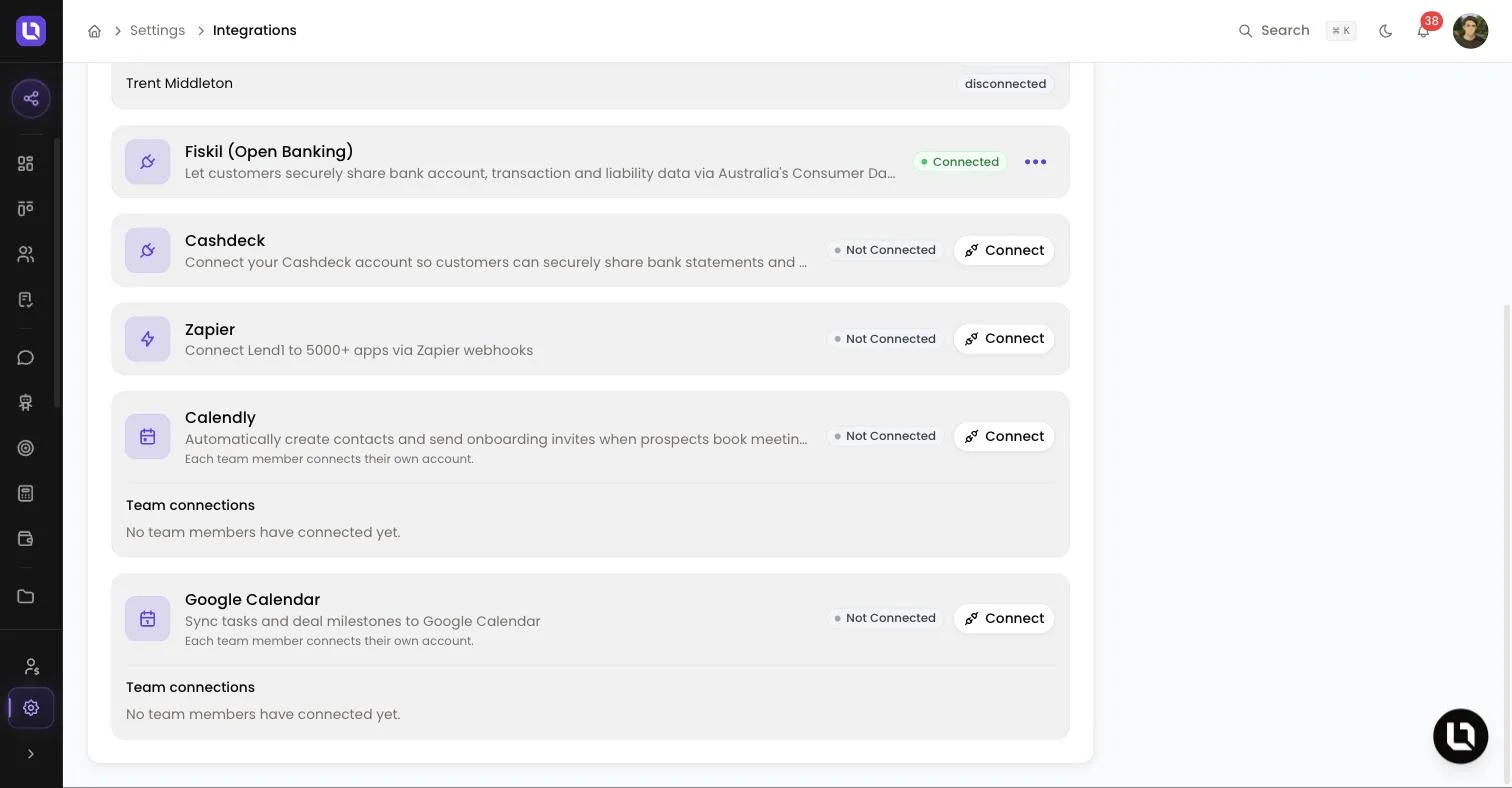
Go to Settings > Integrations and find Google Calendar in the list.
Google Calendar puts your Lend1 tasks on your calendar. Every task assigned to you that has a due date becomes a calendar event, and Lend1 keeps that event up to date as the task changes. The sync runs one way, from Lend1 to Google.
Before you start
- This is a personal connection, not a workspace one. The card says Each team member connects their own account., and each person's tasks go to their own calendar.
- You need the Connect Own Integrations permission, which the default Broker and Support roles hold, or Manage Integrations. The Admin role can always connect. If Google Calendar has no Connect button, ask an admin to grant you that access under Settings > Roles & Permissions. See Creating custom roles and permissions.
- You need a Google account with a calendar. No plan upgrade is needed.
Connect your Google account
Step 1: Open the dialog
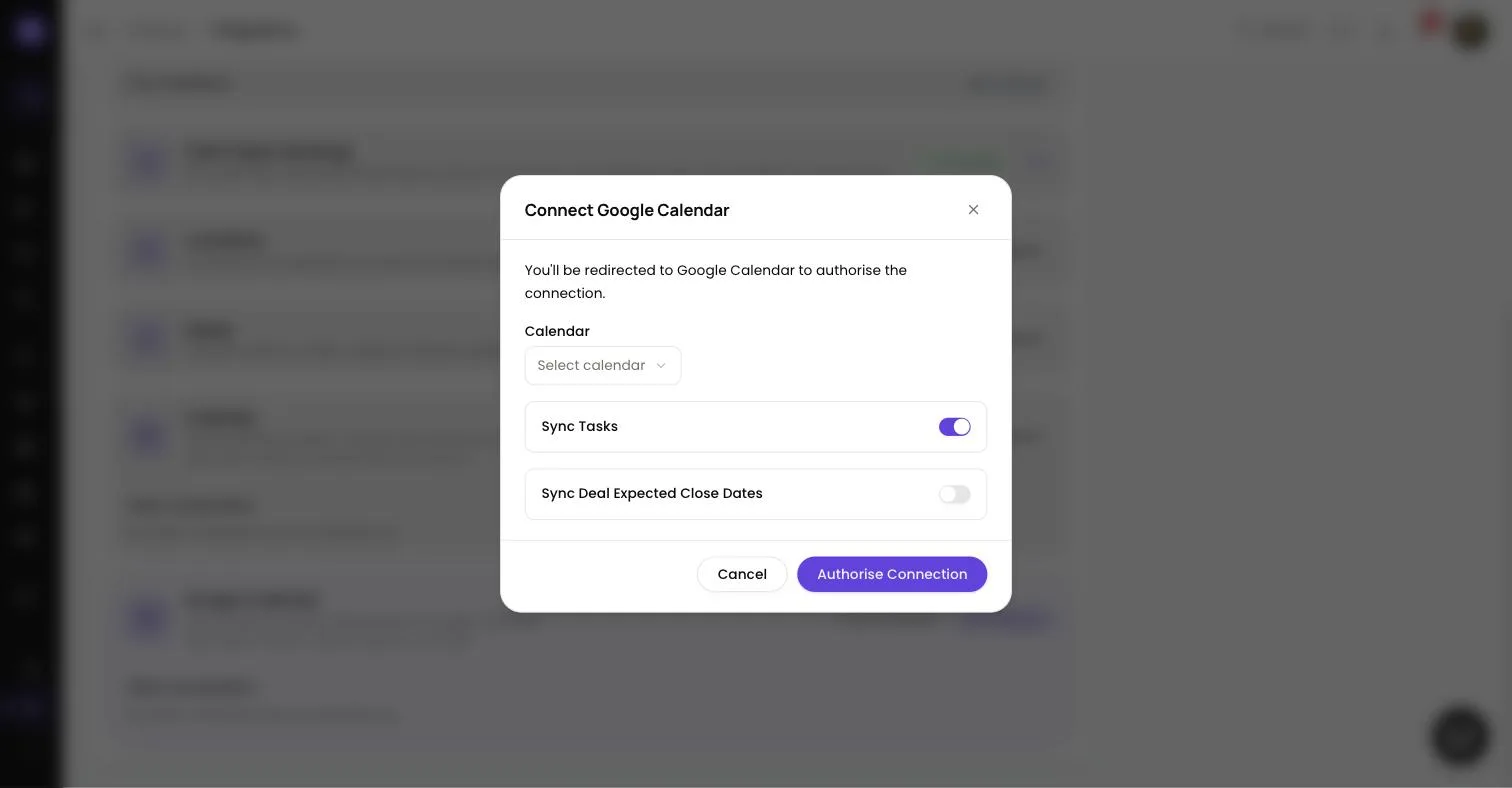
- Select Connect on the Google Calendar row. A dialog titled Connect Google Calendar opens.
Step 2: Check the options
- Sync Tasks: leave this on.
- Calendar: leave this empty. You choose your calendar after Google has connected.
- Select Authorise Connection. Lend1 sends you to Google.
Please note: the dialog also shows Sync Deal Expected Close Dates, and the card reads "Sync tasks and deal milestones to Google Calendar". Only tasks sync today. That switch does not create any events.
Step 3: Approve access in Google
- Choose your Google account. Google asks you to approve two things: that Lend1 can view and edit events on your calendars, and that Lend1 can see your calendars.
- Finish within 10 minutes of selecting Authorise Connection. After that the link expires and Lend1 shows Connection failed: invalid_state. Select Connect and start again.
Congratulations! Google returns you to the connection's page in Lend1 with the message Integration connected successfully, and its Status reads Connected.
Choose a calendar and sync options
On the connection's page, the Settings tab holds a Task Sync card. To come back to it later, open the menu on the Google Calendar row and select View connection.
- Sync tasks to calendar: on by default. Turn it off to stop creating calendar events for your tasks.
- Calendar: starts on your primary calendar. Task events are created on the calendar you choose here.
- Select Save settings.
Please note: changing Calendar applies to events created from then on. Lend1 does not move events it already created on the previous calendar.
What syncs and when
Lend1 queues the sync each time a task is created, edited, completed or deleted, so changes reach Google shortly after you save. Last Sync on the connection's page shows when an event was last written.
Below is a table of Lend1 changes and what happens in Google Calendar.
| Lend1 change | What happens in Google Calendar |
|---|---|
| A task with a due date is assigned to you | An event is created with the task's title. A task with only a due date becomes an all-day event. A task with a due time, such as one Lend1 AI creates for "tomorrow 2pm", becomes a one hour event. |
| Title, description, priority or due date is edited | The same event is updated. |
| The due date is removed | The event is deleted. |
| The task is completed or cancelled | The event is deleted. |
| The task is reassigned | The event is removed from your calendar and created on the new assignee's calendar, if they have connected theirs. |
| The task is deleted | The event is deleted. |
The event's description holds the task's description, its priority, and a link back to the deal (or to the Tasks page for a task that isn't on a deal).
Please note: anything written in a task's title or description, including a client's name, is copied into your Google Calendar.
What does not sync
- Tasks with no due date, tasks assigned to someone else, and unassigned tasks.
- Tasks that existed before you connected. They appear the next time they are edited.
- Deal expected close dates.
- Changes made in Google Calendar. Moving or deleting an event there does not change the task.
Fix a broken connection
If Google stops accepting Lend1's access, for example because you removed Lend1's access in your Google account, the row's badge changes to Error with a red message under the description that starts with "Google access revoked" or "Token refresh failed". Task sync stops until you reconnect.
- Select Connect on the row and approve access in Google again. Your calendar choice is kept.
Disconnect
Open the row's menu and select Disconnect, or select Disconnect on the connection's page. It acts immediately, with no confirmation step. Lend1 revokes its access with Google, deletes its stored tokens, and the badge returns to Not Connected.
Please note: events already on your calendar stay there. Delete them in Google Calendar if you no longer want them.