Updated
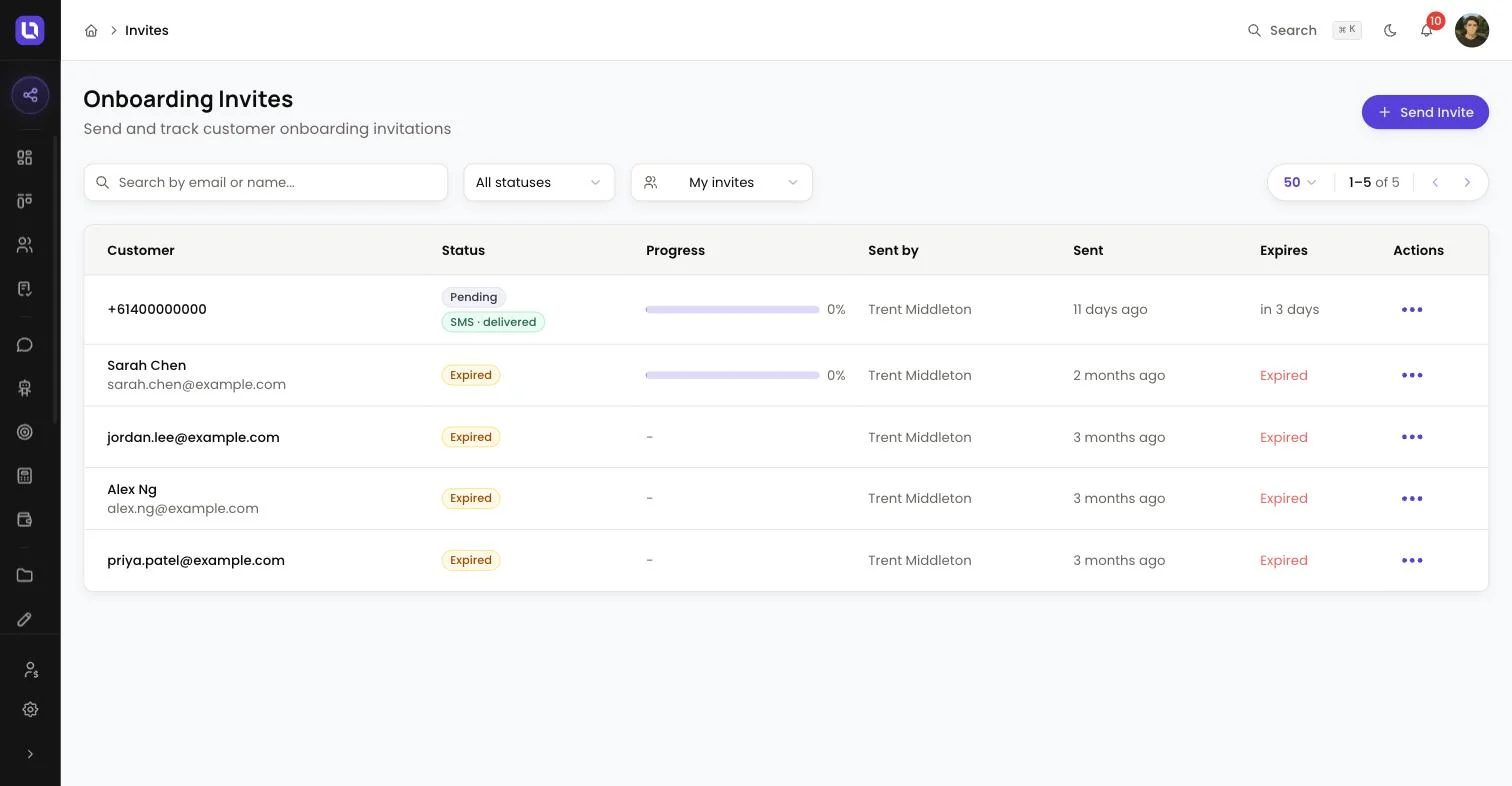
Go to Invites in the sidebar.
An invite sends your client a personal link to your onboarding portal. They complete their application on any device, at their own pace, and everything they enter lands straight on the deal.
Before you start
- The application your client sees is built and branded on the Onboarding Portal page. Lend1 sets your workspace up with a default flow, so there's nothing to configure before sending your first invite. Head there later if you want to change the questions or add other loan types.
- If you'd rather share one link that works for anyone instead of sending individual invites, go to Settings > Profile for your personal onboarding link and its Copy button.
Send an invite
Step 1: Create the invite
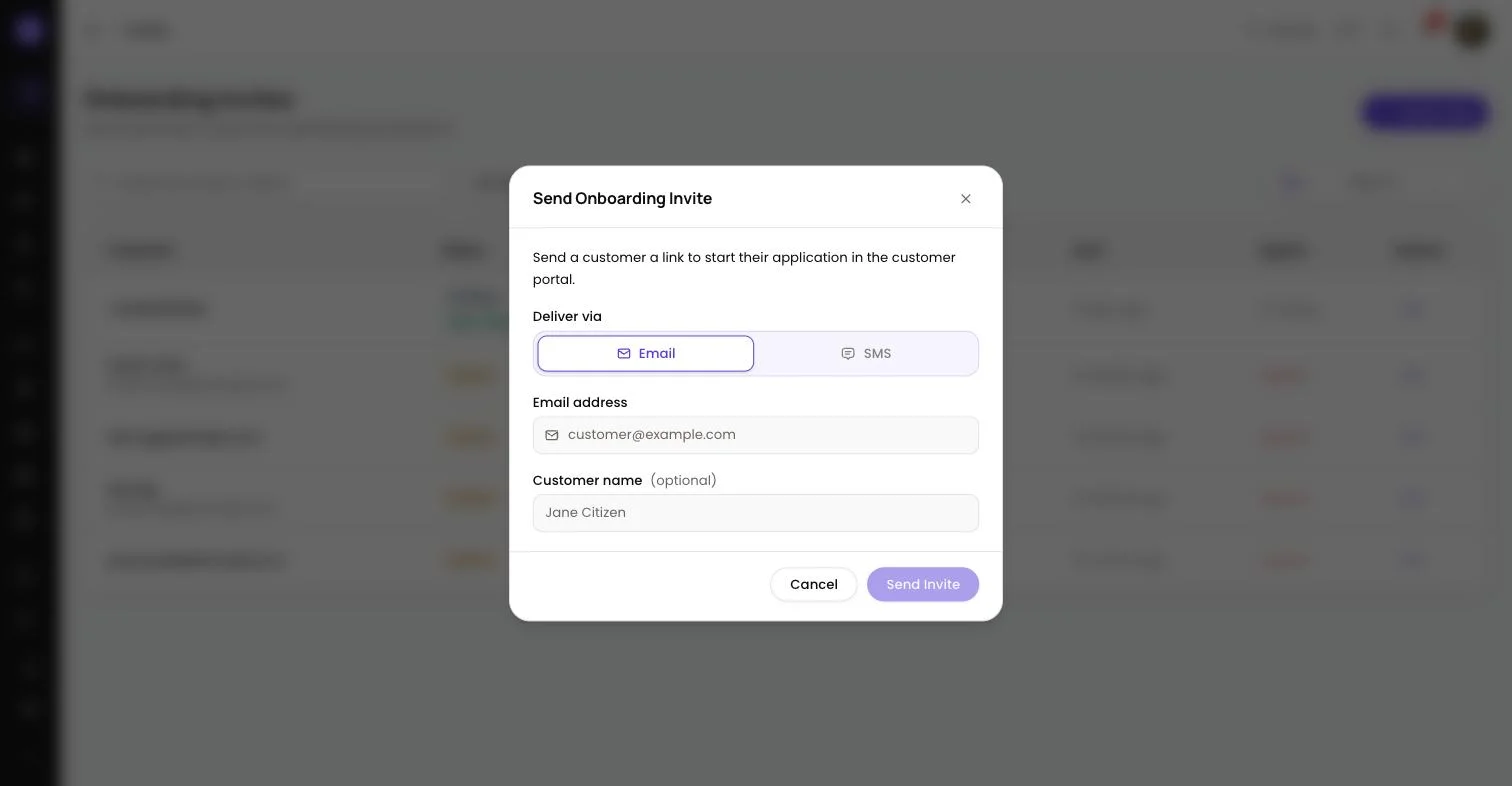
- Select Send Invite in the top right of the Invites page.
Step 2: Choose how it's delivered
- Under Deliver via, pick Email or SMS. Email is always available. SMS depends on your workspace having a phone number set up and being under its monthly SMS limit; if it isn't available, the option is greyed out and Lend1 tells you why.
- If you support one or more brokers, a For broker field appears above this so you can send the invite on their behalf. Everyone else can skip it.
Step 3: Add your client's details
- Depending on the channel you chose, enter their Email address or Mobile number. One of these is required.
- Customer name (optional): your client's name. Helps you tell invites apart on the list, and pre-fills it in the application.
Step 4: Send
- Select Send Invite. It appears on the list with status Pending.
- Sending doesn't create a deal straight away. As soon as your client opens the link, Lend1 creates the deal for their application and assigns it to you (or to the broker you sent it on behalf of), so it's already sitting on your pipeline while they fill it in.
What your client sees
The link takes them straight into the application. There's no separate login or code to look up: it opens with their name, email and phone already filled in from what you entered.
From there they work through their loan and property details, then their own information (employment, ID and income documents), finishing with a summary review and any signatures you've set up. They can close the tab at any point and pick up exactly where they left off by clicking the same link again, or by signing back in to their application.
If they mark their application as joint, the application itself prompts them to invite their co-borrower there and then, by email (and SMS too, if they give a mobile number). The co-borrower gets their own link, sees the shared answers already filled in and read-only, and completes their own employment, ID and income steps independently. They show up on the deal under People as soon as they're invited, before they've finished their part.
Track progress and resend
| Status | Meaning |
|---|---|
| Pending | Sent, but your client hasn't opened the link yet. |
| In Progress | They've opened the link and started, or resumed, the application. |
| Completed | They've finished. Their answers and documents are on the deal. |
| Expired | 14 days passed without completion. Lend1 expires unfinished invites automatically overnight. |
Open the menu next to an invite for View progress, a breakdown of what's done, what's outstanding, and how long ago they were last active. While an invite is Pending or In Progress, the same menu offers Resend invite; once it's Completed, View deal takes you straight there instead. Cancel invite is available any time up to completion or expiry.
Please note: resending sends a fresh email or SMS with the same link. It doesn't push out the original 14-day expiry, so if a link is close to lapsing, cancel it and send a new one instead.
Once your client's deal exists, the same step-by-step progress also shows on the deal's Overview tab. A still-pending applicant gets Copy link plus Resend link for the primary applicant or Resend invite for a co-borrower.
Congratulations! Your client has their invite. When they finish, their documents and answers appear on the deal under Deals.