Updated
Go to Onboarding Portal in the sidebar and select Share Portal. The Application Login URL is the address your clients sign in at.
The client portal is where your client finishes their application, uploads requested documents, signs and completes forms. This article covers their side, so you can answer a "what do I do now?" call.
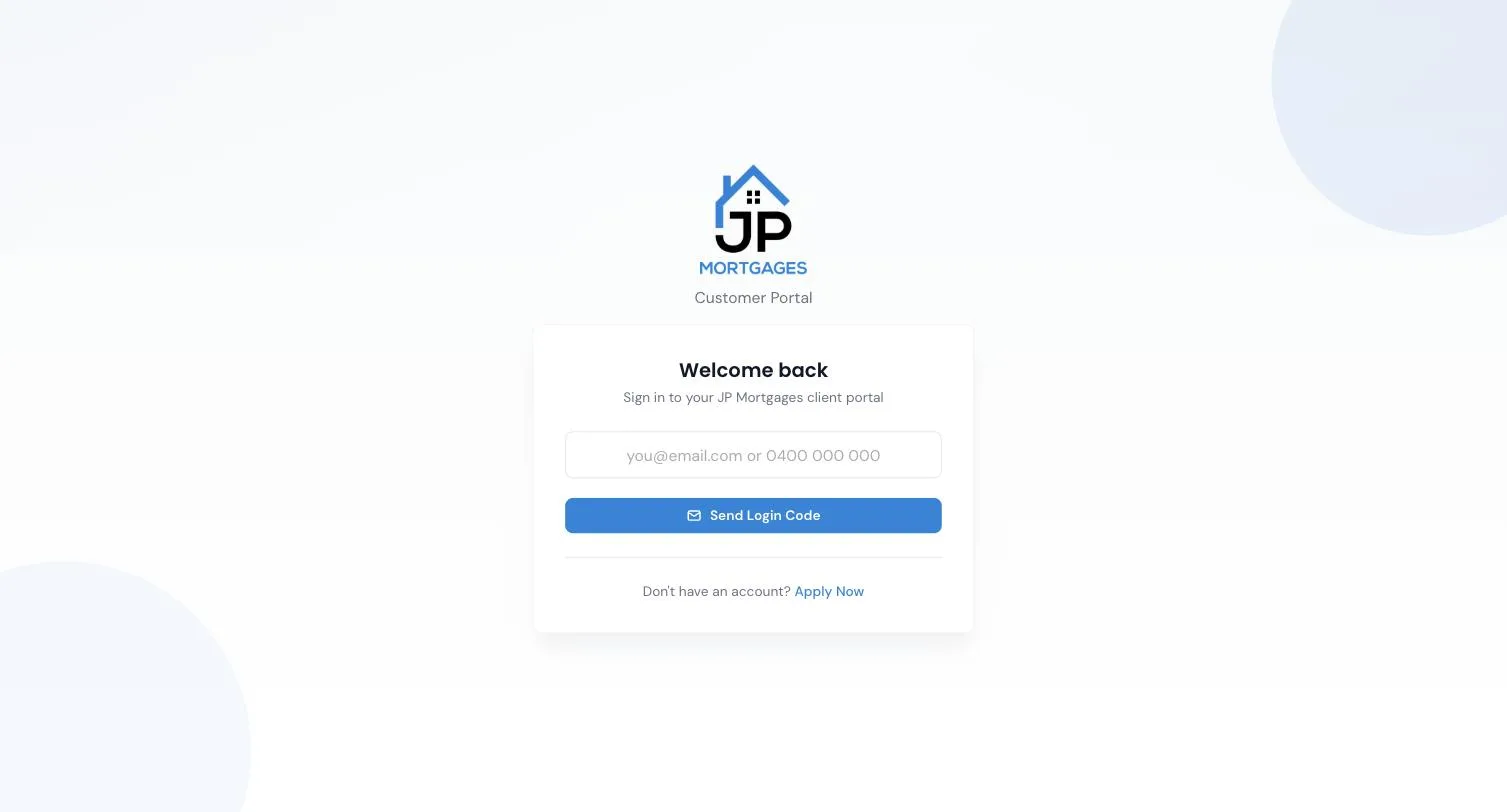
How your client gets in
Your portal lives on your .lend1.com.au address, or on your custom domain once it shows Active under Settings > Domains.
There are no passwords. Your client signs in one of two ways:
- A login code. They enter their email or mobile number and select Send Login Code. Lend1 sends a 6-digit code that lasts 10 minutes and allows 5 tries. Resend code unlocks after 30 seconds.
- An emailed link. The links in your portal link, document request, document rejection, form and eSign emails sign them in and open the right page. Each link lasts 1 hour and works once. A newer link sent to the same email address cancels any older unused one.
A lapsed link shows Link Invalid with Back to login, where a login code still works. Once in, your client stays signed in for 4 hours.
Please note: the onboarding invite link is different: it opens the application with no code and lasts 14 days. See Sending a client an onboarding invite.
The pages in the portal
Below is a table of the portal's pages and what each one is for.
| Page | What it is for |
|---|---|
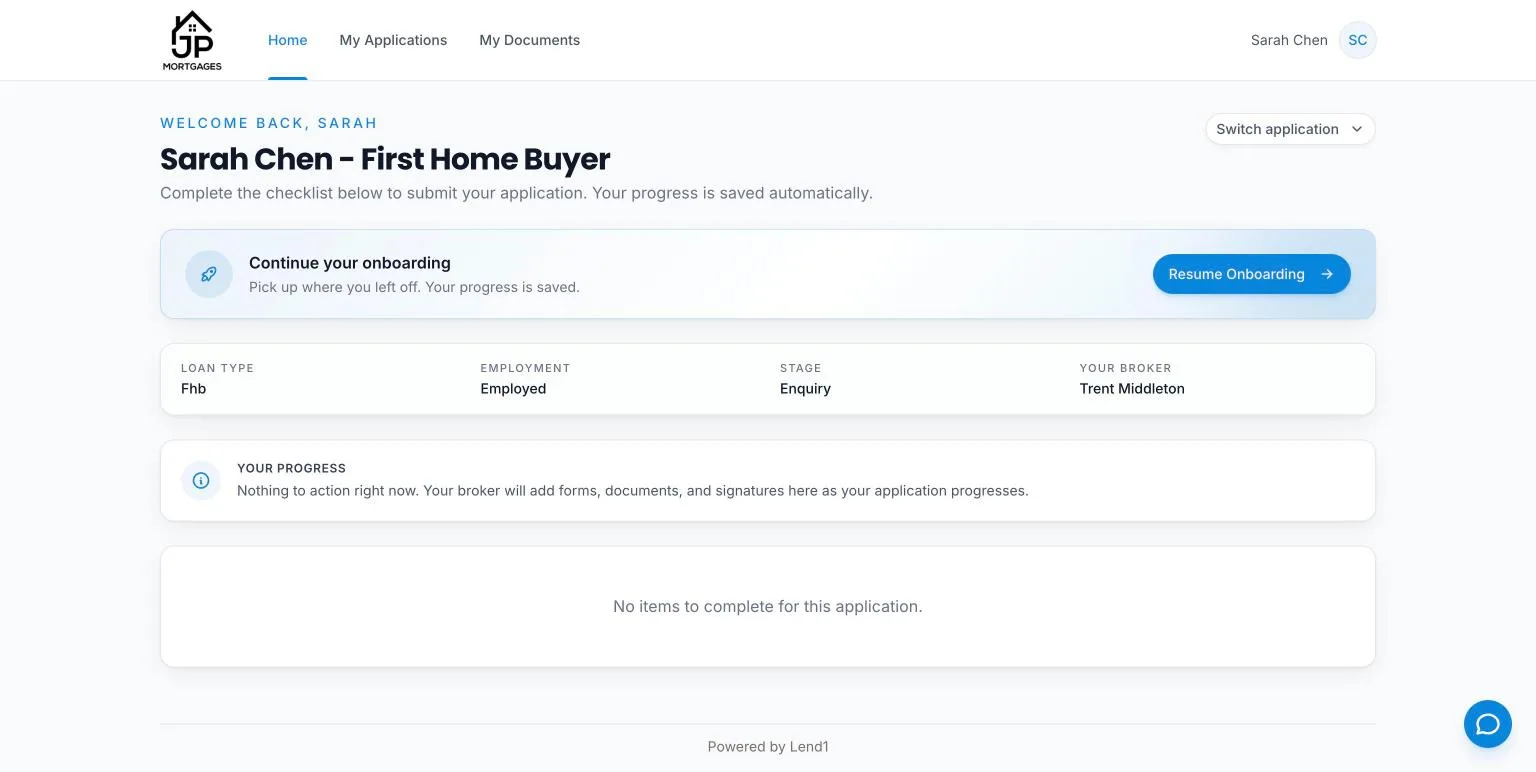
| Home | Opens their most recently updated open application: a summary, a progress bar and a checklist grouped into Application Forms, Documents and Signatures. |
| My Applications | Every open application with its progress, a Continue button and, while the application is unfinished, Resume Onboarding. |
| My Documents | Every file they have uploaded, with its status, and an Upload Document button. |
| Profile | Under their initials in the top right. They can change First Name and Last Name. Email Address can't be edited. |
On a phone, My Applications and My Documents move into the menu under their initials. The summary on Home shows the deal's Stage and your name under Your Broker, so name your pipeline stages with clients in mind.
The application and resuming it
The default application asks for loan and property details, then the client's own details (employment, ID and income documents), and ends with a review and signatures. Yours can differ: see Customising your Onboarding Portal.
Progress saves as they go. To pick it up again, the primary applicant selects Resume Onboarding on Home or My Applications. A client who opens your application link instead is sent a 6-digit code, then sees Welcome back with a Continue button for each application in progress.
Uploading requested documents
When you request documents, Home shows the notice "Your broker has requested a document" and lists each item under Documents, marked Required or Optional. Uploading against an item marks it Complete.
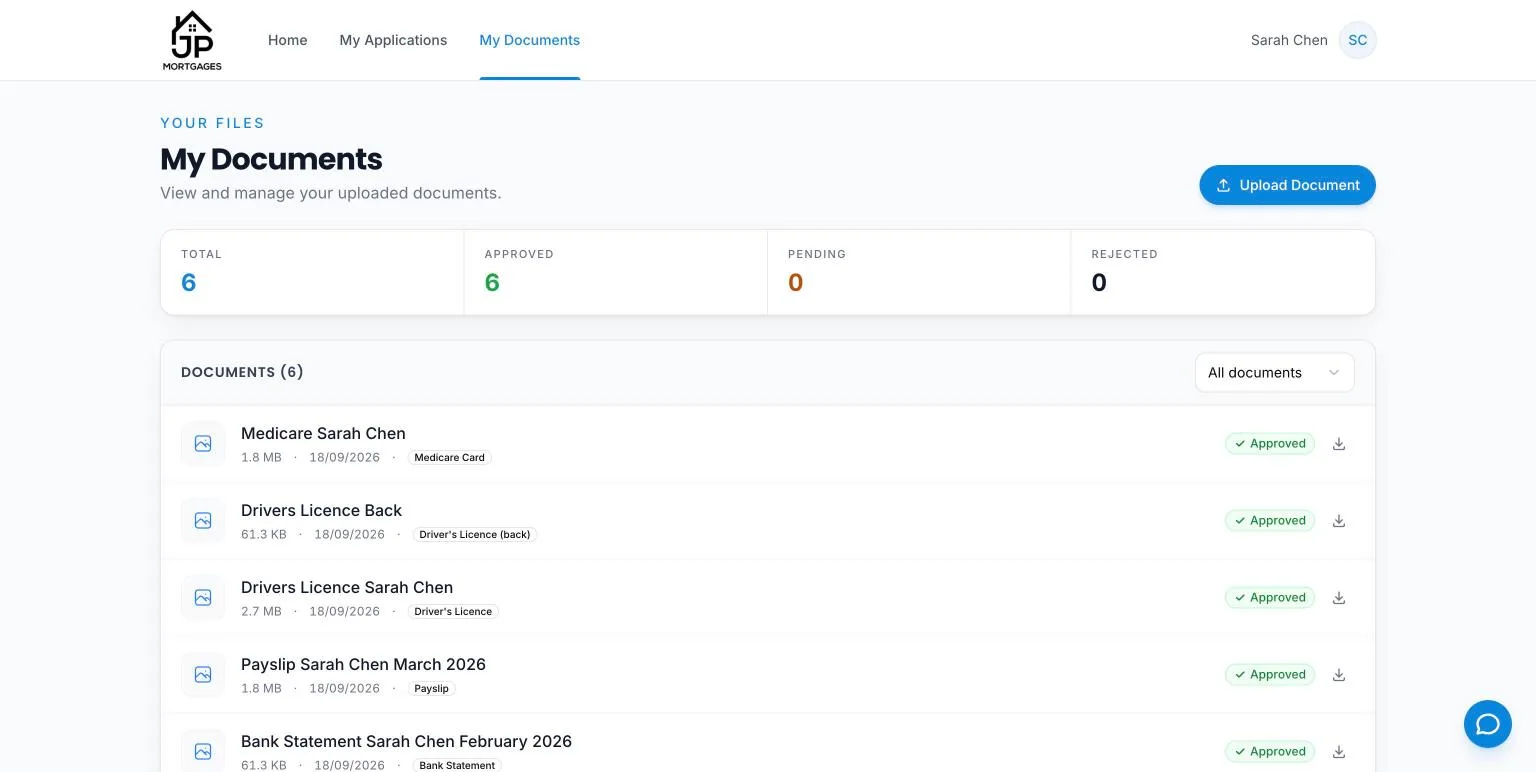
Below is a table of the statuses on My Documents and what they mean to your client.
| Status | What it means |
|---|---|
| Pending | Uploaded and waiting for you to review. |
| Approved | You approved it. Only approved documents show a download button. |
| Rejected | You rejected it. Your reason shows under the file name. |
Signing a document
An eSign request linked to a deal appears under Signatures as "Awaiting signature". On the signing page they read the attached document, draw in Your Signature, tick I agree to electronically sign this document and select Sign Document. Decline to Sign asks for a Reason for Declining, which you see on the request.
<!-- screenshot pending: client-portal-esign-signing.webp (Client portal signing page with the document preview, the Your Signature pad, the agreement tick box and the Sign Document and Decline to Sign buttons) -->Completing a form
A form you assign on the deal appears under Application Forms. It opens in a side panel, and Save submits it and ticks it off the checklist.
Co-applicants
A co-borrower signs in the same way and sees the shared deal with a Co-borrower badge, the same checklist and the same assigned forms. Document request emails go to every applicant on the deal who has an email address.
A co-borrower's My Documents lists only the files they uploaded themselves. The primary applicant's lists every client-visible document on the deal. Each person sees only the eSign requests addressed to them.
What your client cannot see
The portal has no pages for notes, tasks, AI insights, lead scores or other clients' deals. Application exports and bank connection reports saved to the deal are hidden from My Documents. When a deal moves to a Settled or Inactive stage it leaves Home and My Applications, and the application link for an Inactive deal stops working. Deleting a contact switches off their portal account and signs them out straight away.
When your client can't get in
- "My link doesn't work." It is over an hour old, already used, or replaced by a newer email. They can use a login code, or you can open the contact and select Send Portal Link under Quick Actions, by Email or SMS.
- "The code never arrives." The email or mobile they typed must match their contact record, and a contact with no email address can't sign in at all.
- Lend1 refuses to send the link. The contact's email is a staff or referrer login for your workspace. Those logins can never use the client portal, so change the contact's email to a personal one.
- Their invite has expired. Send a new one from Invites. A co-borrower sees This invite has expired with a Resend invite button they can use themselves.
The contact page shows Last Login, or Never logged in. To look at a client's portal yourself, select Impersonate (the eye icon) at the top of the contact. It needs the Impersonate Users permission and is limited to admins and managers. Select Exit on the Viewing as banner to return. It is the live portal, not a copy, so don't upload, sign or submit anything while you're there.