Updated
Go to Settings > Organisation.
The Organisation page holds your workspace name and your business contact details. Lend1 uses them in the footer of the PDFs it generates, in your emails, in the client and referrer portals, and to decide which website may show your embedded tools. Your name, address and website are already filled in from sign-up. Logos, colours and fonts are set on a separate page: see Setting up your branding and custom domain.
Before you start
- The page is available to the Admin role only.
- Please note: Organisation also shows in the Settings menu for a custom role granted Manage Team, but the page doesn't load for that role. Ask an admin to make the change.
- Each of the two cards has its own Save Changes button. Saving one card doesn't save the other.
Set your organisation name
Step 1: Enter your name
- Under Organisation Details, enter your trading name in Organisation Name. It is required, up to 255 characters.
- Slug is your organisation's unique identifier. It is read-only, and the page tells you to contact support to change it.
Step 2: Save
- Select Save Changes. The message Organisation updated successfully confirms it.
Please note: changing Organisation Name doesn't change your Slug, so the .lend1.com.au address of your client portal stays the same and links you've already sent still open.
Fill in your business details
Step 1: Add your website and contact details
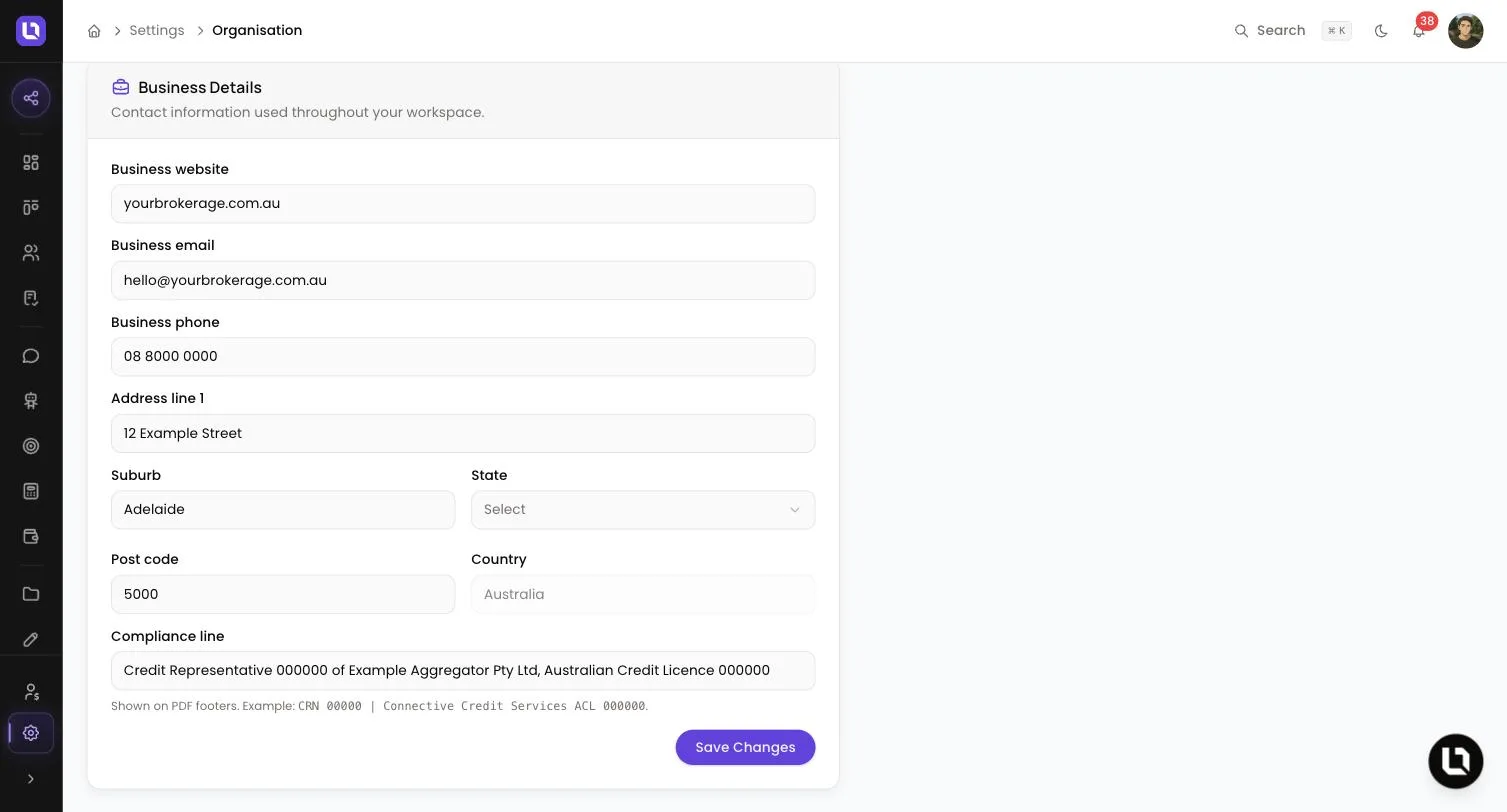
- Business website: your domain, such as
yourbusiness.com.au. You can paste a full address. Lend1 stores it withouthttps://. A value without a proper domain ending is rejected with "Enter a valid website domain, e.g. yourbusiness.com.au". - Business email: a valid email address, up to 255 characters.
- Business phone: up to 40 characters, in whatever format you want printed.
Step 2: Add your address
- Address line 1: up to 255 characters.
- Suburb: up to 120 characters.
- State: pick NSW, VIC, QLD, WA, SA, TAS, ACT or NT.
- Post code: four digits.
- Country: fixed to Australia.
Lend1 joins these into one line for footers, for example 123 Example Street, Adelaide SA 5000, Australia.
Step 3: Add your compliance line
- Compliance line: one line of free text, up to 255 characters. The page gives the example
CRN 00000 | Connective Credit Services ACL 000000.
Step 4: Save
- Select Save Changes at the bottom of the Business Details card. Every field on this card is optional, and clearing one removes it wherever it was shown.
Congratulations! Your details are saved and apply from the next email, PDF or page load.
Where each detail appears
Below is a table of your organisation details and where your clients or team see each one.
| Detail | Where it appears |
|---|---|
| Organisation Name | The {{tenant.name}} merge tag in emails. The default sender name and footer copyright line of your emails until you save your own under Email Settings. The client portal login page and header, and the referrer portal, when you have no logo uploaded. The header and footer of form submission PDFs, planner PDFs and the Accountant's Authority letter, plus its {{broker.business_name}} tag. |
| Business email | PDF footers. Lend1's billing emails about your subscription go here, or to your first admin's address when it is empty. The Accountant's Authority {{broker.email}} tag, when the deal's broker has no email. |
| Business phone | PDF footers. The Accountant's Authority {{broker.phone}} tag, when the deal's broker has no phone number. |
| Address | PDF footers, as one line. |
| Compliance line | The footer of planner PDFs, and the Accountant's Authority letter through {{broker.credit_rep_line}} and {{broker.credit_rep_suffix}}. |
| Business website | The default website allowed to embed your tools. See below. |
Please note: the Compliance line is not printed on form submission PDFs. If your licence details need to appear on a form, add them to the form itself.
Your compliance line
Lend1 has no separate fields for an ABN, an Australian credit licence number or a credit representative number. The Compliance line is the one place for them, and Lend1 prints it exactly as you type it. It doesn't check the numbers or their format.
Your business website and embeds
Calculators, planners, forms, chatbots and the lead widget each have their own list of websites allowed to embed them. When that list is empty, Lend1 falls back to your Business website, and allows both the www and non-www versions over https://. With no list and no Business website, an embed on your website is blocked. Once you add a website to a tool's own list, only that list applies to it.
When changes take effect
- Form submission PDFs are created each time you download one, so they show your current details.
- Planner PDFs and signed Accountant's Authority letters are saved as files when they are created. A later change doesn't alter them.
- Emails already sent don't change.