Updated
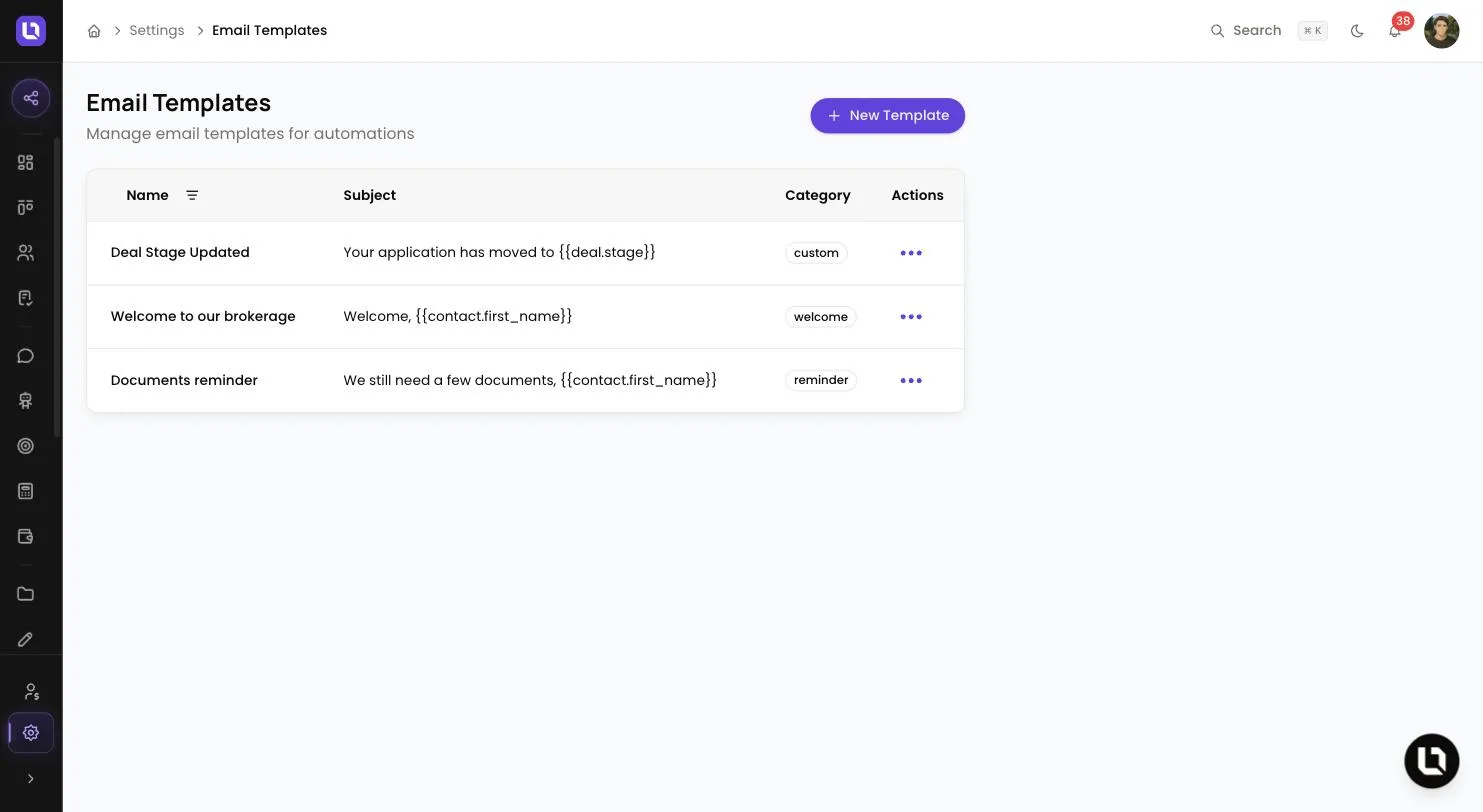
Go to Settings > Email Templates, in the Automation group.
An email template is a saved subject and body that an automation's Send Email action can send. Merge fields such as {{contact.first_name}} are swapped for the real contact, deal and brokerage details on every send, so one template serves every client.
Global Variables, in the same group, hold fixed values about your brokerage, such as a phone number, for your client emails to reuse.
Before you start
- Seeing Email Templates needs the View Automations or Manage Automations permission. Creating, editing, deleting and sending a test all need Manage Automations. An admin grants these under Settings > Roles & Permissions.
- Global Variables can only be managed by the Admin role.
- You don't add a header, logo or footer. As the editor says, "The body is placed inside your branded email layout", which you manage under Settings > Email Settings.
Create an email template
Step 1: Open the form
- Select New Template. On an empty list, select Create your first template.
Step 2: Fill in the details
- Name: what you pick in the automation builder. Required, up to 255 characters.
- Category: Welcome, Reminder, Notification, Follow Up or Custom.
- Subject: the email subject line. Required, up to 255 characters.
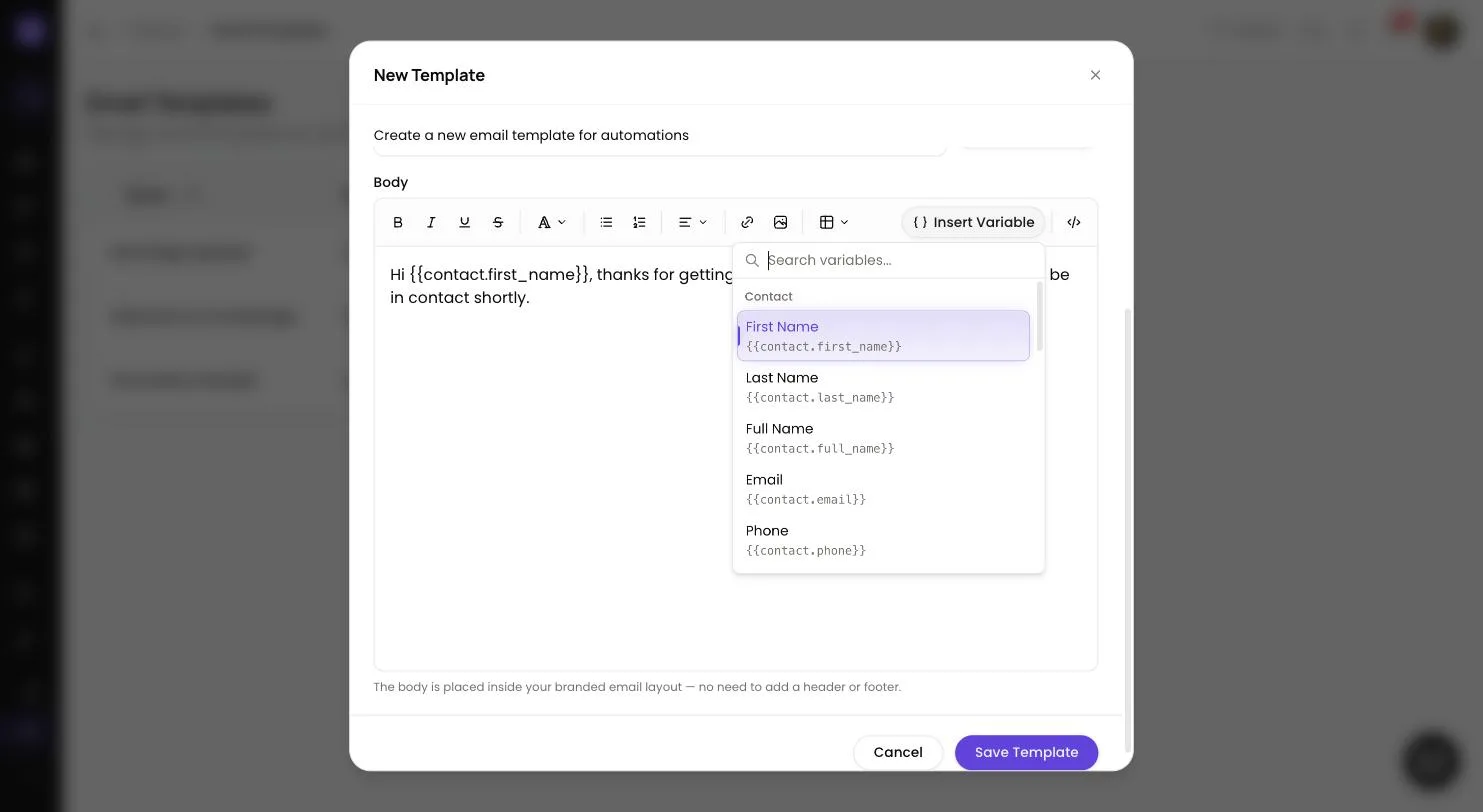
- Body: the email content. Required. The toolbar's HTML Source button switches to raw HTML.
Step 3: Insert merge fields
- In Subject or Body, select Insert Variable. Search with Search variables... or browse the groups, then select a variable to insert it.
Step 4: Preview and save
- Select Preview to see the email "Rendered with sample data inside your tenant email layout". Select Edit to go back.
- Select Save Template. The row menu in the list offers Edit Template and Delete.
- To email yourself a copy, open the saved template, select Preview, enter an address under Send a test email and select Send test. An unsaved template shows "Save the template to send yourself a test email." instead.
Congratulations! Your template is ready to use in any automation.
Merge field groups
Below is a table of the groups in Insert Variable and examples from each one. The picker shows the full list, with the exact syntax under every name.
| Group | Examples | What they insert |
|---|---|---|
| Contact | {{contact.first_name}}, {{contact.full_name}}, {{contact.mobile}} | Details of the contact. |
| Deal | {{deal.title}}, {{deal.stage}}, {{deal.value}} | Details of the deal. {{deal.stage}} inserts your pipeline stage's name. |
| User | {{user.name}}, {{user.email}} | Assigned User Name and Assigned User Email. |
| Tenant | {{tenant.name}} | Company Name. The picker also lists Company Email and Company Phone, but those two come out blank for now, so type the details into the template instead. |
| Portal | {{portal.url}}, {{portal.login_url}} | Portal URL and Login URL. |
You can also type fields the picker doesn't list: {{deal.value_formatted}} inserts the deal value in Australian dollars, and {{date.today_formatted}} inserts today's date as day/month/year.
Please note: a merge field with no value behind it, or one Lend1 doesn't recognise, is left blank in the sent email. Write sentences that still read well without it.
Create a global variable
Go to Settings > Global Variables.
Step 1: Open the form
- Select New Variable.
Step 2: Fill in the details
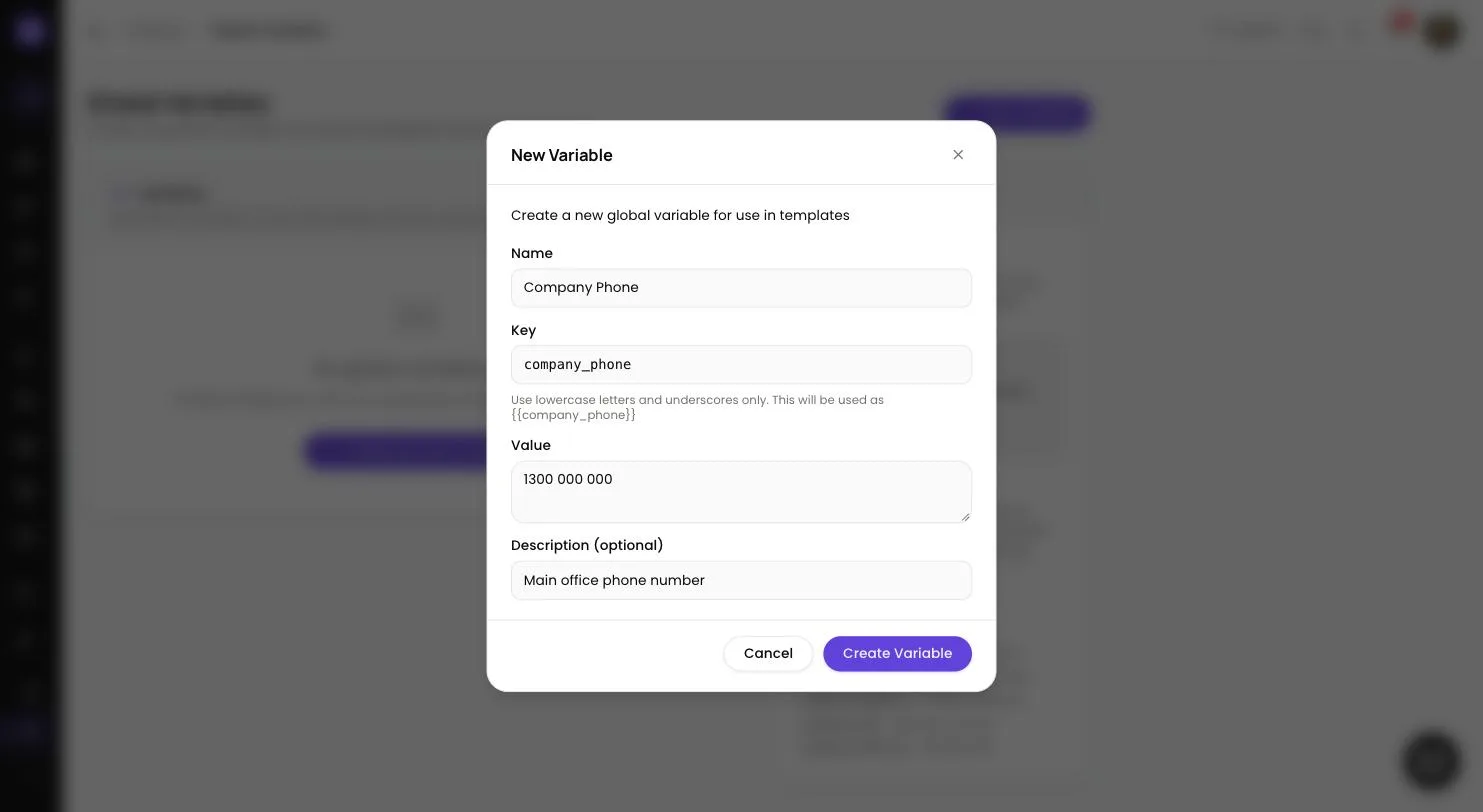
- Name: a label for your team, for example "Company Phone". Lend1 fills in the key from it.
- Key: what goes between the braces. "Use lowercase letters and underscores only." It must be unique, up to 100 characters, and can't be changed later. If it matches one of Lend1's own tags you see a warning, because Lend1's tag takes priority.
- Value: the text to insert. HTML is stripped, so keep it plain text.
- Description (optional): a note on what it is for.
Step 3: Save and use it
- Select Create Variable. The list shows the key in its full syntax, such as
{{company_phone}}, with a copy button beside it. - Global variables work in your System Emails and in the Email Template layout on Settings > Email Settings. Both list them under Global Variables. Every automation email is placed inside that layout, so a variable in its footer appears on your automation emails too.
Please note: global variables are not filled in inside an email template's own Subject or Body, and the picker there doesn't list them. A key typed there is left blank. Type details such as your phone number straight into the template.
Use the template in an automation
Step 1: Add the action
- On your automation's Builder tab, drag Send Email from the Node Palette onto the canvas and join it to the step before it.
Step 2: Choose who and what
- Select the Send Email node. Under To, choose Contact Email, Deal Owner, Specific Email or Field Reference.
- Under Content, pick your template by name in place of Custom subject & body. The panel confirms "Subject and body come from the selected template", and the node shows Template: followed by its name.
- Select Save.
Please note: deleting a template doesn't update the automations that use it. Their Send Email step fails with "Email template not found" on the Runs tab until you pick another template.
How this differs from System Emails
Settings > System Emails holds the emails Lend1 already sends to your clients; you customise their content or keep the default. Email Templates are emails you write yourself, and they only send when an automation's Send Email action uses them.