Updated
Go to Tasks in the sidebar.
A task is a to-do with an assignee, a priority and an optional due date. It can stand alone or sit on a deal. The Tasks page lists the tasks you can see, earliest due date first, and Lend1 alerts the assignee when a task lands on them and again when it goes overdue.
Before you start
- Tasks appears in the sidebar for roles with the View Tasks permission. With it you see tasks assigned to you, created by you, or on your deals.
- The View All Tasks permission widens that to every task in the workspace. The Admin role always sees every task. An admin can grant it to another role under Settings > Roles & Permissions. See Creating custom roles and permissions.
Find your way around the Tasks page
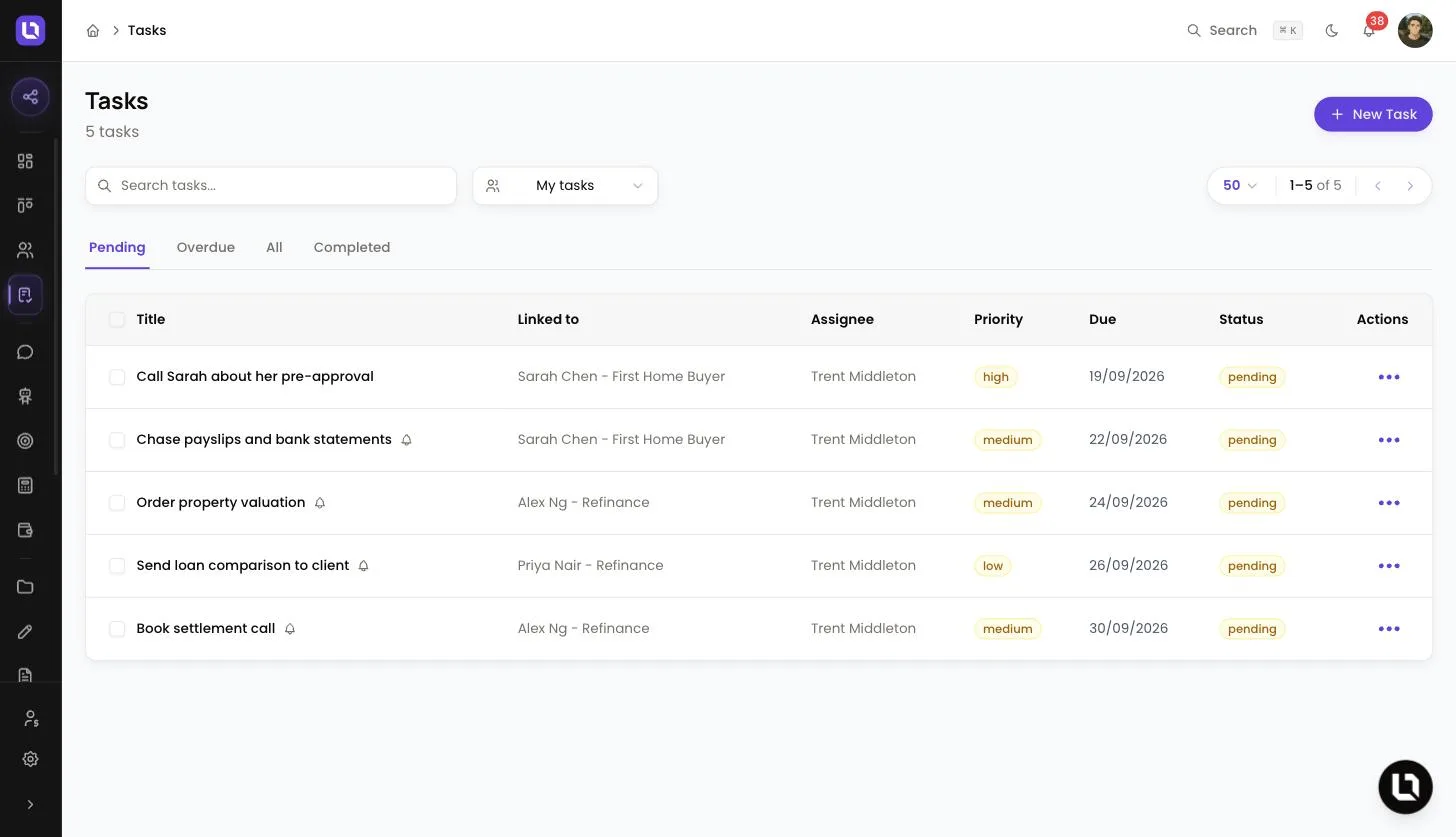
Four tabs sit above the table: Pending, Overdue, All and Completed. The page opens on Pending, which holds every task that is not completed or cancelled. A task moves into Overdue the day after its due date, not on the due date itself, and its date in the Due column turns red.
Use Search tasks... to search task titles and descriptions. The filter beside it changes whose tasks you see, and its options depend on your access.
Below is a table of who sees which filter options and what each one shows.
| Who | Filter options |
|---|---|
| Roles with View All Tasks | All tasks, My tasks, Unassigned, then each active team member listed under Brokers. Opens on My tasks. |
| Support staff linked to a broker | All tasks, My tasks, then each broker they support under Brokers. Opens on All tasks. |
| Everyone else | My tasks (assigned to you or created by you) and My deals' tasks (adds every task on a deal you can see). |
In the table, Linked to shows the deal or contact a task belongs to, and a bell next to a title means a reminder is set.
Create a task
Step 1: Open the form
- Select New Task in the top right.
Step 2: Fill in the details
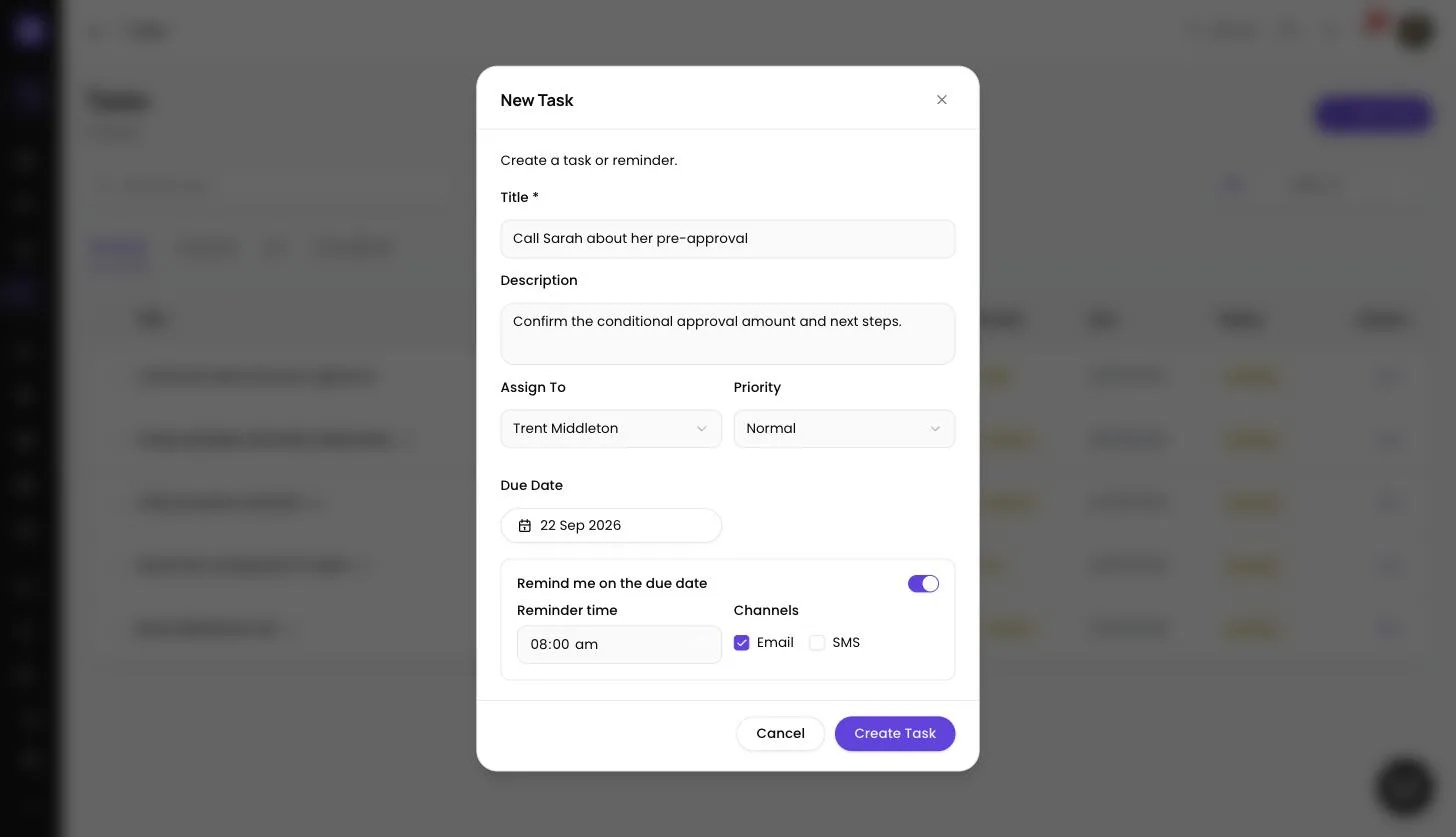
- Title: what needs doing. This is the only required field, up to 255 characters.
- Description: optional detail for whoever picks the task up.
- Assign To: the team member responsible. It starts on you. Choose a teammate to hand the task over.
- Priority: Low, Normal, High or Urgent. It starts on Normal.
- Due Date: select Pick a date and choose a day. Past dates can't be selected.
Step 3: Set a reminder (optional)
- Once a due date is set, turn on Remind me on the due date.
- Reminder time: starts at 08:00.
- Channels: tick Email, SMS or both. Email is ticked for you.
Step 4: Save
- Select Create Task. The task appears on the Pending tab.
Please note: the reminder goes to the person who created the task, not the assignee, and it is skipped if the task is already completed. SMS reminders count towards your workspace's monthly SMS allowance. If the allowance is used up, the SMS is skipped and the email still sends.
Please note: a task created from the Tasks page is not linked to a deal or contact, and the form has no field to link it afterwards. To put a task on a deal, create it from inside the deal (see below).
Congratulations! Your task is on the list. If you assigned it to a teammate, they get an in-app notification and an email straight away.
Complete a task
- For one task, open the menu in the Actions column and select Mark complete.
- For several at once, tick the checkbox on each row (or the header checkbox to select the whole page), then select Mark complete in the bar above the table. Clear drops the selection. Tasks that are already completed are skipped, and the confirmation message tells you how many.
Please note: there is no reopen action. A completed task moves to the Completed tab and stays there, so create a new task if the work comes back.
Edit or delete a task
- Select a task's title, or Edit in its Actions menu, to open the Edit Task dialog. Change any field and select Save Changes. Changing Assign To notifies the new assignee, unless you are assigning the task to yourself.
- Select Delete in the Actions menu to remove a task for good.
Please note: Delete on the Tasks page acts immediately, with no confirmation step, and it can't be undone.
Tasks inside a deal
Open a deal and select the Tasks tab to see every task on that deal, filtered by All, Pending, Completed or Overdue. A badge in the header counts any overdue tasks.
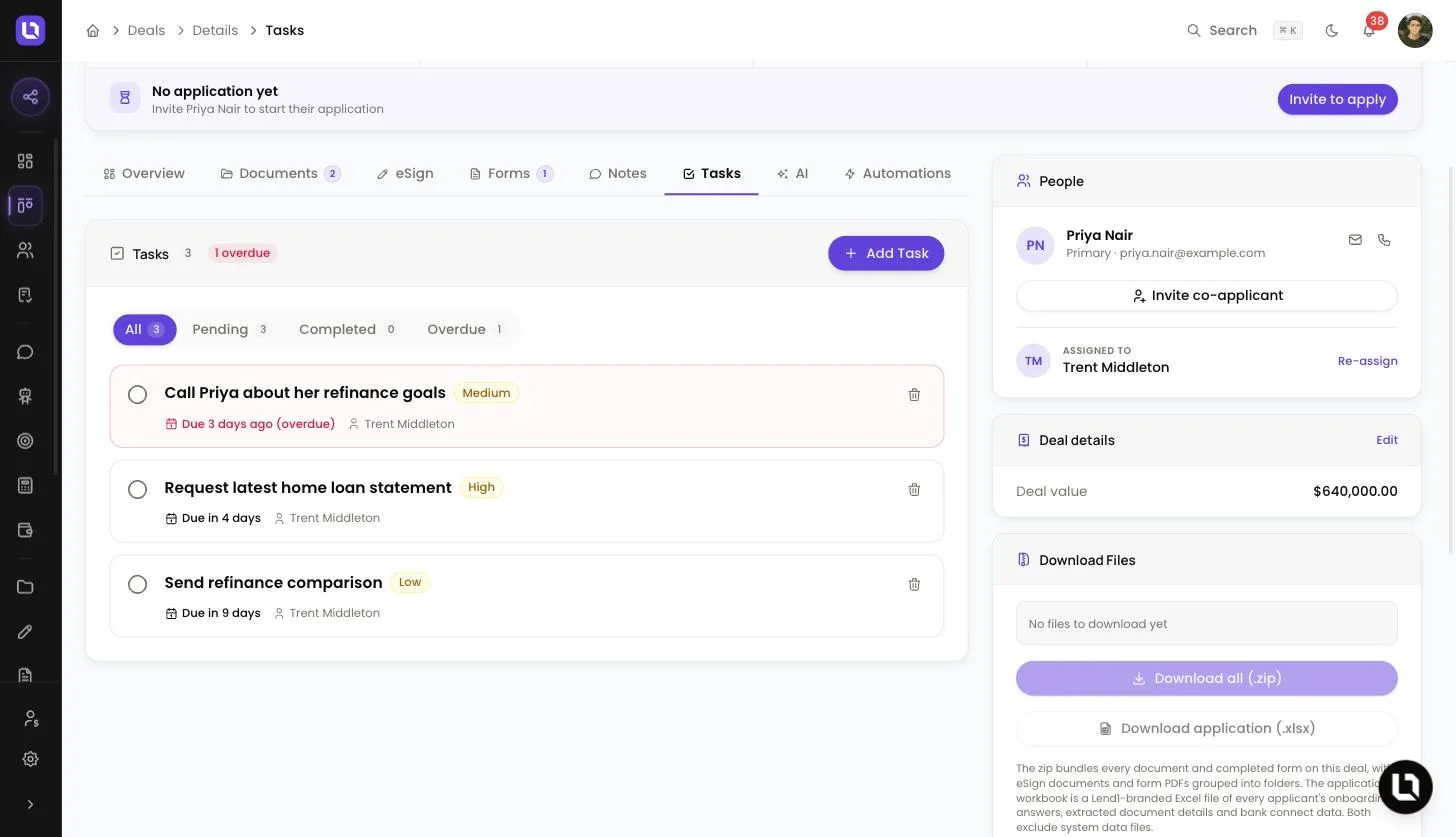
- Select Add Task to open the same form. The task is linked to the deal, and Assign To starts on the deal's owner rather than on you.
- Select the circle beside a task to complete it.
- Select the bin icon to delete it. Here Lend1 asks you to confirm in a Delete Task dialog first.
Tasks can't be edited from this tab. Find the task on the Tasks page to change it.
What Lend1 does in the background
- Overdue alerts: Lend1 checks for overdue tasks every hour. The assignee gets one in-app notification and one email per overdue task.
- Email preferences: assignment and overdue emails follow the Task Reminders category under Settings > Notifications, so each person can switch the email off for themselves.
- Google Calendar: if you have connected Google Calendar and left Sync tasks to calendar on, tasks assigned to you that have a due date appear on your calendar and update when the task changes. Completing or cancelling a task removes its event. See Connecting Google Calendar.
- Automations: a workflow with a Create Task step adds tasks to this list for you.