Updated
Go to Lend1 AI in the sidebar.
Lend1 AI is a chat assistant that works with the records in your workspace. You type a question or an instruction in plain English, and it looks up deals, contacts and tasks, answers lending questions, and carries out actions such as creating a task or sending an onboarding invite.
It reads only what you can already open yourself, and it changes or sends nothing until you confirm.
Before you start
- Lend1 AI is available to any role with the Use AI Copilot permission. If you don't see Lend1 AI in the sidebar, ask an admin to grant it under Settings > Roles & Permissions. See Creating custom roles and permissions.
- Each request also needs the matching permission on your role. For example, sending a text needs Send SMS and moving a deal needs Update Deals. Without it, Lend1 AI replies that you do not have permission.
- Sending a message uses AI credits from your plan. See AI credits below.
Open Lend1 AI
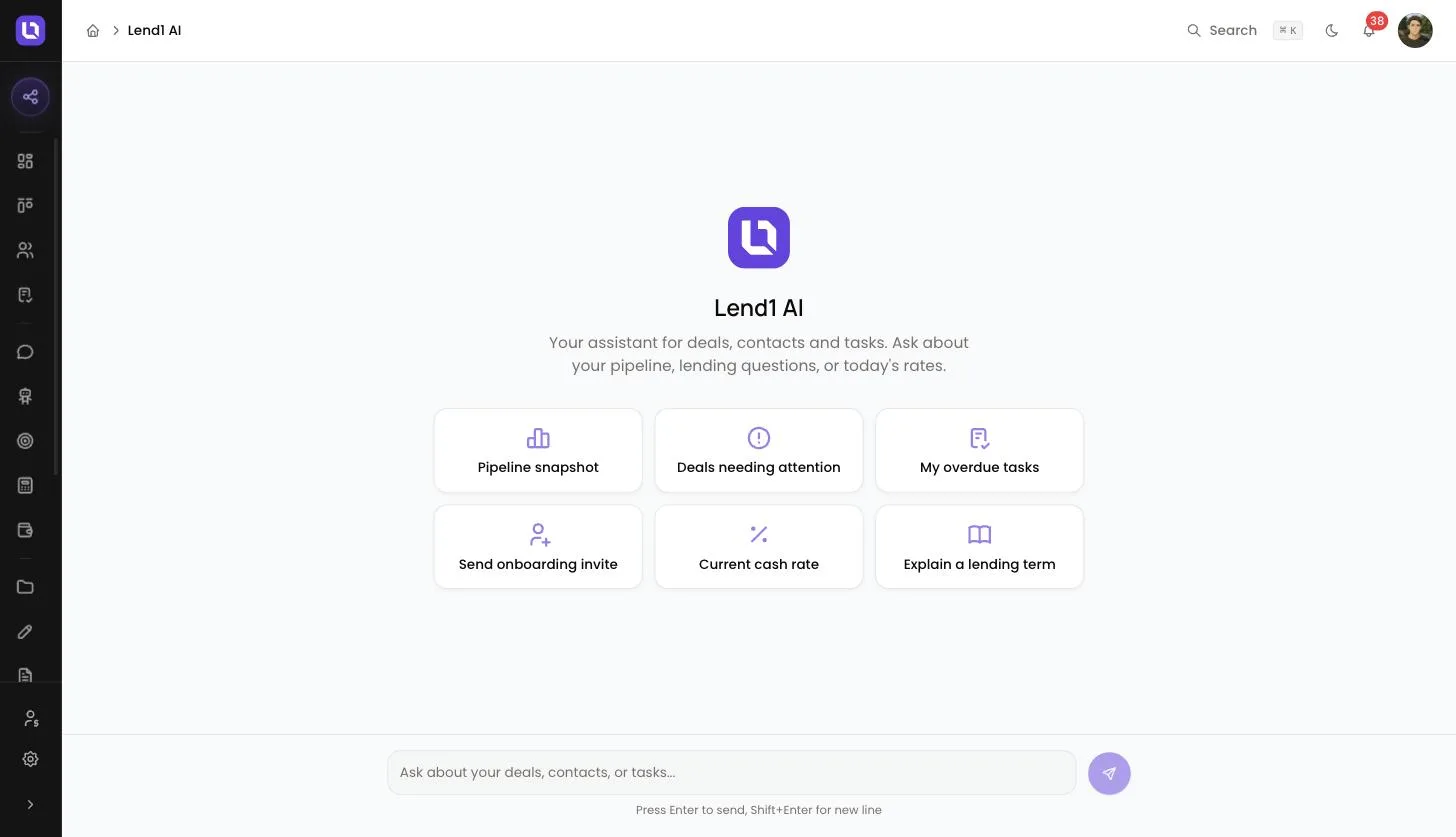
- The full page. Select Lend1 AI in the sidebar.
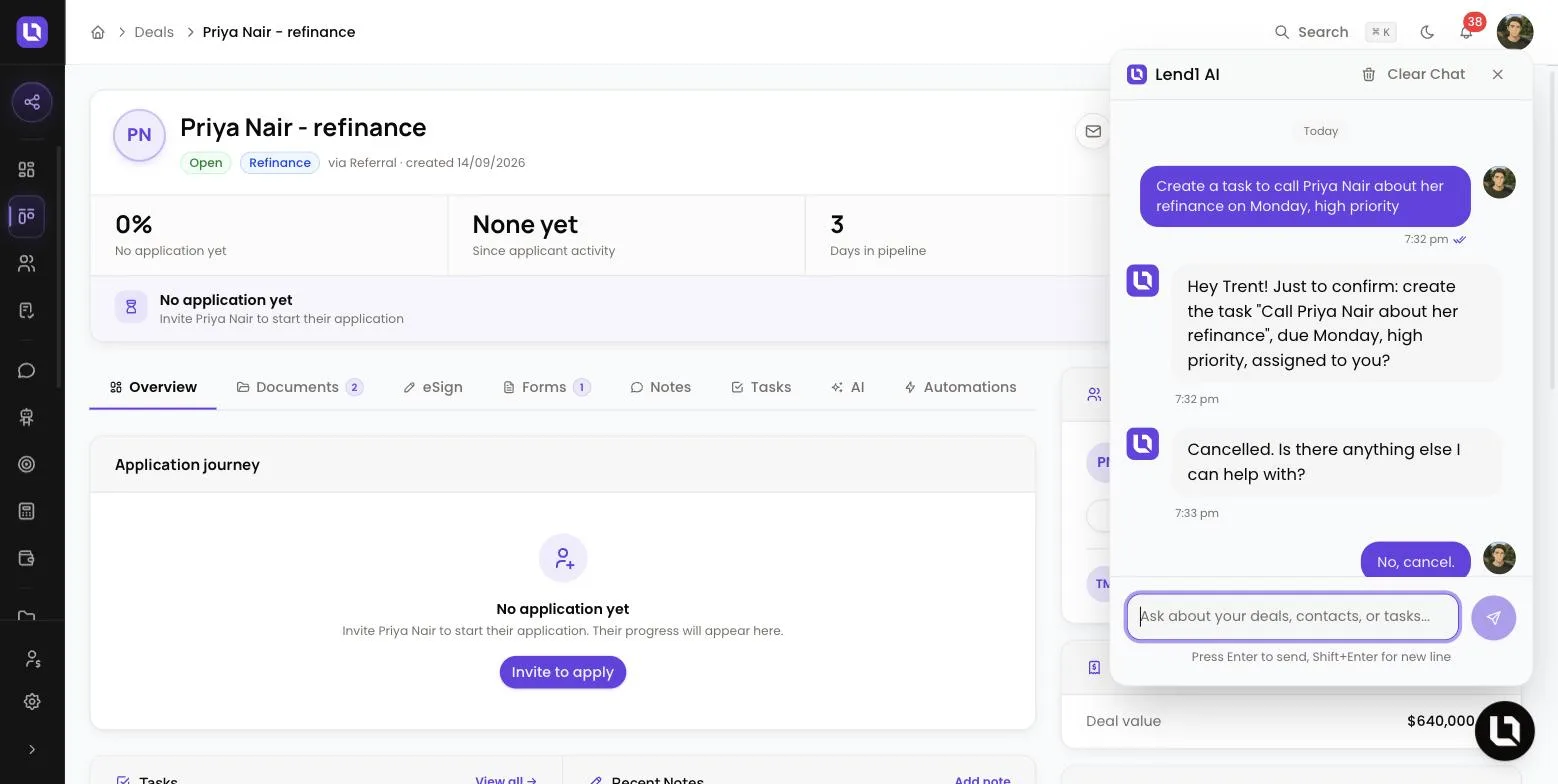
- The floating panel. On every other page, a round Lend1 AI button sits in the bottom right corner. Select it to open the chat over the page you are on. Select it again, or press Escape, to close it. Closing it does not stop a reply that is still being written.
When you open the panel from a deal or a contact, Lend1 AI knows which record is on screen, so you can ask "what's outstanding on this deal?" without naming it.
Ask a question
A new chat opens with six quick prompts: Pipeline snapshot, Deals needing attention, My overdue tasks, Send onboarding invite, Current cash rate and Explain a lending term. Select one to send it straight away, or type in the message box. Press Enter to send, or Shift+Enter for a new line.
Follow-up questions stay in the same chat, so "send her a text about it" refers to the contact already discussed. Under each reply you can mark it Helpful or Not helpful.
What you can ask it
Below is a table of what Lend1 AI can look up and what each one is for.
| Ask about | What it does |
|---|---|
| Deals | Searches your pipeline and opens a deal's details, documents, tasks and notes. |
| Contacts | Searches by name, email or phone number and shows a contact's details and deals. |
| Your tasks | Lists the tasks assigned to you. |
| Pipeline | Totals your open deals and their value by stage. |
| Onboarding progress | Shows where a client is up to in their application, including outstanding documents and signatures. |
| Insights and lead score | Reads the AI-generated insights and lead score for a deal. This needs the View AI Insights permission. |
| Your application link | Gives you your personal application link, or a colleague's, to share. |
| Rates | Quotes current Reserve Bank of Australia figures, such as the cash rate, with the date they apply from. |
| Lending questions | Answers from a vetted knowledge base on lending concepts, Australian policy and Lend1. If it has no vetted answer, it says so. |
Below is a table of what Lend1 AI can create, change or send. Every one of these waits for your confirmation.
| Action | What it does |
|---|---|
| Create a task | Adds a task with a due date, priority and assignee, linked to a deal if you name one. |
| Complete a task | Marks one of your own tasks as complete. If more than one task matches, it asks which you mean. |
| Add a note | Adds a note to a deal or a contact. |
| Create a contact | Adds a contact with their name and, if you give them, email, mobile, phone and company. It can link the new contact to a deal you name. |
| Move a deal | Moves a deal to a different pipeline stage. |
| Send an SMS | Sends a text message to a contact. |
| Notify a colleague | Sends an in-app notification to a team member. |
| Send an onboarding invite | Sends a new client their link to start an application, by email or SMS. |
| Send a portal link | Sends an existing contact a login link to their portal, by email or SMS. |
| Send a form | Sends the link to one of your published forms, by email or SMS. You identify the form by name. |
| Request documents | Adds the documents to the deal's checklist and emails the client a secure link listing everything outstanding. |
Please note: a document request always goes to the deal's primary contact, even if you name someone else on the deal.
How it confirms before making changes
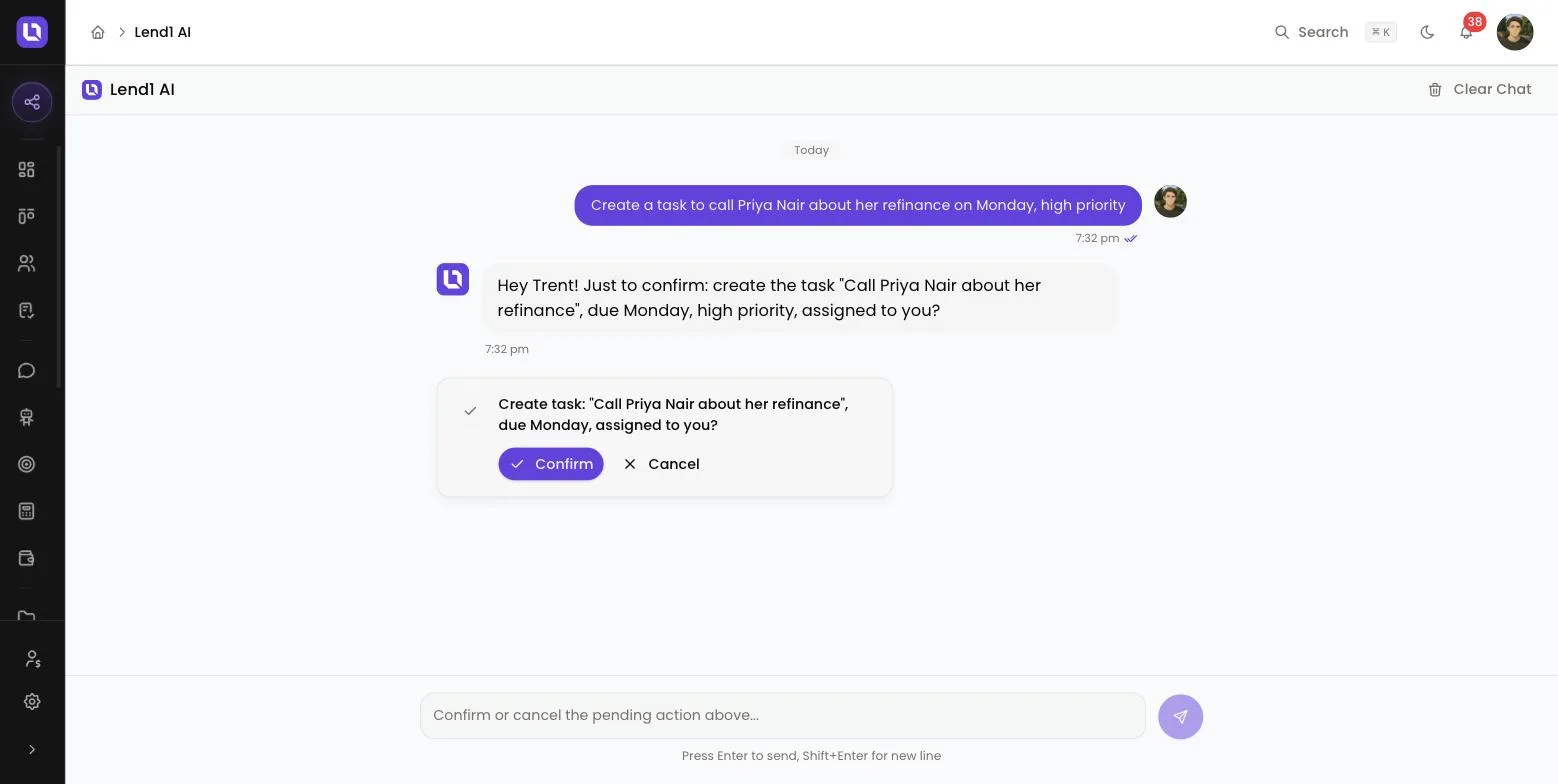
When you ask for one of the actions above, Lend1 AI replies with a card that states exactly what it is about to do, for example the task title, due date and assignee.
- Select Confirm to go ahead.
- Select Cancel to drop it. Nothing is changed.
- If you send a new message instead, the pending action is discarded.
- A confirmation card expires after 10 minutes. If you confirm after that, Lend1 AI tells you it has expired and nothing is changed.
Your conversation
You have one Lend1 AI conversation at a time, and it is private to you. The full page and the floating panel show the same conversation.
- Select Clear Chat in the chat header to archive the conversation and start a fresh one.
- A conversation is archived automatically 24 hours after its last message.
Please note: archived conversations are not listed anywhere in your workspace, so copy anything you want to keep before you clear a chat.
What it cannot see
- Without the View All Deals permission, it finds only deals assigned to you, or to a broker you support.
- Without View All Contacts, it finds only contacts you own and contacts on deals you can see.
- It never reads another brokerage's data.
- It completes only tasks assigned to you.
- It will not send an onboarding invite to an email address that belongs to a team member's login.
AI credits
Every message you send to Lend1 AI uses AI credits. Credits are one pool for your whole workspace, shared with the other AI features in Lend1, and your plan's allocation renews monthly.
The monthly allocation is 3,000,000 credits on Starter, 10,000,000 on Pro and 25,000,000 on Enterprise.
When the pool runs out, Lend1 AI shows AI Credit Limit Reached with a Purchase More Credits button, which opens Settings > Billing. There, the AI Credits card shows your Available credits, and Buy credits adds a top-up. Purchased credits are added instantly and never expire. Opening Billing needs the Manage Billing permission.
Related AI features
AI Insights in the sidebar is a separate page of AI-generated insights across all your deals: see Understanding AI Insights and lead scoring. Doc Renamer is also separate: it renames files you upload to it in batches, and its naming rules apply to documents uploaded to Lend1. See Automatic document naming with Doc Renamer.