Updated
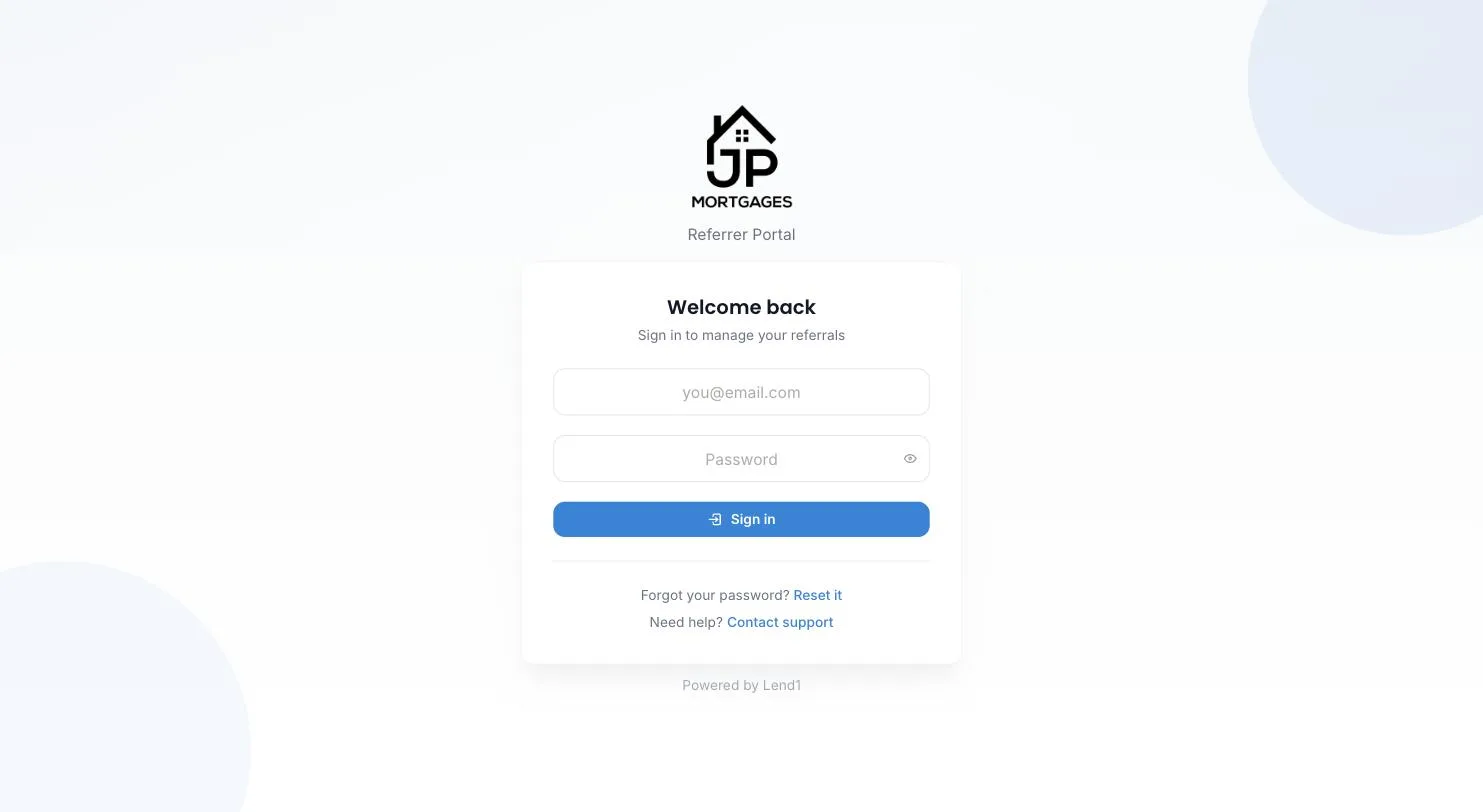
Go to Settings > Referrers. Your referrers log in at your workspace's web address followed by /referrer/login.
The referrer portal is where a referral partner sends you leads, follows each one and checks their commission. This article covers their side, so you can brief a new partner.
How your referrer gets in
That address is your .lend1.com.au one, or your custom domain once it shows Active under Settings > Domains. The portal carries your logo, primary colour and fonts. Login is an email address and a password, and lasts 24 hours.
- By invite. Your invite email links to a Set a new password page. The link lasts 7 days and the password needs at least 8 characters.
- By your invite link. On Join our referral program, Company name, Your name, Email address and Password are required. Phone and ABN are optional. After Create account they see Registration complete, which says the account is pending approval.
A pending referrer can log in, but Submit Referral is refused with "Your account is pending approval. You cannot submit referrals until approved." Nothing else in the portal marks the account as pending, and Lend1 does not email them when you select Approve, so tell them yourself.
The pages in the portal
Below is a table of the portal's pages and what each one is for.
| Page | What it is for |
|---|---|
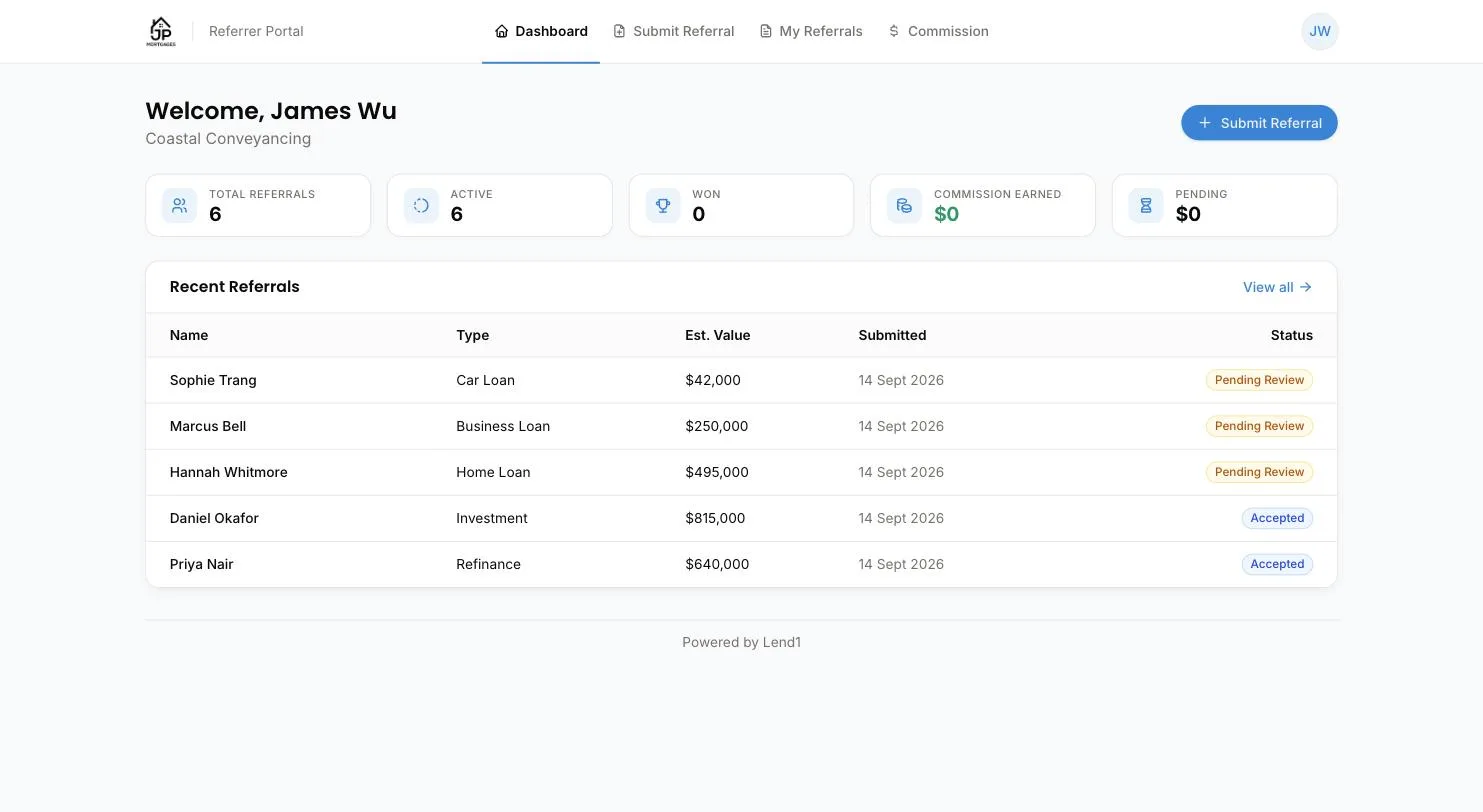
| Dashboard | Total Referrals, Active (Pending Review, Accepted or In Progress) and Won (Won plus Paid), then their five most recent referrals. |
| Submit Referral | The form for sending you a lead. |
| My Referrals | Every referral they have sent, with a status filter. Selecting a row opens the referral. |
| Commission | Their commission totals and payment history. |
| Profile | Under their initials in the top right, above Log out. |
With Show commission to referrers off, the Commission page, the dashboard's Commission Earned and Pending tiles and every commission amount disappear.
Submitting a referral
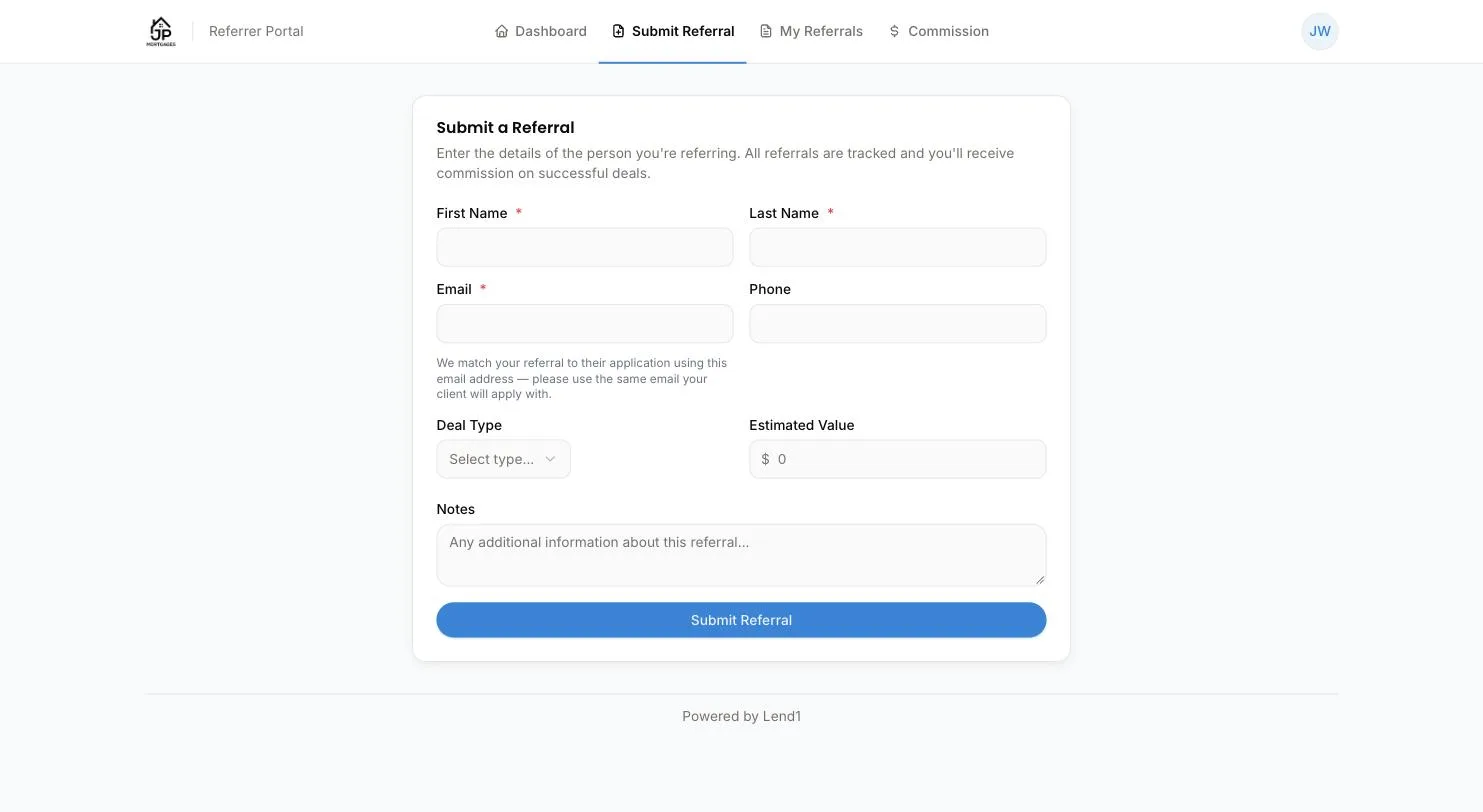
First Name, Last Name and Email are required. Phone, Deal Type, Estimated Value and Notes are optional. The form asks for the email address the client will apply with, which Lend1 uses to match the referral.
Deal Type lists your Service Types from Program Settings. With none set, it lists Home Loan, Refinance, Investment Property, Car Loan, Personal Loan, Business Loan, Equipment Finance, Insurance and Other.
Your compliance checklist comes last, under Compliance Confirmation. Items marked with an asterisk must be ticked.
After Submit Referral they see Referral Submitted! with a reference. Their Notes reach you with the referral, but the portal doesn't show them back. Your side is in Tracking referrals and paying commissions.
Following a referral
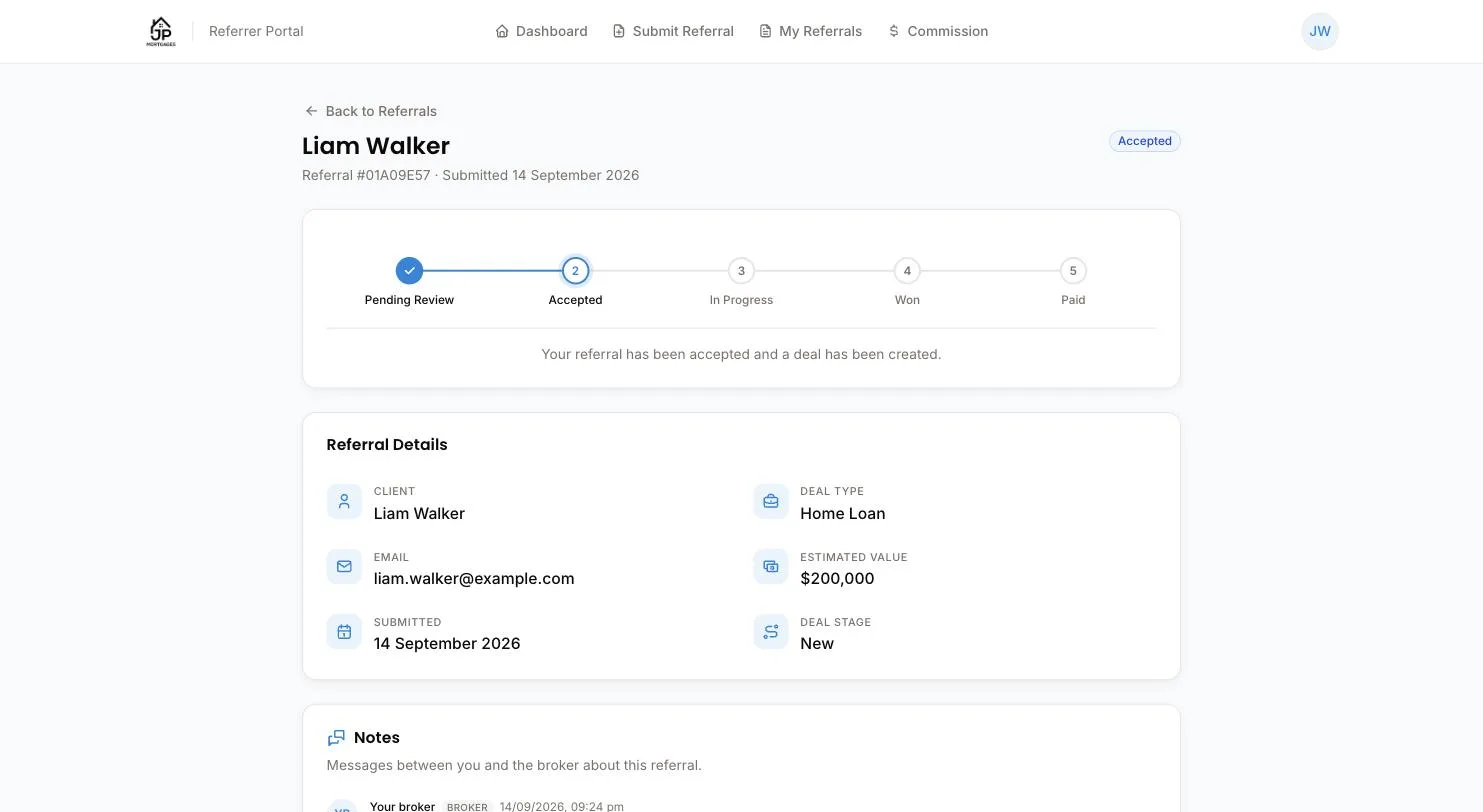
A referral shows a progress tracker, Referral Details (what they entered, plus Deal stage once a deal is linked), the Notes thread and a Commission card.
Below is a table of the statuses your referrer sees and your label for each.
| Your referrer sees | Your label |
|---|---|
| Pending Review | Submitted |
| Accepted | Accepted |
| Won | Won |
| Paid | Commission Paid |
| Lost | Lost |
Under the tracker, a Won referral reads "The deal has settled. Your commission will be paid shortly."
Please note: the tracker and the filter also show In Progress. Lend1 never moves a referral into it.
Messages between you and your referrer
Notes on a referral is a two-way thread, and both sides see everything in it. When they write a note and select Send, your team gets an in-app notification, plus an email unless referral emails are turned off. When you reply from the referral in Lend1, your referrer is emailed a link to the thread.
Commission as they see it
The Commission card on a referral appears once it is Won, or earlier if you have set an amount. It shows Amount and "Pending settlement", then Paid on with the date once you mark it paid.
The Commission page shows Total Earned (everything marked paid), Pending (Won and unpaid), This Month and This Year, then Pending Commission and Payment History. There is no statement or export, and the portal never shows their commission rate.
What your referrer cannot see
The portal has no page for the deal file, its documents, tasks or your contacts. Of the deal, only its stage is shown. A rejection reason stays with your team. Each referrer sees only their own referrals.
On Profile they can edit Contact Name, Phone, Mobile and Address. Company Name, Email and ABN can't be changed. There are no bank detail fields and no password field: a password is changed with Reset it on the login page.
What they are emailed
Lend1 emails a referrer three things: your invite, a password reset they ask for, and a message you post in Notes. Registering, being approved, a status change and a paid commission send nothing. Post a note to tell them.
When your referrer can't log in
- "It says Login failed." Deactivating a referrer, or switching off Enable Referrer Program, blocks logins with the same Login failed message as a wrong password. Select Reactivate on their row, or turn the program back on.
- "The reset email never arrives." Reset it always answers Check your email, but the link is only sent to an active referrer login. It lasts 60 minutes.
- "My invite link has expired." They select Reset it and set a password from that email.
- "Invalid or expired link" on registration. Allow Public Registration is off, or the Invite Link has been regenerated. Send them the current link.