Updated
Go to Settings > Notifications.
Lend1 tells you when something needs your attention: a task is assigned to you, a client signs a document, a new referral arrives. Each notification can reach you in two places: the bell in the header, and your email inbox. This page is where you decide which ones you get.
Your choices apply to your login only, and every team member can open the page. Everything starts switched on.
Where notifications appear
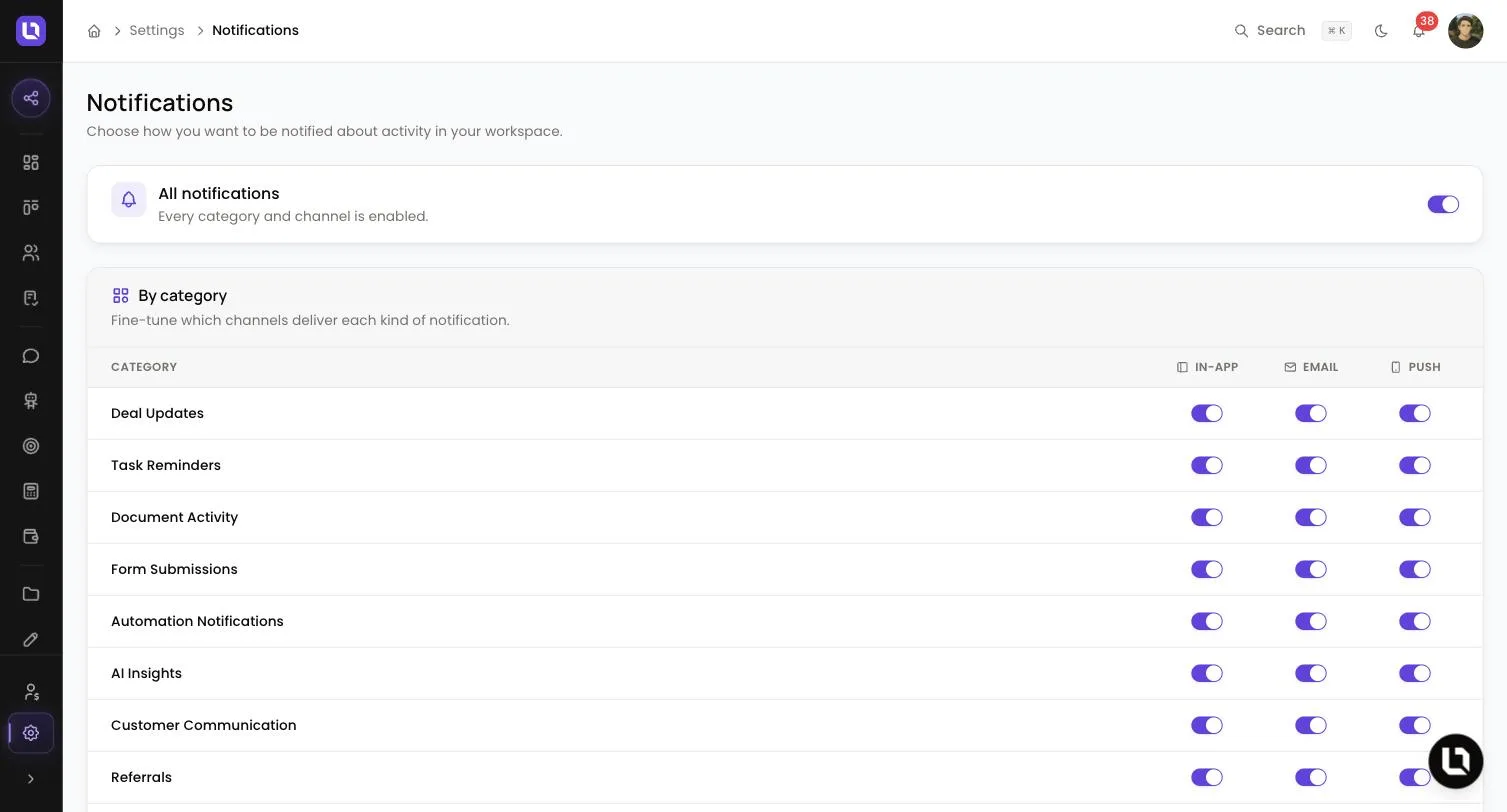
The bell. The bell in the header shows a red count of unread notifications (it reads 99+ past 99). Select it to open the Notifications panel with your 20 most recent. Select a notification to mark it as read and open the record it is about. Mark all read clears the count in one go, and View all notifications opens the full list, where you can filter by type and select Mark all as read.
New notifications arrive in real time, with a pop-up that has a View button. Lend1 also re-checks every 60 seconds.
Email. Some notifications also send you an email at your login address. The table below shows which ones.
Turn a category on or off
Step 1: Open your notification settings
- Go to Settings, then select Notifications in the Account group.
Step 2: Find the category
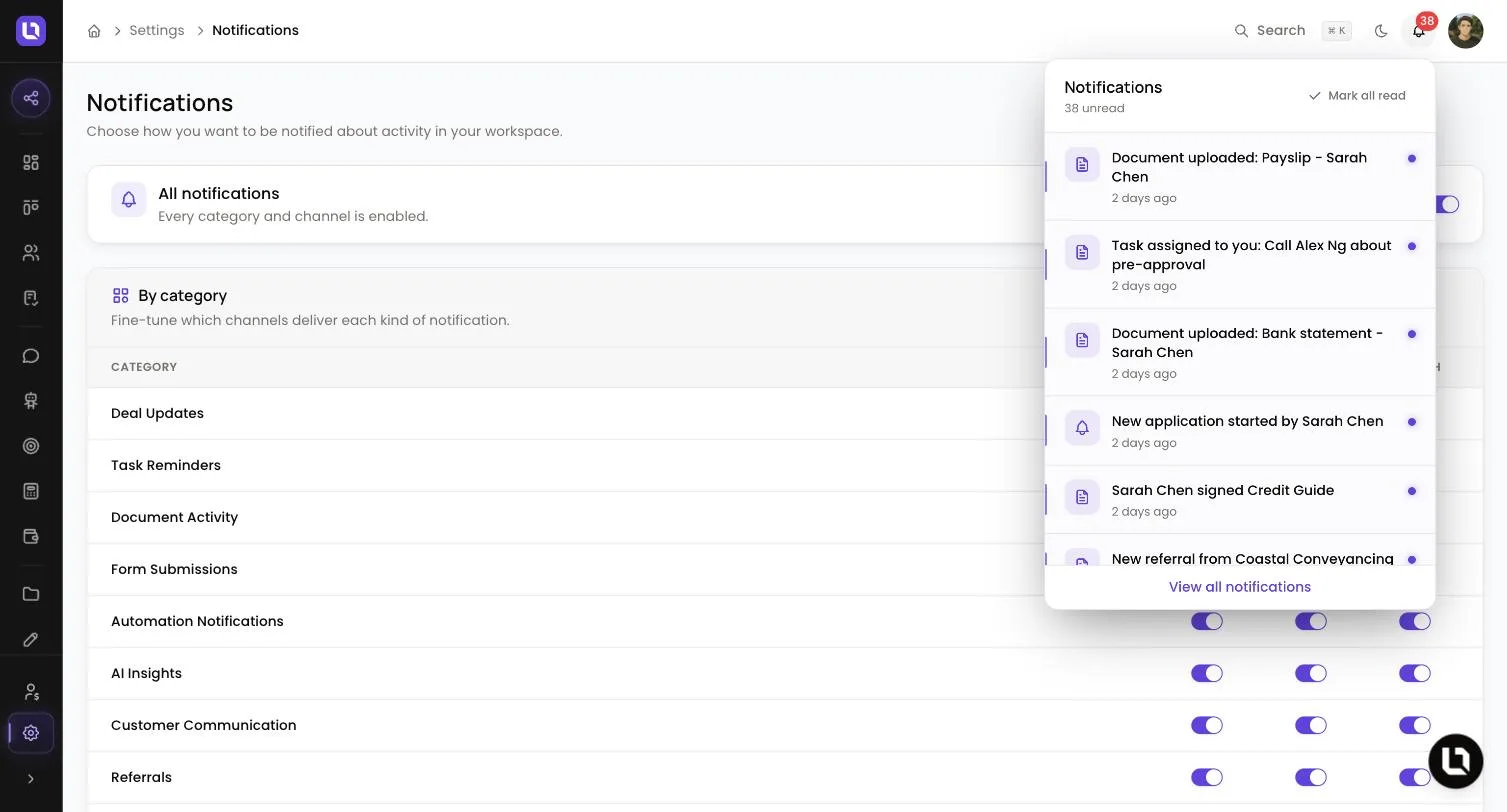
- Under By category, each row is one kind of notification, with a switch under In-app and a switch under Email.
Step 3: Flip the switch
- Turn off In-app to stop that category reaching your bell. The pop-up stops with it.
- Turn off Email to stop the emails for that category.
- Each switch saves as soon as you change it. There is no save button.
To silence everything at once, turn off All notifications at the top of the page. Turn it back on to enable every category again.
Congratulations! Your bell and inbox now carry only what you chose.
Notification categories
Below is a table of categories and what each one covers.
| Category | In-app notifications | Emails the Email switch controls |
|---|---|---|
| Deal Updates | A deal is created for you, changes stage, is updated, or gets a new note. Sent to the assigned broker, never to the person who made the change. | Deal assigned to you, deal updated, note added. |
| Task Reminders | A task is assigned to you, or a task of yours goes overdue. | Task assigned, task overdue. |
| Document Activity | A client uploads a document, an eSign request is signed or declined. | eSign signed, eSign declined. |
| Form Submissions | A form is submitted, or a client asks to edit a submitted form. | Form edit request. |
| Automation Notifications | An automation you created finishes or fails. A failure also notifies the deal's assigned broker. | Automation failed. |
| AI Insights | Lend1 AI completes an action for you or sends you a message, AI credits are added, or AI credits run out. | In-app only. |
| Customer Communication | A client message arrives, a new conversation starts, a conversation is handed off or assigned to you. | See below. |
| Referrals | A new referral is submitted, a referral is matched to a deal, or a note is added to a referral. | The same three events. |
| System Alerts | A client registers, a new lead arrives from the Lead Widget, a client starts or completes an onboarding application, a co-borrower is invited or completes theirs, a compliance document is due for review, your email domain is verified, your subscription is reactivated. | New lead, compliance review due, email domain verified. |
Notifications you can't turn off
A few notifications are sent whatever your switches say:
- Conversations: the emails for a handed off, assigned or reopened conversation. The Customer Communication switch controls the in-app alerts only.
- New deal: the email to the assigned broker when a deal is created in the staff app or by the Lead Widget. A deal that starts from an application link sends the application notifications instead.
- Form submitted: the email that goes with a form submission.
- Completed applications: the email when a client, or every borrower on a deal, finishes onboarding.
- Billing: failed payment and grace period warnings reach the bell and email regardless of System Alerts. Plan limit emails are not affected by it either.
- Task reminders you set yourself: a reminder you add to a task follows the channels chosen on that task.
Please note: the new lead email also depends on the Lead Widget's own Email Notifications setting. It is sent only when that setting is on and your System Alerts email switch is on.
How this differs from System Emails
This page controls what Lend1 sends to you. The emails Lend1 sends to your clients and referrers are edited under Settings > System Emails, covered in Customising your system emails and sender settings.