Updated
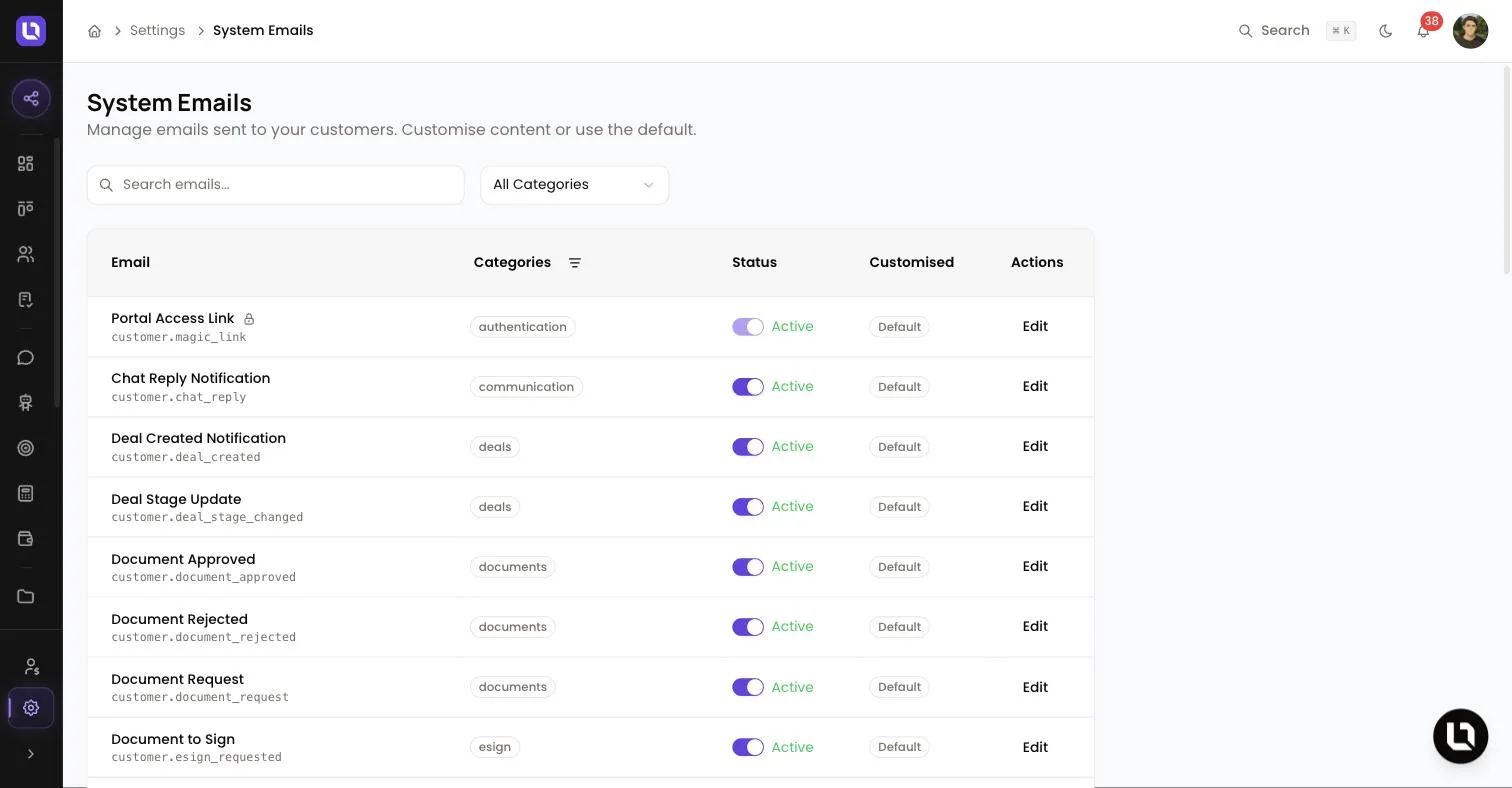
Go to Settings > System Emails, in the Channels group.
System emails are the emails Lend1 sends for you, such as an onboarding invitation or a document request. Each ships with default wording that you can rewrite for your workspace only. Email Settings, in the same group, sets the address they come from and the branded template around them.
Before you start
- Both pages need the Manage Team permission. An admin grants it under Settings > Roles & Permissions.
- System emails send on Lend1's own triggers. Emails you write yourself and send from an automation are email templates: see Writing email templates and global variables.
- The list holds emails to clients and referrers. Notification emails to your own team are Lend1-branded and can't be edited here.
Edit a system email
Step 1: Find the email
- Use Search emails... or the All Categories filter.
- The Customised column shows Default or Customised. An Updated badge means Lend1 has changed its default since you customised yours.
- Select the email's name, or Edit.
Step 2: Rewrite the subject and content
- Subject Line: required, up to 500 characters.
- Email Content: required. Your email layout supplies the header and footer.
- Select Insert Variable in either field to add a merge tag.
Step 3: Preview and save
- Select Preview Email to see the branded email filled with sample data. There is no test send on this page.
- Select Save Changes. Discard drops unsaved edits.
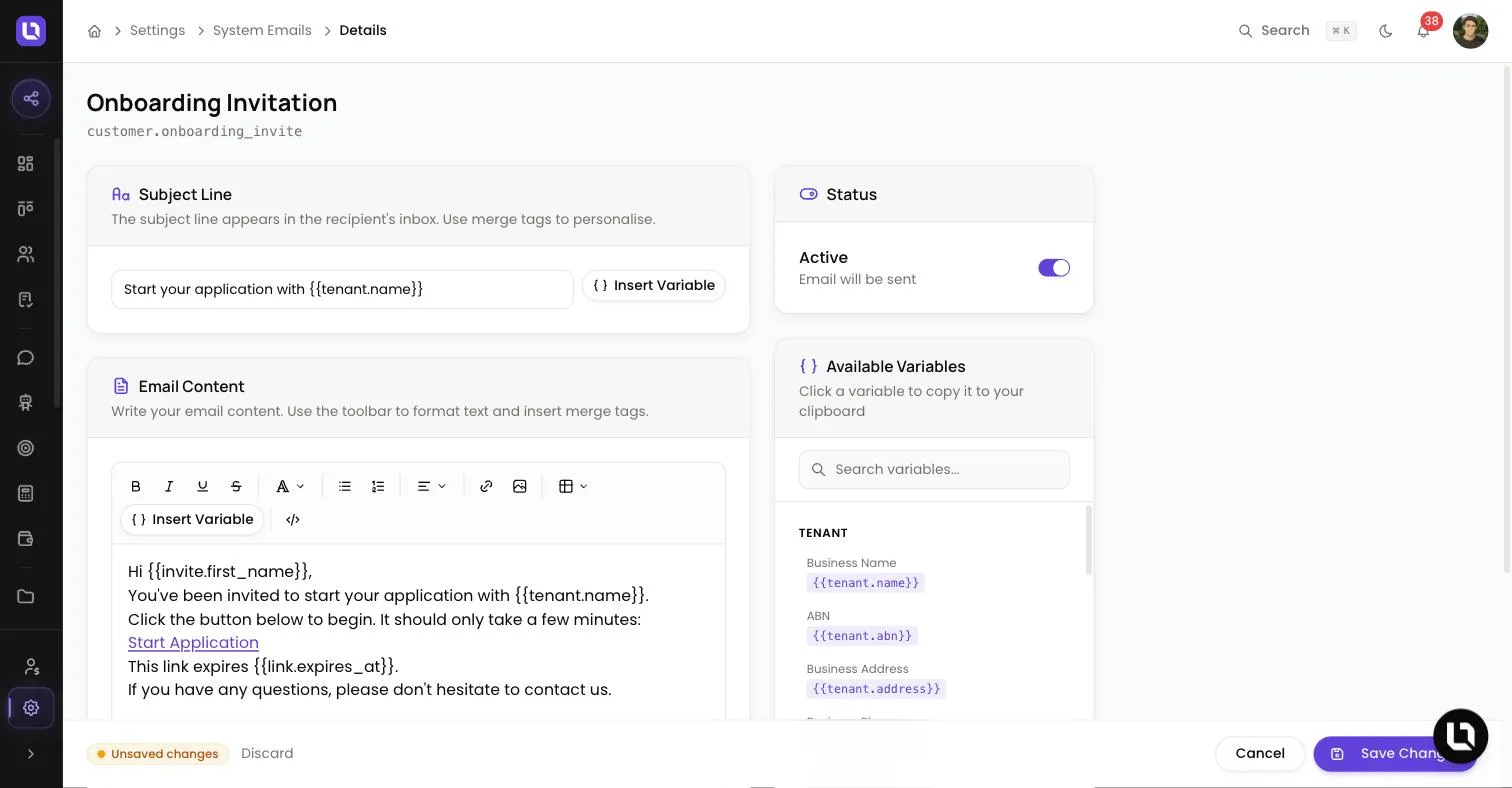
Congratulations! The email is now marked Customised, and every future send uses your wording.
Merge tags and global variables
Insert Variable lists the tags that email supports, then Global Variables and System. The Available Variables card beside the editor shows the same tags; select one to copy it.
- The tag groups differ per email. A login code email offers
{{code.value}}; an invitation offers{{customer.first_name}}and{{tenant.name}}. - Global Variables are the values you create under Settings > Global Variables, such as
{{company_phone}}. - The system variables are
{{current_year}},{{current_date}},{{current_date_short}}and{{platform_name}}.
Please note: a tag with no value behind it is left blank in the sent email.
Turn an email off, or reset it
- The Status switch, on the list and in the Status card, sets an email to Active or Inactive. Changing it marks the email Customised.
- Emails with a padlock are locked. They "cannot be deactivated but their content can still be customised".
- Reset to Default appears on a customised email. It will "restore the platform default template" and can't be undone.
Please note: setting Onboarding Invitation, Application Invitation, Co-borrower Invitation or any of the three reminder emails to Inactive doesn't stop the email. Lend1 sends its built-in version instead, without your edits.
Set your sender details
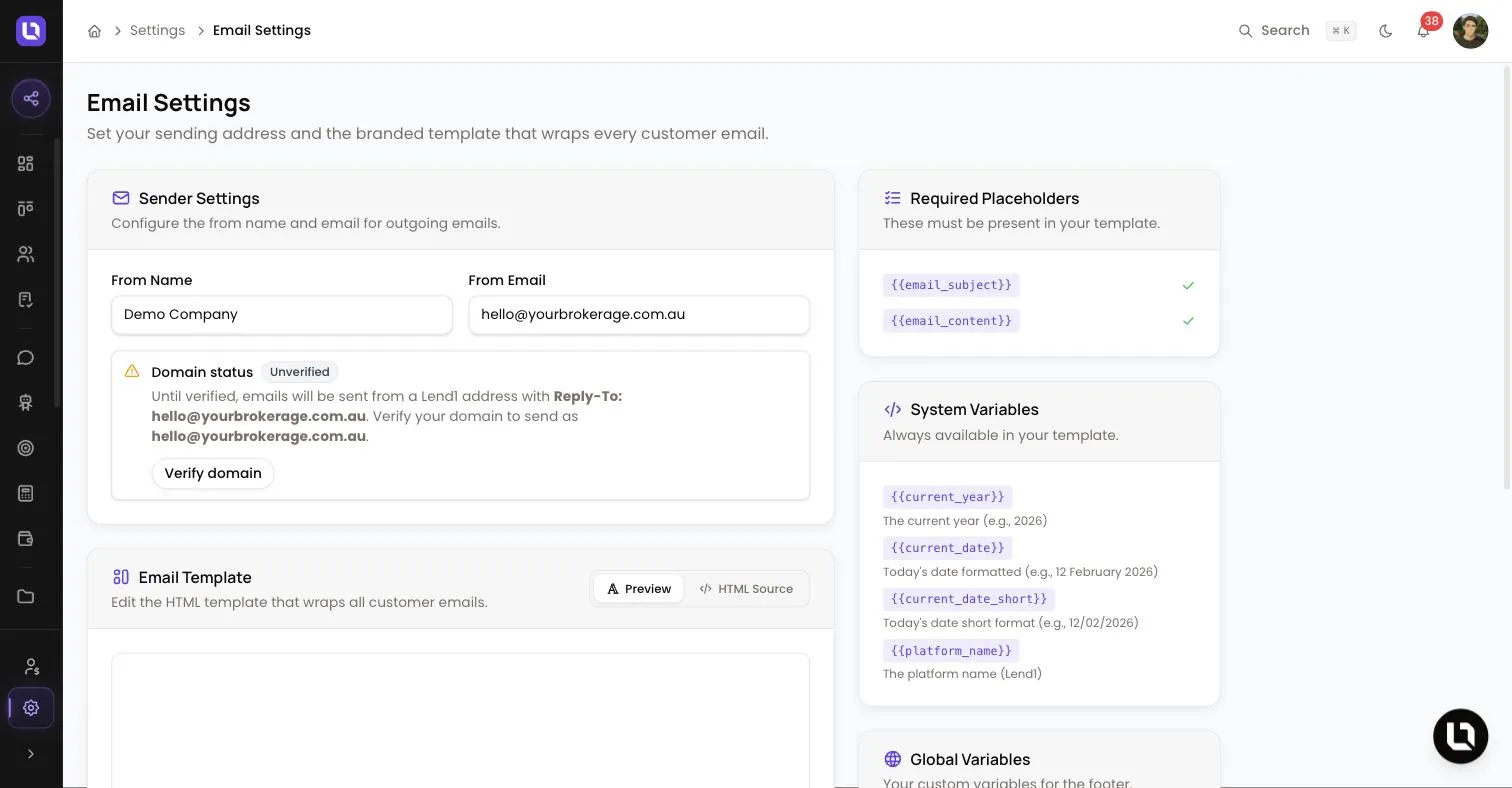
Go to Settings > Email Settings.
Step 1: Enter your sender
- From Name: required, up to 100 characters.
- From Email: required. Select Save Changes.
Step 2: Verify your domain
- Domain status starts as Unverified. Until it is verified, "emails will be sent from a Lend1 address" with your From Email as the Reply-To, so replies still reach you.
- Select Verify domain. The Add DNS records to verify your domain window lists DKIM 1, DKIM 2, Brevo verification and DMARC, each with a name and value to copy.
- Add the records at your DNS provider, then select Recheck. The status shows Pending, and changes "can take up to 48 hours to propagate".
- Once it shows Verified, system emails send from your From Email. If you later change From Email to a different domain, verify that domain too.
Please note: automation emails are wrapped in the same layout, but they don't use your From Name or From Email.
Edit your email layout
The Email Template card on Email Settings holds the HTML wrapped around every client email.
- Switch between Preview and HTML Source to view or edit it.
- Required Placeholders:
{{email_subject}}and{{email_content}}must stay in the template, or it won't save. - The System Variables and Global Variables cards list what else you can use.
- Under Preview & Test, select Preview Template, or enter an address and select the send button to email yourself a test.
- Reset to Default replaces your template with the default and can't be undone.
System emails Lend1 sends
Below is a table of the system emails and when each one sends.
| When it sends | |
|---|---|
| Onboarding Invitation | To a client, when you send an onboarding invite by email. |
| Application Invitation | To a client, with the link to their application. |
| Co-borrower Invitation | To a co-borrower invited to a joint application. |
| Application Invitation Reminder | To a client who hasn't started their application. |
| Onboarding Reminder | To a client who started an application and went quiet. |
| Onboarding Reminder (Final) | To a client, as the last reminder in the schedule. |
| Application Completed | To the primary applicant, when they finish their application. |
| Application Verification Code | To a client verifying their email as they start an application. Locked. |
| Portal Login Code | To a client who asks for a portal login code. Locked. |
| Portal Access Link | To a client, with a link into their portal. Locked. |
| Form Link | To a client, when a form's shareable link is emailed. |
| Form to Complete | To a deal's primary contact, when you send them a form. |
| Form Edit Approved, Form Edit Denied | To a client, when you answer their request to edit a submitted form. |
| Document to Sign | To the signer, when you send an eSign request. |
| Document Request | To a deal's clients, when you request documents. |
| Document Rejected | To a client, when you reject a document on their deal. |
| Chat Reply Notification | To a client, two minutes after a team member replies in web chat. |
| Scheduled Report Delivery | To each recipient of a scheduled report. |
| Referrer Welcome | To a new referrer, with a link to set their password. |
| Referrer Password Reset | To a referrer who asks to reset their password. Locked. |
| Broker Left a Note on Your Referral | To a referrer, when your team adds a note to their referral. |