Updated
Go to Conversations in the sidebar.
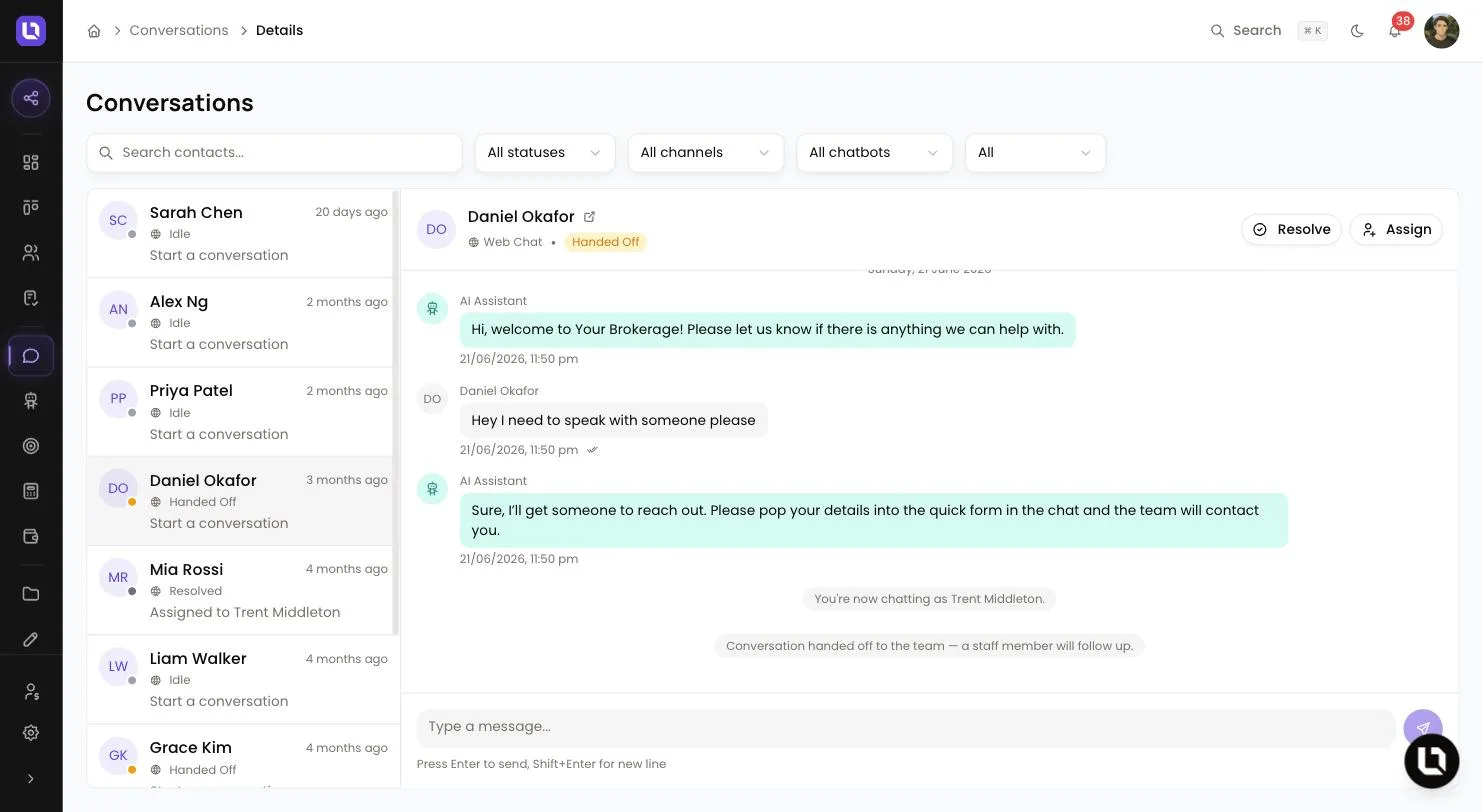
Conversations is the inbox for chats your clients and website visitors have with your chatbot. Every chat lands here with its full transcript, so you can step in and reply as yourself.
Before you start
- Conversations appears in the sidebar for roles with the View Conversations permission. See Creating custom roles and permissions.
- Conversations is a Pro and Enterprise feature. On Starter it shows in the sidebar with a crown. See Managing your plan and billing.
- Everyone with View Conversations sees every conversation in the workspace, not only the ones assigned to them.
How a conversation starts
A conversation starts when someone messages an active chatbot, in the chat widget on your website or in the chat inside your client portal. There is no button to start one from your side. A signed-in portal client is matched to their contact by email. A website visitor shows as Anonymous until they give their details.
Find your way around the inbox
The list is sorted by latest message. Each row shows the client's name, a coloured status dot, the last message and a count of unread client messages. Opening a conversation marks them as read.
Use Search contacts... to search by a contact's first name, last name or email. Four filters sit beside it: All statuses, All channels, All chatbots and an assignment filter with All, Unassigned and Assigned to me. Select Clear to reset them.
Below is a table of statuses and what each one means.
| Status | What it means |
|---|---|
| Active | The chat is open and the chatbot answers new client messages. |
| Awaiting Customer | A team member has replied and the client has not answered yet. |
| Handed Off | The chat has been passed to your team and the chatbot has stopped replying. |
| Idle | An Active chat with no activity for 120 minutes. |
| Resolved | The chat is closed. The message box is locked. |
The header of an open conversation shows the channel, the status and who it is assigned to. Select the icon beside the client's name to View contact, or View Deal when the conversation is linked to a deal. Chatbot messages are labelled AI Assistant and yours carry your name.
Reply to a message
Step 1: Open the conversation
- Select it in the list.
Step 2: Stop the chatbot if it is still answering
- Select Handoff. The status changes to Handed Off and the chatbot stops replying.
Step 3: Write and send
- Type in Type a message... and press Enter, or select the send button. Shift+Enter adds a new line. Replies are text only, up to 50,000 characters.
Please note: your reply moves the conversation to Awaiting Customer. When the client answers, it returns to Active and the chatbot replies again. Select Handoff again if you want to keep answering yourself.
Congratulations! Your reply is on its way to the client.
How your client receives your reply
Below is a table of where your reply goes and when.
| Where | What happens |
|---|---|
| The chat window | Your reply appears in the same chat on your website or in the client portal. |
| Two minutes after your reply, Lend1 sends the Chat Reply Notification email, quoting your latest reply, to the contact's email address. Several replies inside two minutes share one email. A visitor with no email on file does not get one. |
To change its wording, see Customising your system emails and sender settings.
Assign or hand over a conversation
- Select Assign to open Assign Conversation. Use Search team members..., select a name, then select Assign.
- The new assignee gets an in-app notification and an email with a link to the conversation, unless you assigned it to yourself.
Please note: Handoff clears the current assignee and alerts everyone with View Conversations. To pass a chat to one person, select Handoff first and then Assign.
Resolve and re-open
- Select Resolve when the chat is finished. The message box shows Conversation resolved.
- Select Re-open to make it Active again.
- A new client message re-opens a resolved conversation. Lend1 emails the assigned team member, or everyone with View Conversations if nobody is assigned.
How you are told about new messages
- Purple dot: Conversations in the sidebar shows a purple dot while any client message is unread. Lend1 checks every 60 seconds.
- New message: an in-app notification goes to the assigned team member, or to everyone with View Conversations when nobody is assigned.
- New conversation: everyone with View Conversations gets an in-app notification.
- Handoff: when a team member or the chatbot itself hands a chat off, everyone with View Conversations gets an in-app notification and an email.
- In-app alerts follow the Customer Communication category under Settings > Notifications.
- Automations: the Message Received trigger starts a workflow when a client message arrives.
SMS and email conversations
The All channels filter lists Web, SMS and Email, but chatbots you create run on Web Widget only. The chatbot form says "SMS & Email channels coming soon." SMS Copilot under Settings is a separate feature: your team texts a dedicated number and Copilot answers from your CRM. It is a channel for your team, not for clients.