Updated
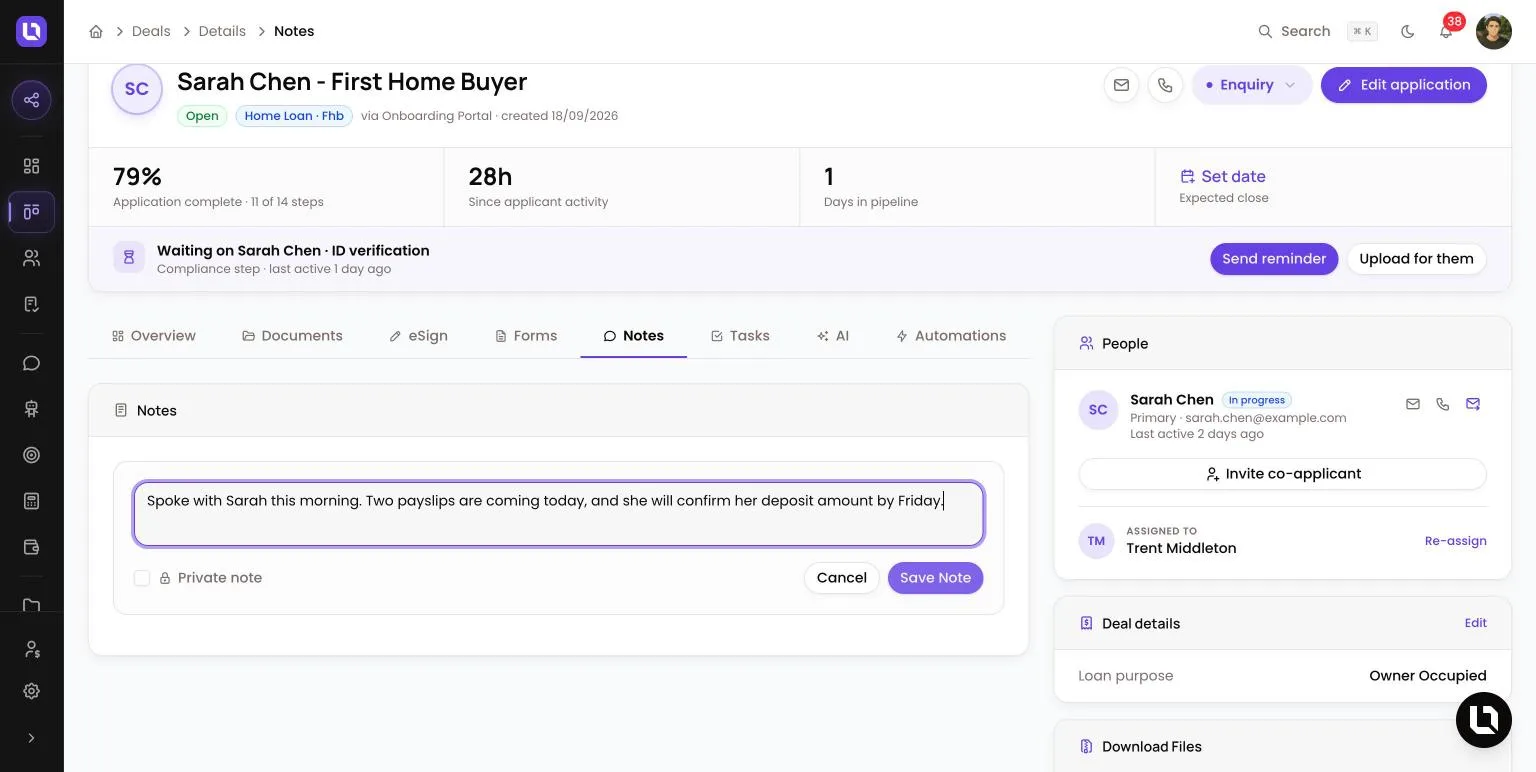
Go to Deals in the sidebar, open a deal, then select the Notes tab.
A note is a piece of plain text your team keeps against a deal or a contact: a call summary, a lender's answer, something to remember at the next review. Notes are for your team. Your client never sees them, and neither does a referrer.
Deal notes and contact notes are separate lists. A note you add to a deal does not show on the contact's Notes tab, and a contact note does not show on that contact's deals.
Before you start
- Anyone who can open a deal or a contact can read, add, edit and delete its notes. There is no separate notes switch on the Notes tab: if you can see the record, you can see its notes.
- Lend1 AI is stricter. It reads a deal's notes only if your role holds View Notes, and adds one only if your role holds Create Notes. The Admin, Broker and Support roles hold both.
- Please note: the role editor under Settings > Roles & Permissions does not list the notes permissions, so a custom role cannot be given them. A team member on a custom role can still work with notes by hand, but Lend1 AI refuses to read or add notes for them.
Add a note to a deal
Step 1: Open the composer
- On the deal's Notes tab, select Add Note.
- From the Deals board or list, you can also open the menu on a deal and select Add Note without opening the deal.
Step 2: Write the note
- Type in the Write a note... box. Notes are plain text. Line breaks are kept. There is no formatting, no @mentions and no attachments.
Step 3: Save
- Select Save Note. The note joins the list, newest first, with your name and how long ago it was added. The three most recent notes also show under Recent Notes on the deal's Overview tab.
Please note: the composer has a Private note tick box. It does not hide the note from anyone. Every team member who can open the deal can still read it, so do not rely on it for anything sensitive.
Congratulations! The note is saved on the deal for everyone on your team who can open it.
Add a note to a contact
Step 1: Open the contact's notes
- Go to Contacts, open the contact and select the Notes tab, then Add Note. The Add Note button under Quick Actions on the right opens the same composer.
Step 2: Write and save
- Type the note and select Add Note. The contact's Recent Activity shows Note added with your name.
Edit or delete a note
- Open the menu on the note and select Edit, change the text and select Save. An edited note is not marked as edited.
- Select Delete, then confirm in the Delete Note dialog. A deleted note cannot be restored.
- You can edit or delete any note on a record you can open, not only your own. Each add, edit and delete is recorded in the audit log. See Reviewing the audit log.
Who can see your notes
- Your team: every team member who can open the deal or contact.
- Your client: never. The client portal has no notes page.
- A referrer: never. The referrer portal shows only the referral's own Notes card, which is a different thing.
- Connective Mercury Nexus: if the deal or contact is synced, its notes are copied to Mercury, and notes written in Mercury come back into Lend1. See Connecting Connective Mercury Nexus.
- AI insights and lead scoring read the opening of a deal's recent notes when they assess the deal.
Deal notes and a referral's Notes card
Below is a table of the two kinds of note and who each one is for.
| Where you write it | Who reads it |
|---|---|
| Notes tab on a deal or contact | Your team only. Use it for anything internal. |
| Notes card on a referral | Your team and the referrer, in their portal. The card says Shared with the referrer. |
Who is notified
- A new deal note sends the deal's assigned broker an in-app notification and an email. Nothing is sent when the assigned broker wrote the note, and nothing is sent for edits or deletes.
- The email follows the broker's Deal Updates setting. See Choosing your notifications.
- Contact notes notify no one.
Notes added by Lend1 AI and automations
- Ask Lend1 AI to add a note to a deal or contact and it shows you the note to confirm first. Once you confirm, the note is saved under your name, exactly as if you had typed it.
- The Add Note action in an automation saves its note with no author, so it is listed under Unknown. Its Pin note switch keeps the note at the top of the list. Notes that arrive from Mercury are also listed under Unknown.