Updated
Go to Calculators in the sidebar.
Lend1 comes with five ready-made calculators. You don't build them: you adjust their wording and slider ranges, then paste a snippet into your website. Results update as a visitor moves the sliders, in your brand colours and fonts. A visitor can also ask for a link to start an application, which creates a contact and sends an onboarding invite.
Before you start
- You need the Manage Calculators permission. An admin grants it under Settings > Roles & Permissions. See Creating custom roles and permissions.
- Calculators are included in Pro and Enterprise. On Starter, Calculators stays in the sidebar, dimmed, with a crown, and opens a page headed Included in Pro and Enterprise. See Managing your plan and billing.
- You need access to your website's HTML.
Calculators in Lend1
Below is a table of calculators, in tab order, and what each one works out.
| Calculator | What it works out |
|---|---|
| Borrowing Power | An amount under "You could borrow up to", from income, living expenses, existing debts, Interest Rate and Loan Term. |
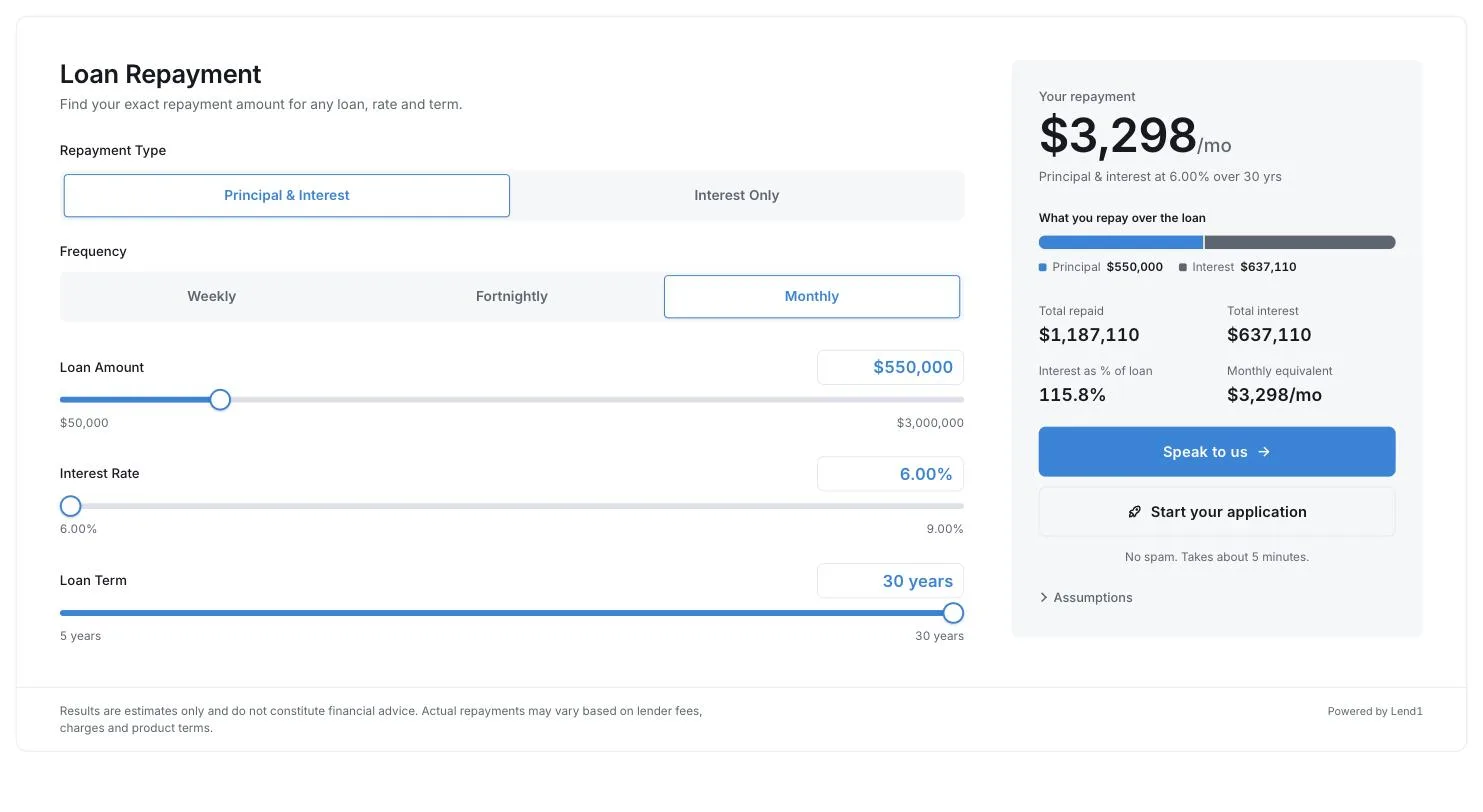
| Repayments | The repayment for a loan amount, rate and term. Visitors choose Principal & Interest or Interest Only, and Weekly, Fortnightly or Monthly. |
| Stamp Duty | "Stamp duty payable" for one state or territory that you choose, by Buyer Type, Property Type and Purchase Purpose. |
| Extra Repayments | Interest and time saved by an Extra Monthly Repayment or a One-Off Lump Sum. |
| Offset Savings | Interest saved over the loan by an Offset Balance. |
Visitors set their own interest rate, within the slider range you allow.
Set up a calculator
Step 1: Open its tab
- Select the calculator's tab. The Enabled switch takes that calculator off your website everywhere when it is off.
Step 2: Set the wording
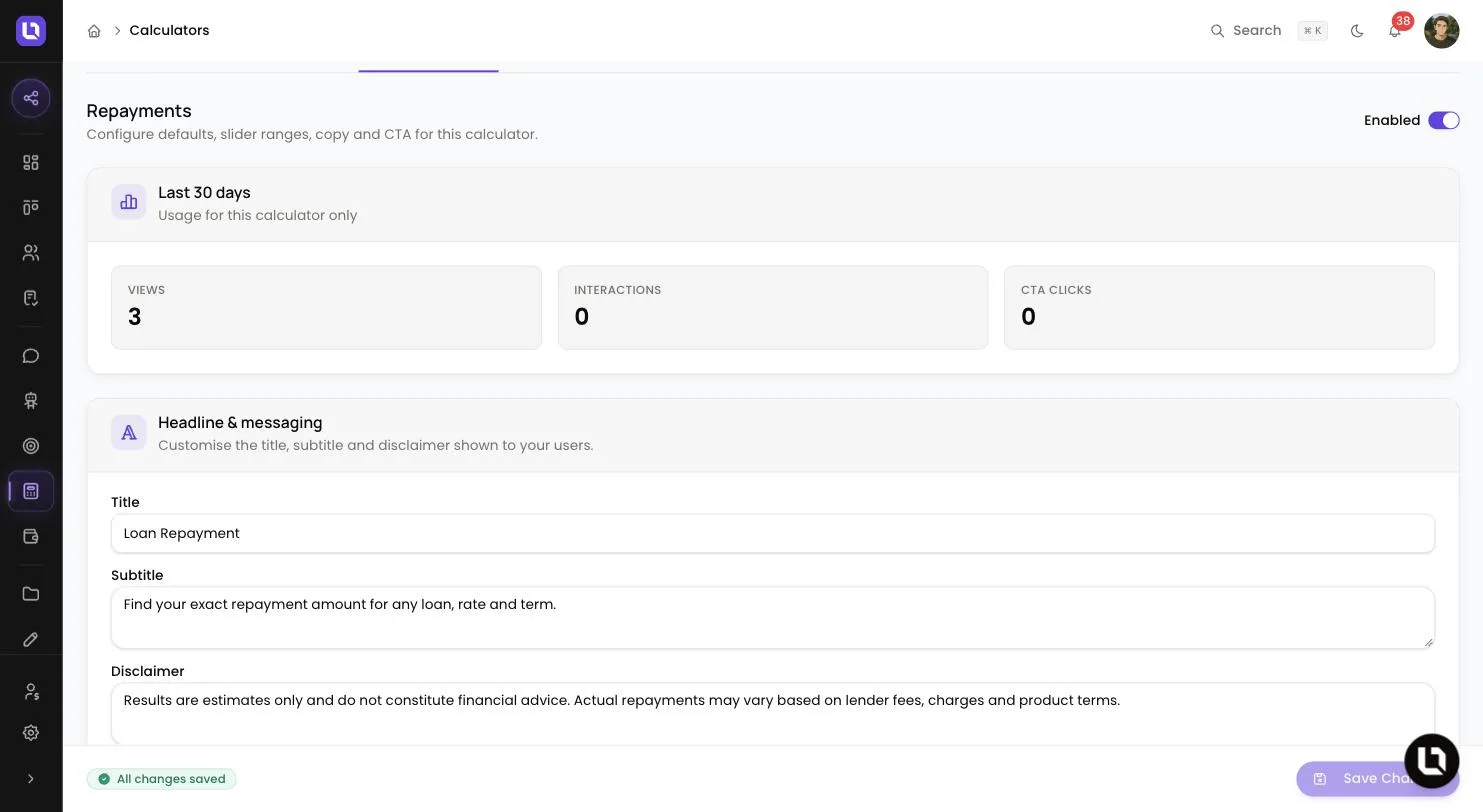
- Under Headline & messaging, edit Title, Subtitle and Disclaimer. Each calculator ships with a default disclaimer, shown under the calculator. Read it before you publish.
- On Stamp Duty, choose State / Territory. "Visitors don't choose a state."
Step 3: Set the sliders
- Open Field defaults. For each slider, set Min, Max, Step and Default. Option lists such as Loan Term and Frequency can't be changed.
- Select Save Changes.
Add a call to action and application invite
Select the General tab. These settings apply to every calculator.
- Default CTA: enter a CTA URL and a CTA Label to show a button beside the results that opens that page. The button needs both.
- Application invite: switch it on to show a second button. Edit Button label (default "Start your application") and Helper text, then select Save Changes.
When a visitor selects the invite button, a short form opens beside their results asking for Email, Name (optional) and Phone (optional). When they select Send my link:
- Lend1 looks for a contact with that email. If it finds one, it only fills that contact's blank fields. Otherwise it creates a contact with the source Calculator, and the Contact Created automation trigger fires.
- Lend1 emails the visitor your onboarding invite, valid for 14 days. It appears on the Invites page, recorded against your earliest active admin.
- The visitor sees "Check your email".
Please note: the invite does not create a deal, does not assign the contact to a broker and does not notify your team. Use a Contact Created automation if you want an alert or a task. The visitor's results are not emailed to them or saved.
Embed it on your website
Step 1: Say which websites may show it
- On the General tab, under Allowed origins, enter one website address per line, such as
https://your-website.com.au, then select Save Changes. With none added, Lend1 uses your Business website from Settings > Organisation. A page on any other website shows "Calculator embed not allowed from this domain".
Step 2: Copy a snippet
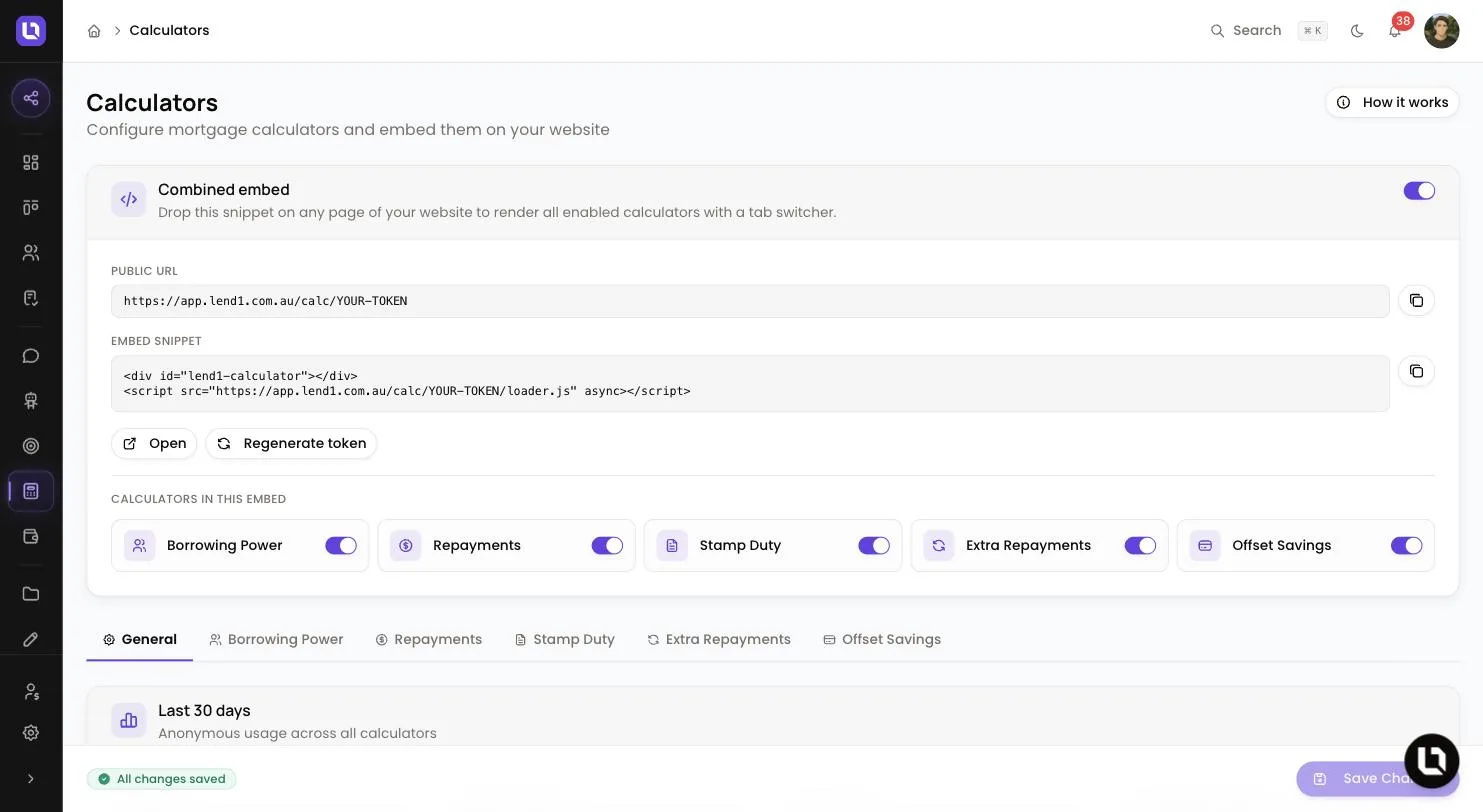
- Combined embed, at the top of the page, shows every calculator you switch on under Calculators in this embed, with tabs to move between them.
- Single-calculator embed, at the bottom of each calculator's tab, shows that calculator only.
- Select the copy button beside Embed snippet. The combined snippet looks like this:
<div id="lend1-calculator"></div>
<script src="https://app.lend1.com.au/calc/YOUR-EMBED-TOKEN/loader.js" async></script>
Step 3: Paste it into your page
- In your website editor, add a block that accepts custom HTML where the calculator should sit, paste both lines, then save and publish. The calculator sizes itself to fit.
- Public URL links to the same calculator on a page of its own.
Changes you save in Lend1 show on your website without pasting the snippet again.
Please note: the switch on Combined embed turns every calculator off, single embeds included. Regenerate token stops every snippet already on your website from working until you replace it.
Check it is working
- Copy the Public URL and paste it into a new tab to preview it, then load your own page and move a slider. Please note: Open shows a blocked message, because the link is followed from inside Lend1. Copy the Public URL and paste it into a new tab instead. See Fixing an embed that won't show on your website.
- Last 30 days on the General tab counts Views, Interactions, CTA clicks and Onboarding started. Each calculator's tab has its own counts.
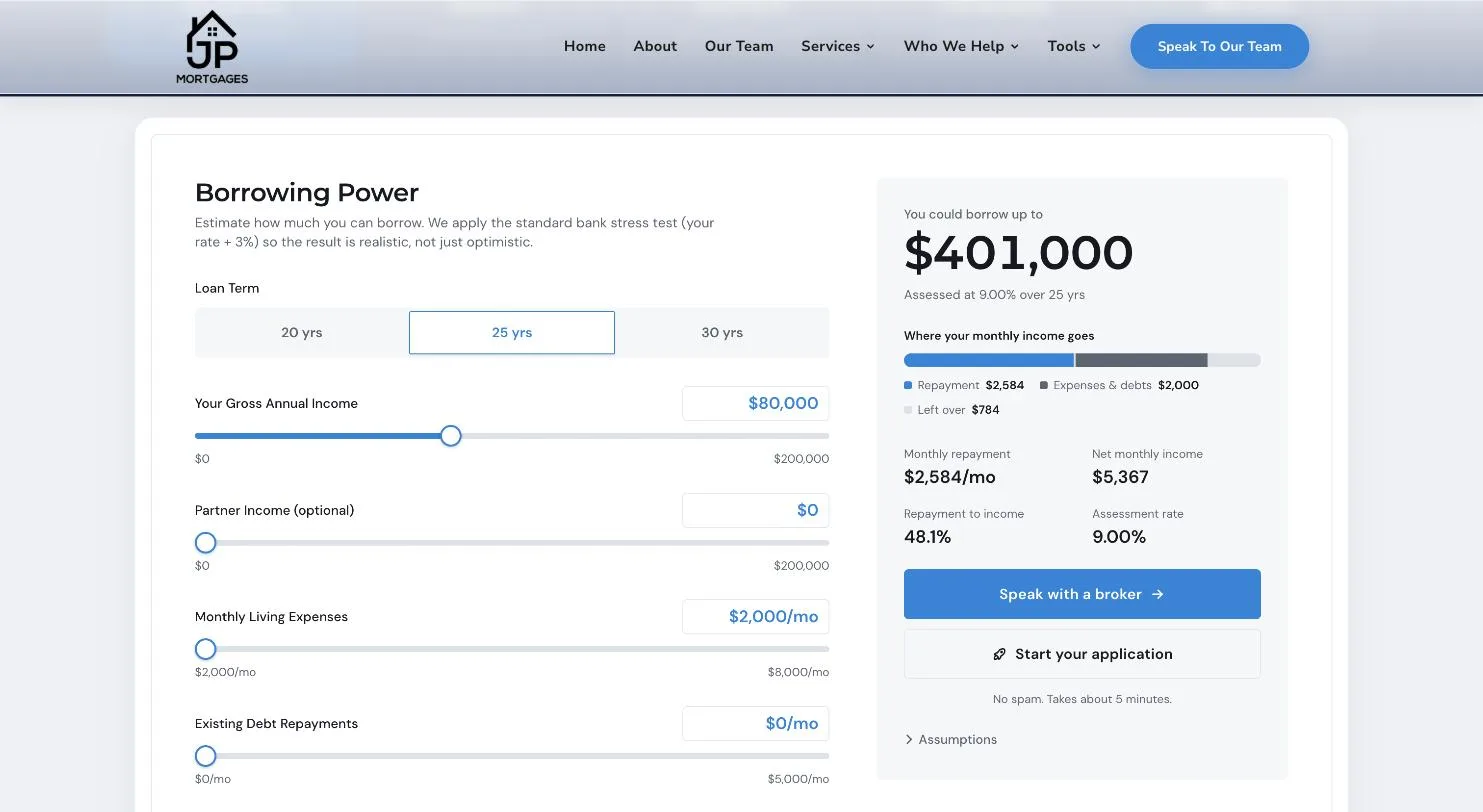
Congratulations! Your calculators are live on your website.